
Before you start
Make sure all three of these are true:
- Your Client Key is saved on AIQ Ecommerce Products → API Settings → General.
- Test Connection on the Tools & Debug tab passes.
- At least one venue is ticked on the Venues tab.
If any of those is not done, go back to Connecting Your Store first.
Running your first sync
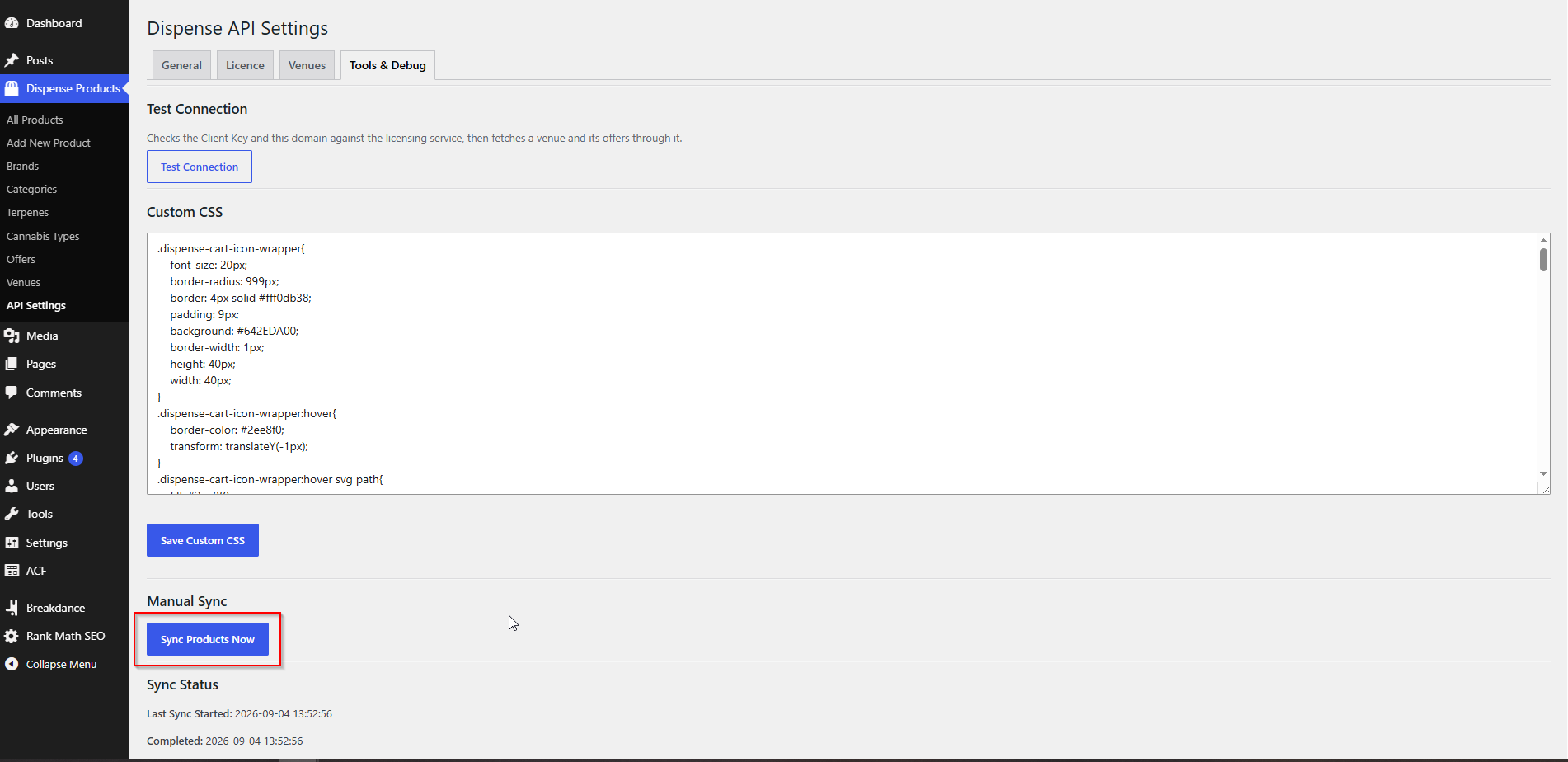
- Go to AIQ Ecommerce Products → API Settings → Tools & Debug.
- Scroll to Manual Sync.
- Click Sync Products Now.
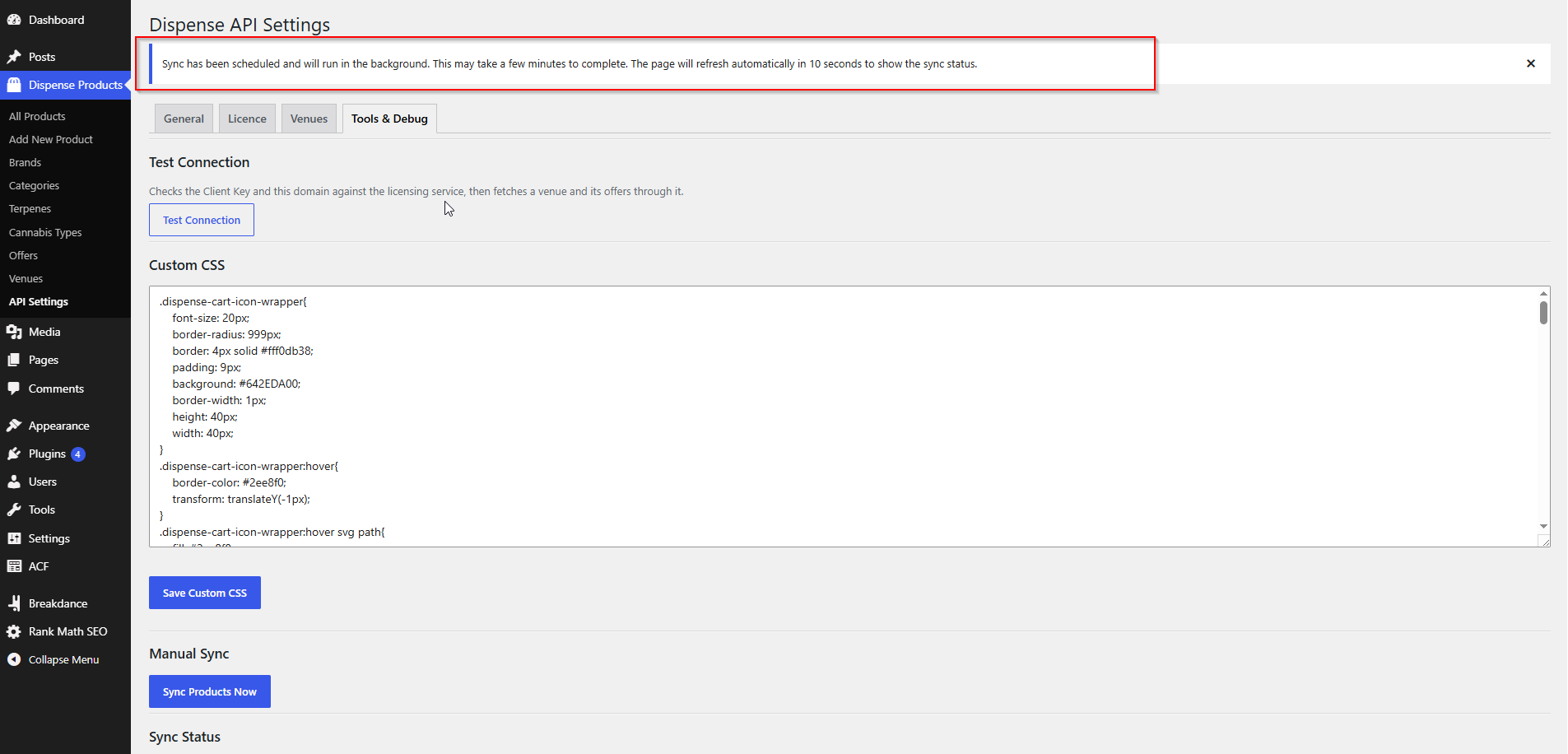
You will immediately see a blue notice:
The sync does not run in your browser. It is queued as a background job, so you can close the tab and it will keep going. The page reloads itself after ten seconds so you can watch progress.
How long it takes
It depends on how many products you have and how quickly your host can talk to the licensing service.
| Catalogue size | Typical first sync |
|---|---|
| Up to 250 products | Under 2 minutes |
| 250–1,000 products | 2–6 minutes |
| 1,000–3,000 products | 6–20 minutes |
The first sync is slower than later ones because every product is new, so every one has to be created rather than compared and skipped.
Products are fetched 100 at a time, with a short pause between pages and between batches of products, so the sync stays gentle on both your server and the API. It gives itself up to five minutes of PHP execution time per run, and the stale-product cleanup at the end stops after about 200 seconds rather than running away. On a very large catalogue that means a run can be cut short — the next run picks up where it left off, and nothing is lost or deleted because of it.
Checking that it worked
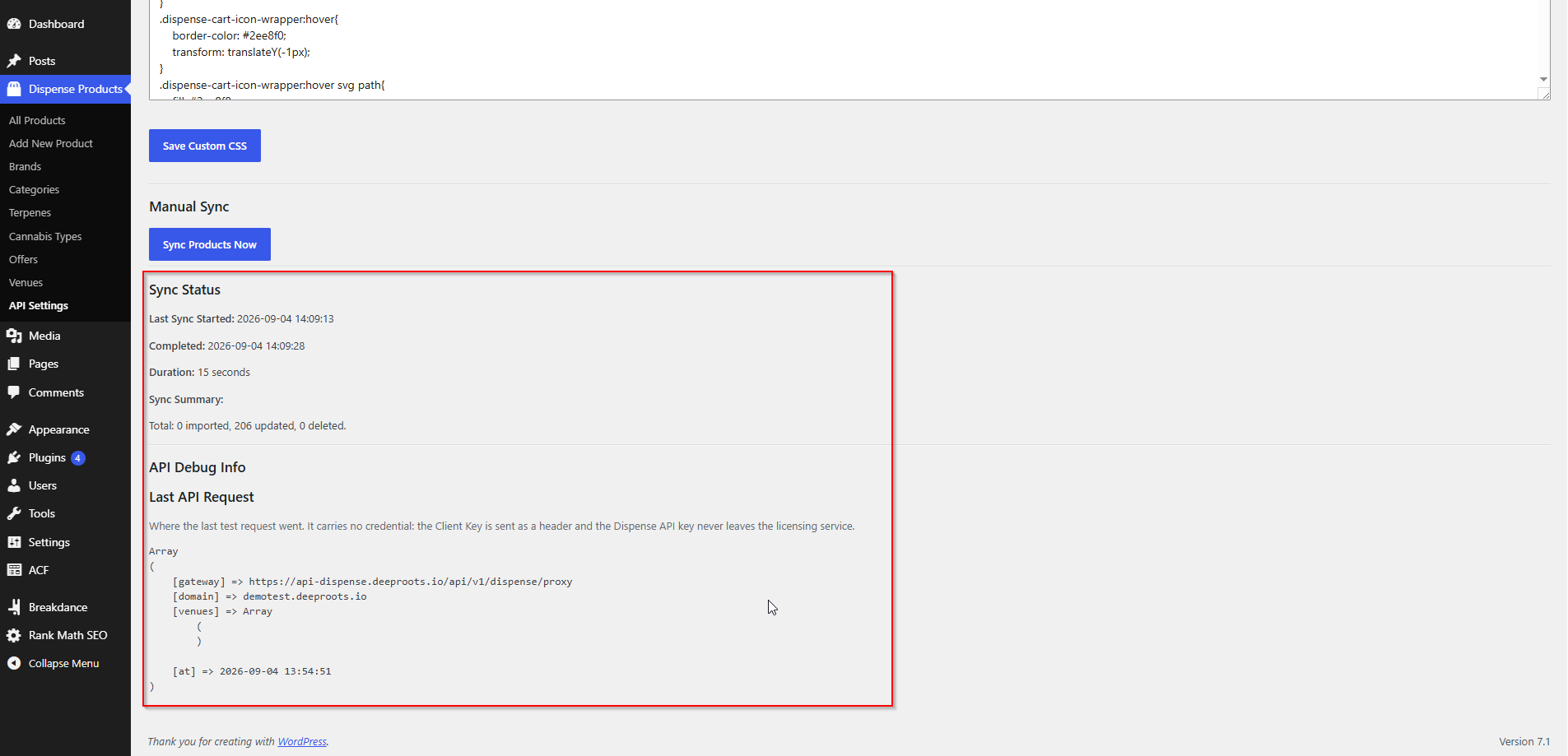
Stay on Tools & Debug and look at the Sync Status section. After a completed run it shows:
| Line | Meaning |
|---|---|
| Last Sync Started | When the run began |
| Completed | When it finished — if this is missing, it is still running |
| Duration | How long it took |
| Sync Summary | Totals: imported, updated and deleted |
A healthy first sync looks something like:
While it is still running you will see:
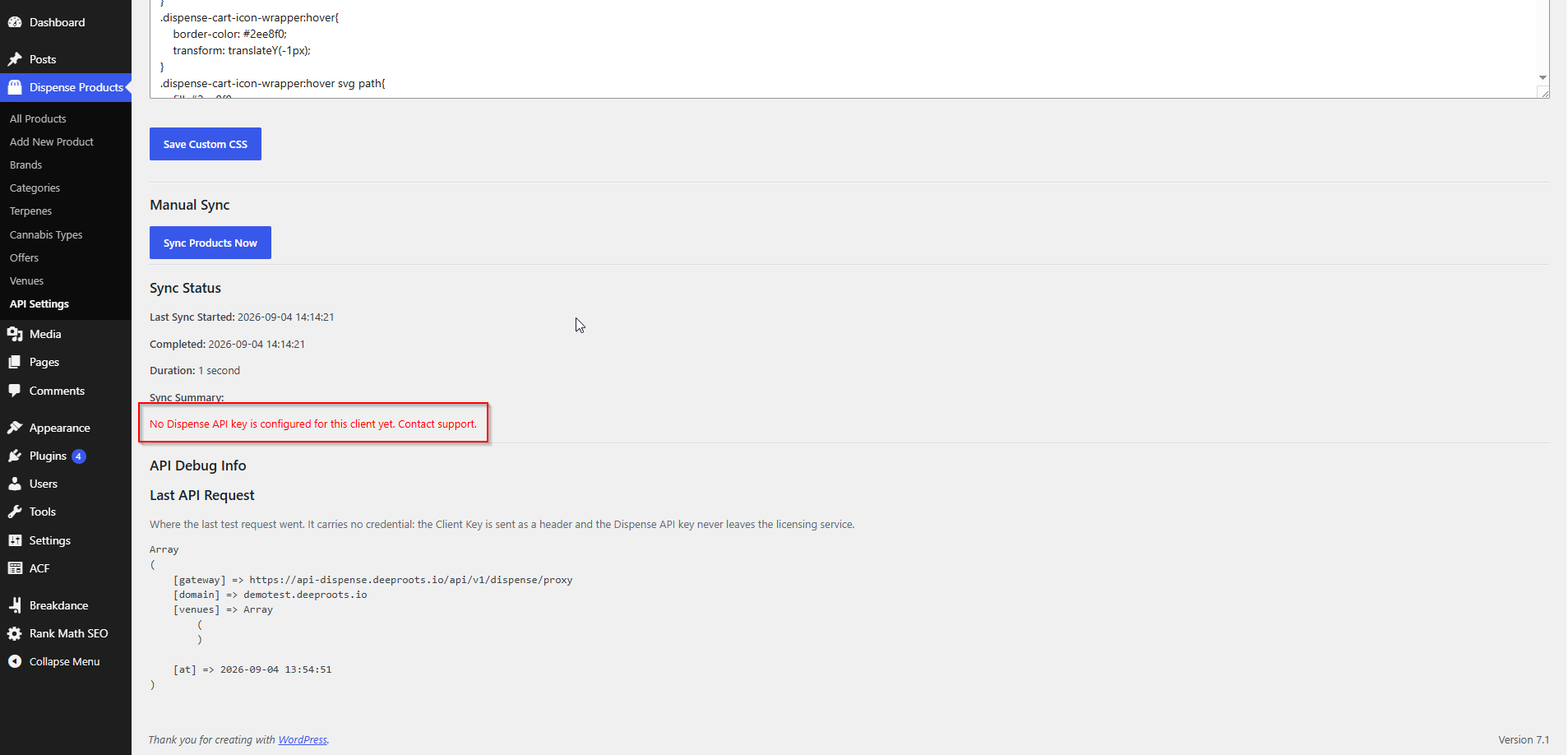
If something went wrong, the summary shows a red error line instead of the totals. Look it up in Error Messages Explained.
Where your products now live
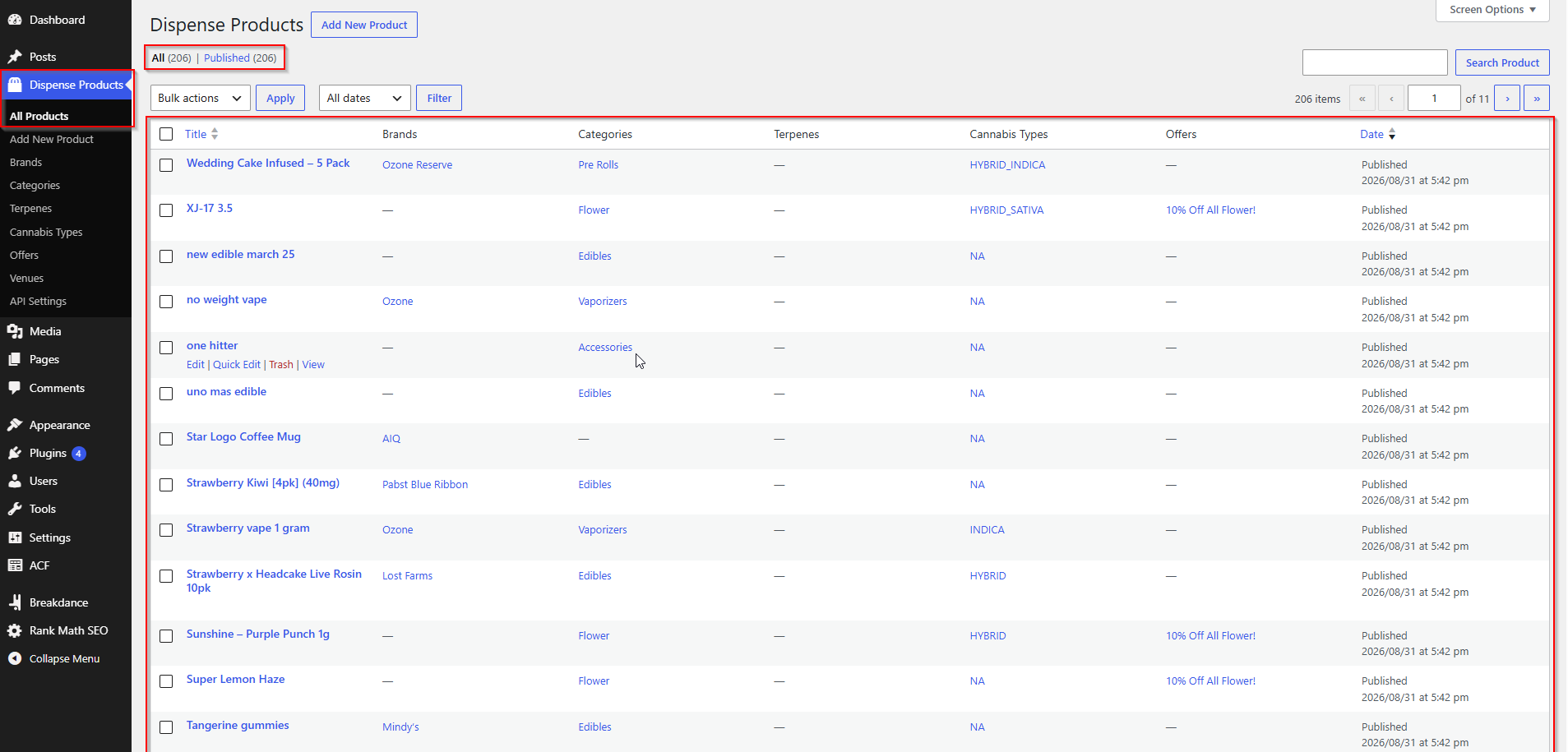
Go to AIQ Ecommerce Products → All Products. Every imported product is a WordPress post of type dispense_product, with:
- The product name as the post title
- The AIQ Ecommerce description as the post content
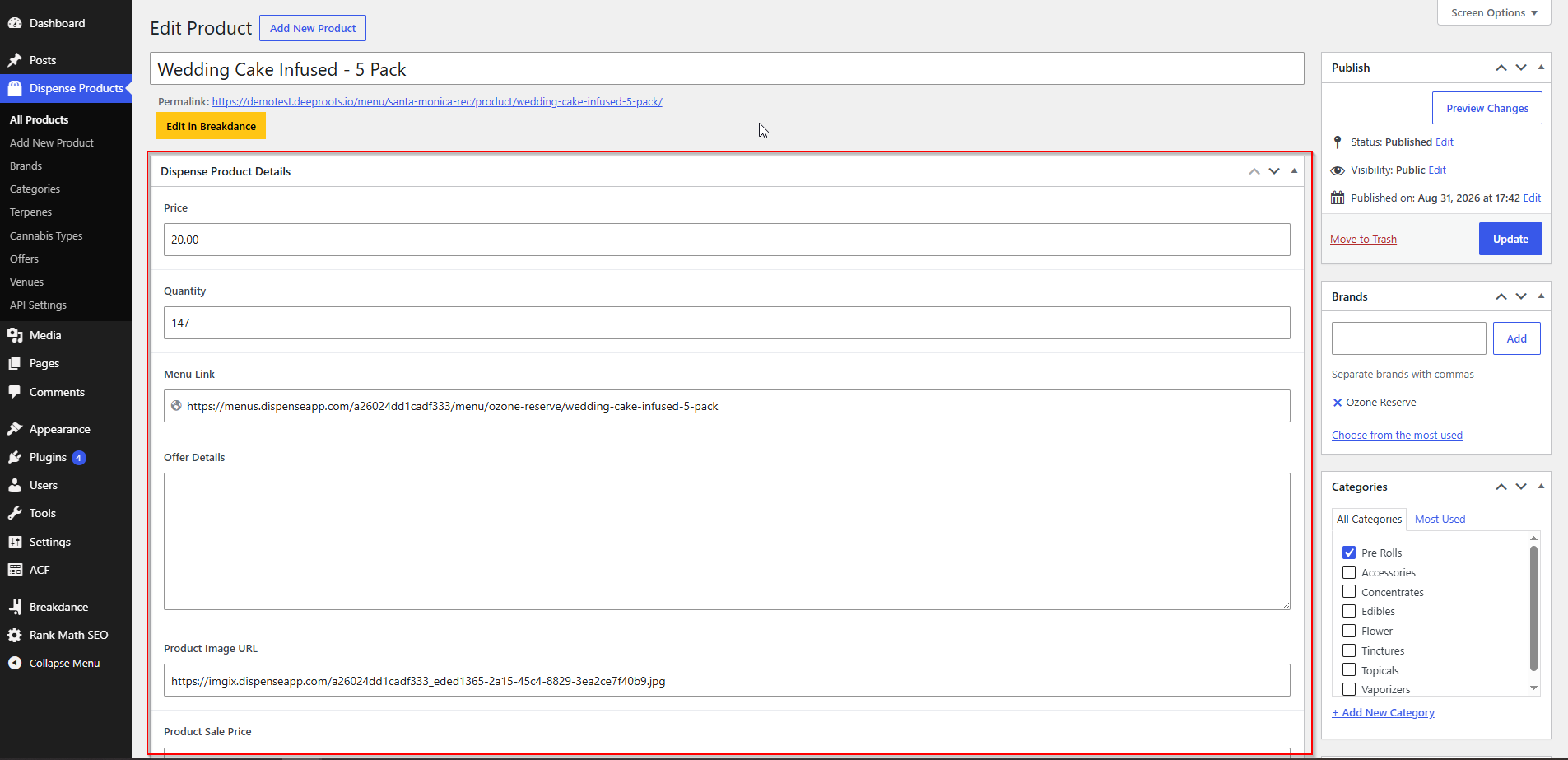
- Price, stock quantity, sale price, image URL, menu link and offer names as custom fields
- Brand, category, cannabis type, terpenes and venue assigned as taxonomy terms
Open any product and you will see a Product Details panel with the imported values.
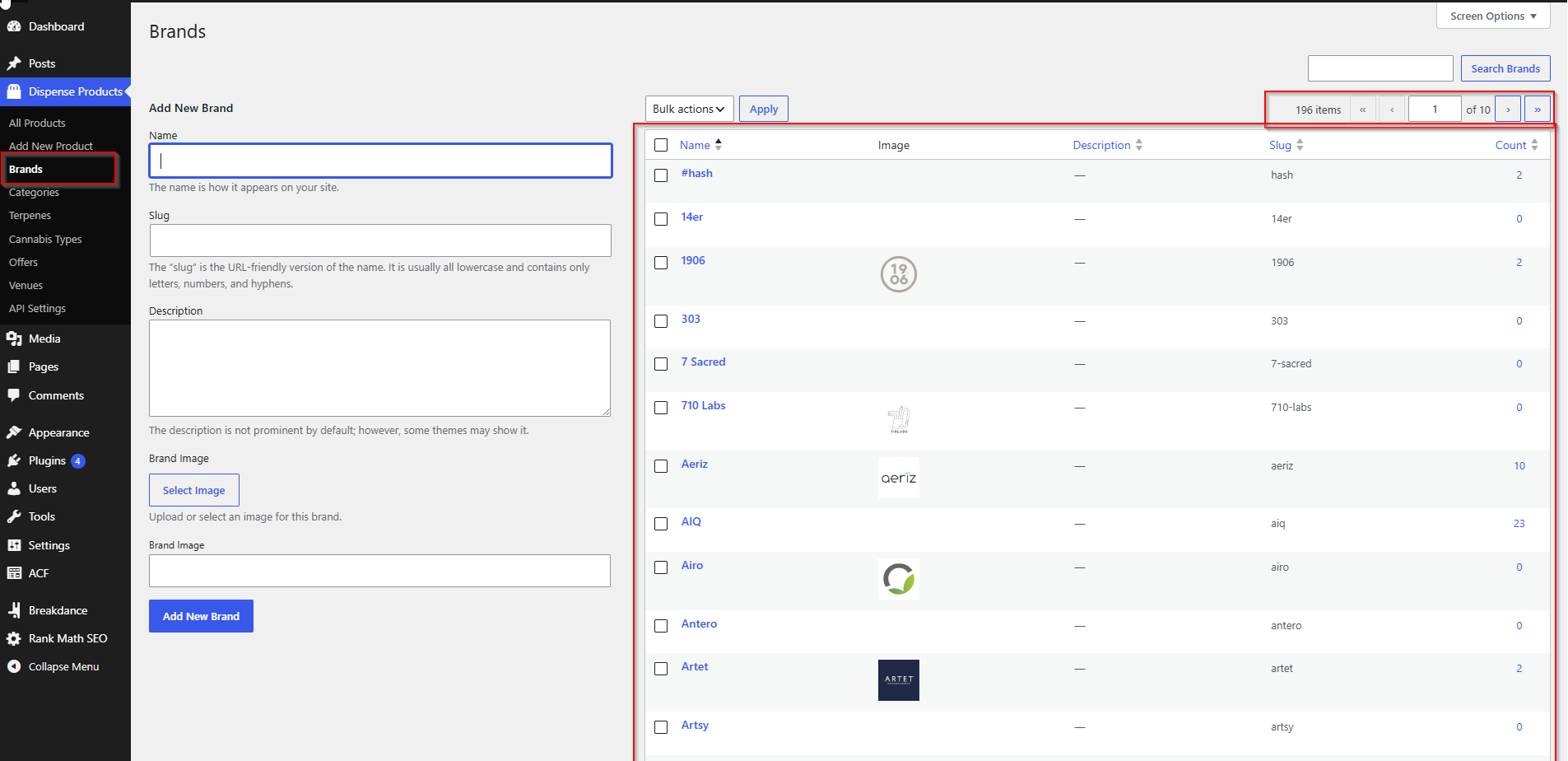
Alongside the products, the sync also creates:
- Brands under AIQ Ecommerce Products → Brands
- Categories under AIQ Ecommerce Products → Categories
- Offers under AIQ Ecommerce Products → Offers
- Terpenes and Cannabis Types
- Venues as both a post type and a taxonomy
What to do next
Now that data is flowing, the setup work divides in two.
If you are building a full storefront
- Confirm Plugin Mode is set to Full storefront on the General tab.
- Set the Checkout Page to the auto-created Checkout page.
- Add
[dispense_cart_icon]to your header and[dispense_view_cart]where you want the cart sidebar. - Add
[dispense_add_to_cart]to your product template.
Start with Setting Up the Cart.
If you are displaying products only
- Set Plugin Mode to Sync only on the General tab.
- Build product cards with your page builder’s query loop over
dispense_product. - Point each card’s link at the Menu Link field (
dispense_product_menu_link).
Start with Choosing Your Plugin Mode.
Either way
- Decide your URL structure before you launch — changing it later changes every product address.
See URL Structure & Page Addresses.
- Configure your caching plugin. This matters more than people expect: cached pages will show stale prices and stock. See Caching & Site Speed.
- Check the sync interval suits how often your stock moves.
Common problems
The sync never completes — it just says 'Sync in progress'.
The background job is scheduled through WP-Cron, which only runs when someone visits the site. On a brand new site with no traffic, nothing triggers it. Open the site front end in another tab, or ask your host to set up a real cron job.
It imported far fewer products than I expected.
Check the Venues tab — only ticked venues are imported. Also check the products are actually published and in stock in AIQ Ecommerce.
Products imported but every one is missing its image.
Images are served from AIQ Ecommerce by URL, not stored on your site, so check that your product template actually outputs the dispense_product_image_url field. If it does and pictures are still missing, open one of those URLs directly in a browser — if it does not load there either, the image is missing in AIQ Ecommerce.
The sync summary shows a red error.
Look the message up in Error Messages Explained. Whatever it says, nothing has been deleted — a failed sync never removes products.
Products appear in the admin but visiting one gives a 404.
Permalinks need re-flushing. Go to Settings → Permalinks and click Save Changes without altering anything.