
The decision in one line
Buy on your website → Full storefront. Buy on the hosted menu → Sync only.
Set it at AIQ Ecommerce Products → API Settings → General → Plugin Mode.
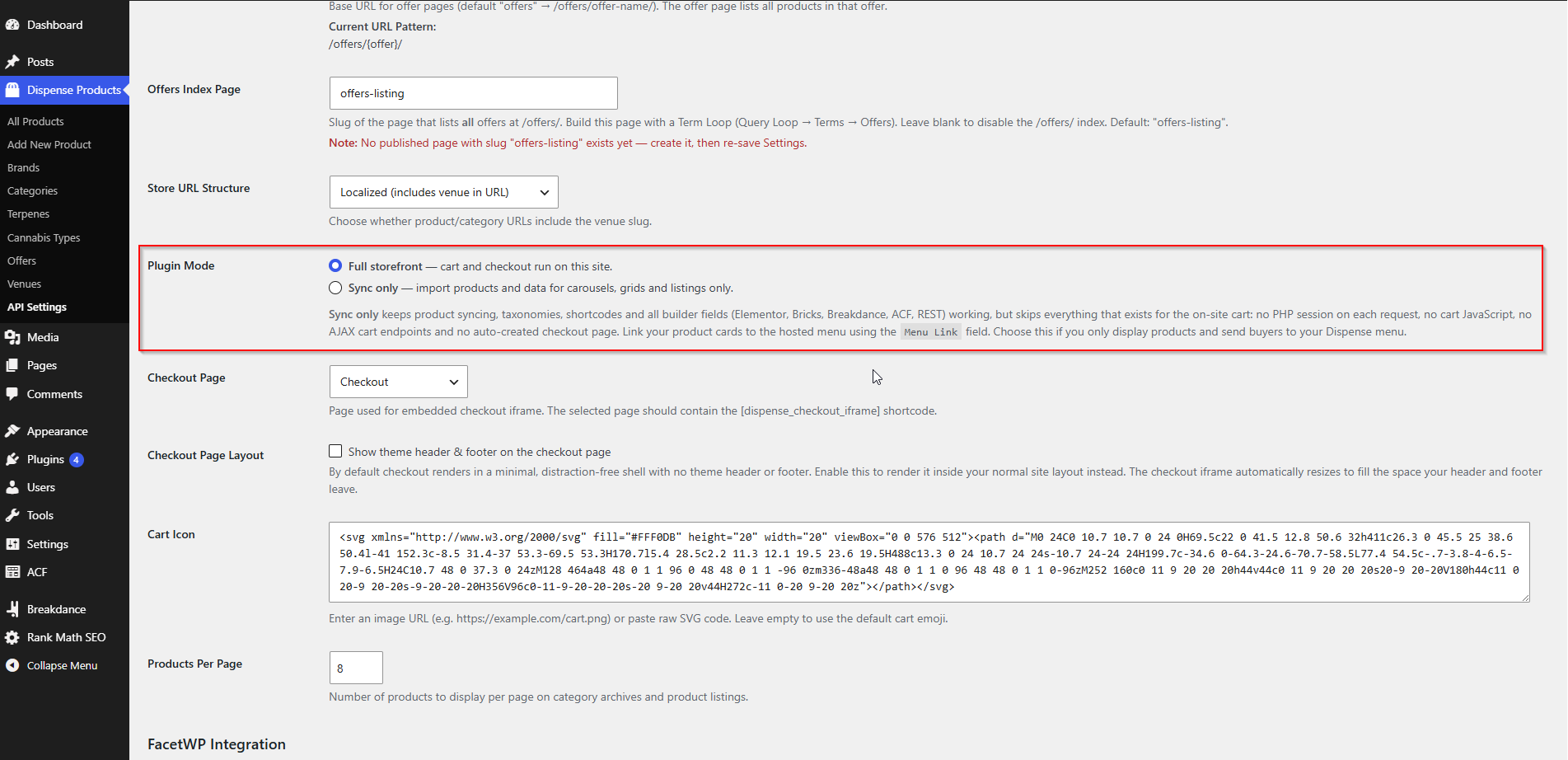
Full storefront explained
Everything the plugin can do, runs. This is the default, and existing sites need change nothing.
You get:
- Product syncing, offers and taxonomies
- A cart on your site — sidebar, floating icon, item count badge, add-to-cart notifications
- Quantity controls and live cart totals
- The AIQ Ecommerce checkout embedded in a page on your domain, so customers never leave your site
- Analytics events for
view_item,add_to_cart,remove_from_cart,begin_checkoutandpurchase - Every shortcode, including the four cart shortcodes
- Every page builder field
What it costs you:
- A PHP session starts on every request. That means a
PHPSESSIDcookie, and pages that most caching plugins will refuse to cache. Caching needs configuring carefully — see Caching & Site Speed. - Extra JavaScript and CSS load on the front end.
- Four AJAX endpoints are exposed for the cart.
- More to test and maintain.
Sync only explained
The plugin imports and keeps data fresh, and skips everything that exists for the on-site cart.
Still active:
- Product sync — scheduled and manual — offers, images and stale-product cleanup
- The
dispense_productpost type and every taxonomy: Brand, Category, Offer, Terpenes, Cannabis Type, Venue - Every page builder field — Elementor, Bricks, Breakdance, ACF and REST
- Product listing, filter, brand, offer and single-product-detail shortcodes
- The Custom CSS setting
Skipped:
- The PHP session that otherwise starts on every request — no
PHPSESSIDcookie, so responses stay page-cacheable dispense-cart.js, its localised data, anddispense-cart.css- All of the cart’s AJAX endpoints
- The auto-created Checkout page — never created, and never silently re-created if you delete it
- The checkout render
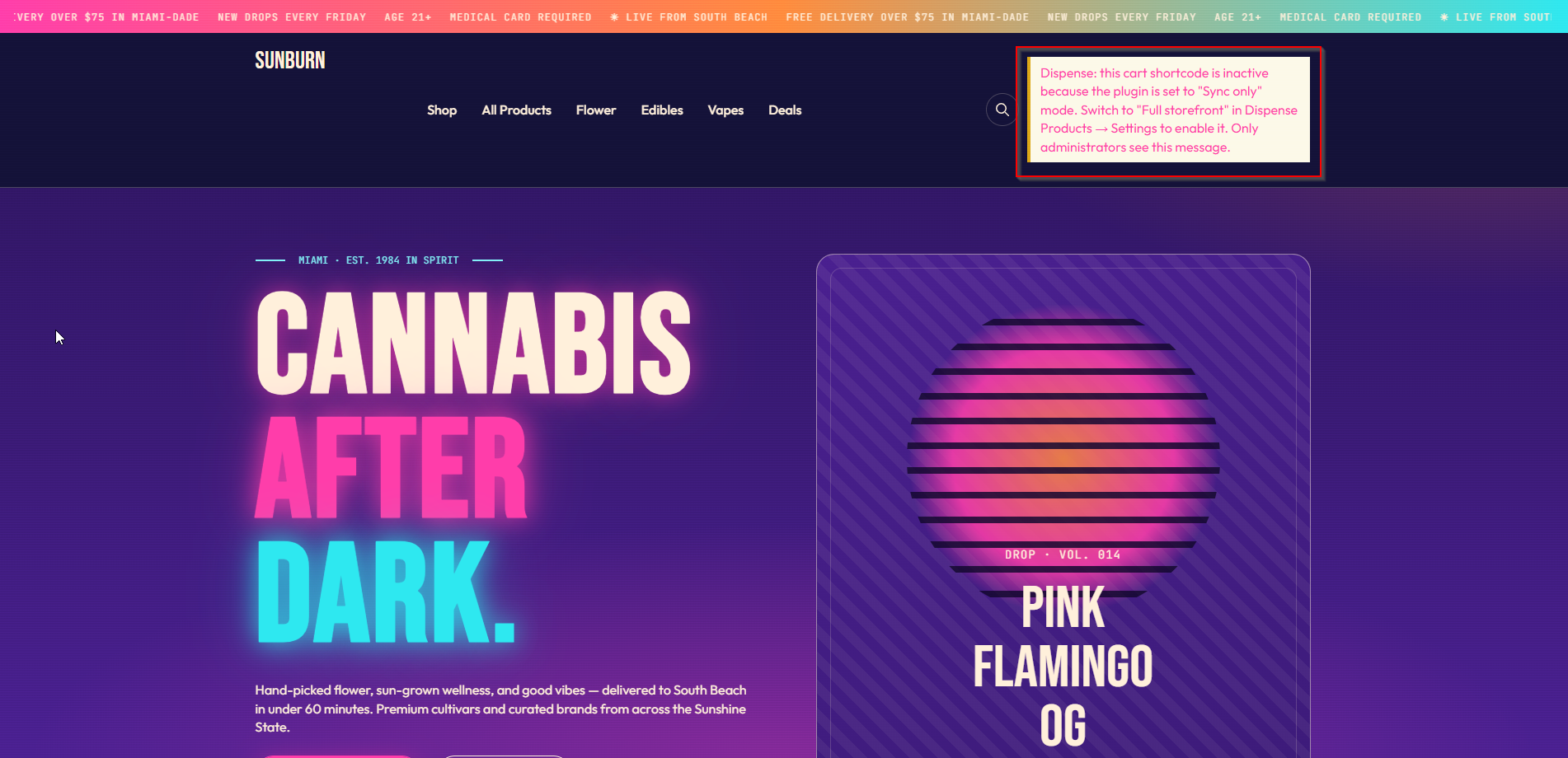
- The four cart shortcodes: they output nothing for visitors, and show administrators a note explaining why How buying works: each product card links to the product’s page on your hosted AIQ Ecommerce menu, using the Menu Link field (
dispense_product_menu_link) that is synced automatically on every run.
If a cart shortcode is left on a page in Sync only mode, visitors see nothing at all — not a broken [dispense_add_to_cart] in raw text. Administrators see:
Which mode suits your business
| Your situation | Mode |
|---|---|
| You want customers to buy without leaving your site | Full storefront |
| You want the full purchase journey in your own analytics | Full storefront |
| Your site is a marketing site and AIQ Ecommerce is the shop | Sync only |
| You mainly show carousels, "new in" grids and category pages | Sync only |
| Page speed and full-page caching matter a great deal | Sync only |
| You already send paid traffic to your hosted AIQ Ecommerce menu | Sync only |
| You run several locations and the hosted menu handles location choice | Sync only |
A useful way to think about it
Sync only is the lower-risk option. There is less running on your site, nothing stateful, and pages cache properly — so it is fast. You give up on-site purchase and the checkout analytics that come with it.
Full storefront is the higher-value option when the customer journey matters. You keep the visitor on your domain from first click to purchase, and you see the whole funnel in your own analytics. You pay for it in complexity, particularly around caching.
If you are unsure, start with Sync only, get the catalogue and the design right, and switch to Full storefront when you are ready. Switching is not destructive.
Switching modes safely
From Sync only to Full storefront
- Set Plugin Mode to Full storefront and click Save Settings.
- The Checkout Page and Checkout Page Layout settings appear. The plugin creates a Checkout page containing
[dispense_checkout_iframe]if one does not exist. - Select that page in Checkout Page.
- Add
[dispense_cart_icon]to your header. - Add
[dispense_view_cart]where the cart sidebar should live — usually the footer or header template, so it is on every page. - Add
[dispense_add_to_cart]to your single product template. - Review your caching rules. This is the step people skip. Cart, checkout and product pages must not be served from a full-page cache.
- Test a full purchase end to end.
Full detail: Setting Up the Cart.
From Full storefront to Sync only
- Set Plugin Mode to Sync only and click Save Settings.
- The cart stops loading immediately — no session, no JavaScript, no endpoints.
- Update your product cards to link to the Menu Link field instead of adding to the cart.
- Remove cart shortcodes from your templates. You do not have to — they degrade silently — but tidy is better.
- Clear your caches so the old cart markup stops being served.
- Decide what to do with the Checkout page. Switching modes does not delete it; trash it yourself if you want it gone.
What is not affected either way: your products, offers, taxonomies, venue selection, settings, Client Key, page designs and single product pages. Single product pages keep working as ordinary WordPress pages in both modes.
Any active carts
Switching to Sync only ends any cart a visitor has in progress on your site — the machinery that holds it stops running. Switch outside trading hours if you can.
Overriding the mode in code
Developers can force the cart on or off regardless of the saved setting:
// Force the cart off, whatever the setting says.
add_filter('dispense_cart_enabled', '__return_false');
// Force the cart on.
add_filter('dispense_cart_enabled', '__return_true');
Useful for turning the cart off on a staging site while leaving production untouched. More in Hooks & Extending.
Common problems
I switched to Sync only and the Checkout page is still there.
Expected — switching modes never deletes pages. Trash it manually.
I switched to Full storefront and the cart icon does nothing.
Check [dispense_view_cart] is present somewhere on the page. The icon opens the sidebar, so without the sidebar there is nothing to open.
My caching plugin stopped caching everything after switching to Full storefront.
That is the PHP session cookie. Configure the cache to ignore the plugin’s cookies for pages that can safely be cached, and exclude cart, checkout and product pages entirely.
Cart shortcodes print nothing on the page.
If you are logged in as an administrator you would see the amber notice, so this is probably the right behaviour in Sync only mode. Check Plugin Mode on the General tab.
I set Full storefront but the Checkout Page setting is hidden.
The checkout settings only show when Full storefront is selected. Click the radio button and the rows appear immediately, before you even save.