
Entering your Client Key
- Go to AIQ Ecommerce Products → API Settings → General.
- Paste your key into the Client Key field.
- Choose a Sync Interval — Every 30 Minutes is the default and suits most stores.
- Click Save Settings.
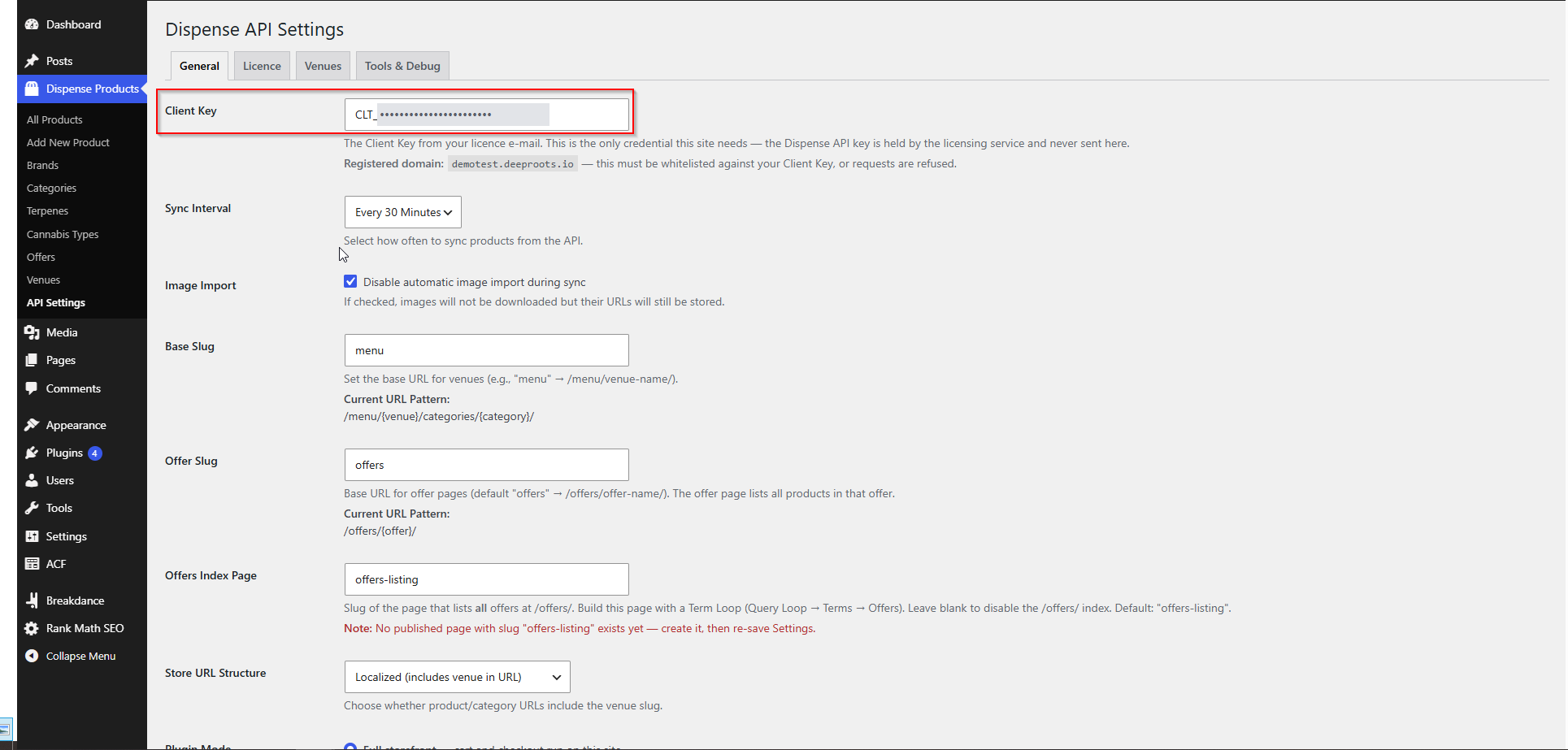
The field warns you before you save if the key is obviously mistyped:
That is a format check only. Whether the key is genuinely valid is the licensing service’s answer to give, which is what Test Connection is for.
The domain your site presents
Underneath the Client Key field, the settings screen shows the domain this site presents:
This comes from your WordPress Settings → General → Site Address (URL), and it has to match a
domain registered on your licence. That is what keeps your key safe: it only works from domains we have registered against it.
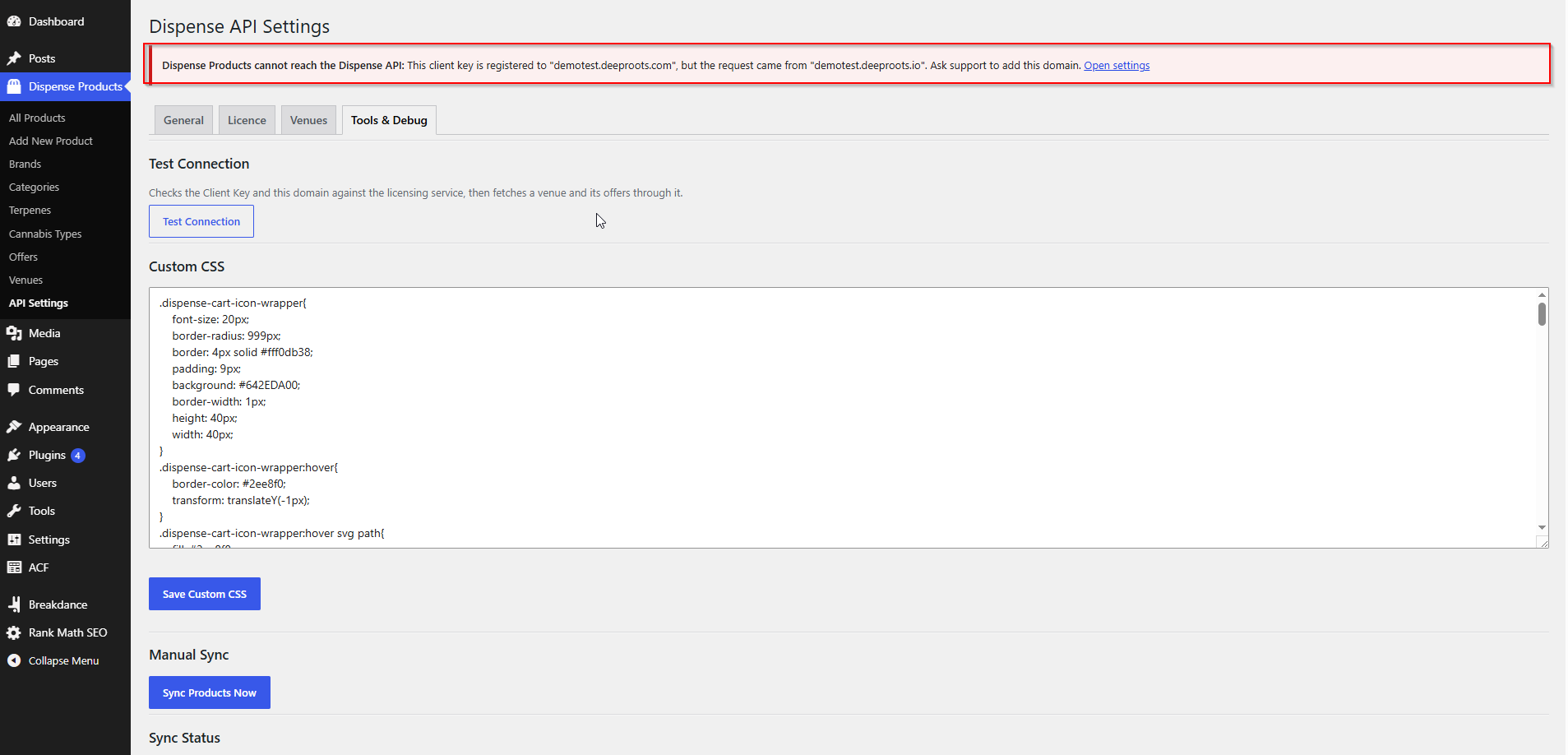
If they do not match, the request is refused and the error names both domains:
It names both on purpose. A mismatch nearly always means one of three things, and the message tells
you which:
- The site moved to a new domain.
- The site went live from staging, and only the staging domain was registered.
- You are working on a staging copy that was never registered in the first place.
In every case the fix is the same: ask support to register the domain, before the switch if you can. See Account Changes & Requests.
Testing the connection
- Go to AIQ Ecommerce Products → API Settings → Tools & Debug.
- Click Test Connection.
The test runs in two stages, deliberately in this order:
- The licence is checked first, without calling AIQ Ecommerce at all. So a mistyped key reads as a mistyped key rather than as an API failure.
- Then a real venue and its offers are fetched through the licensing service, proving the whole path works end to end.
A successful test produces two green notices:
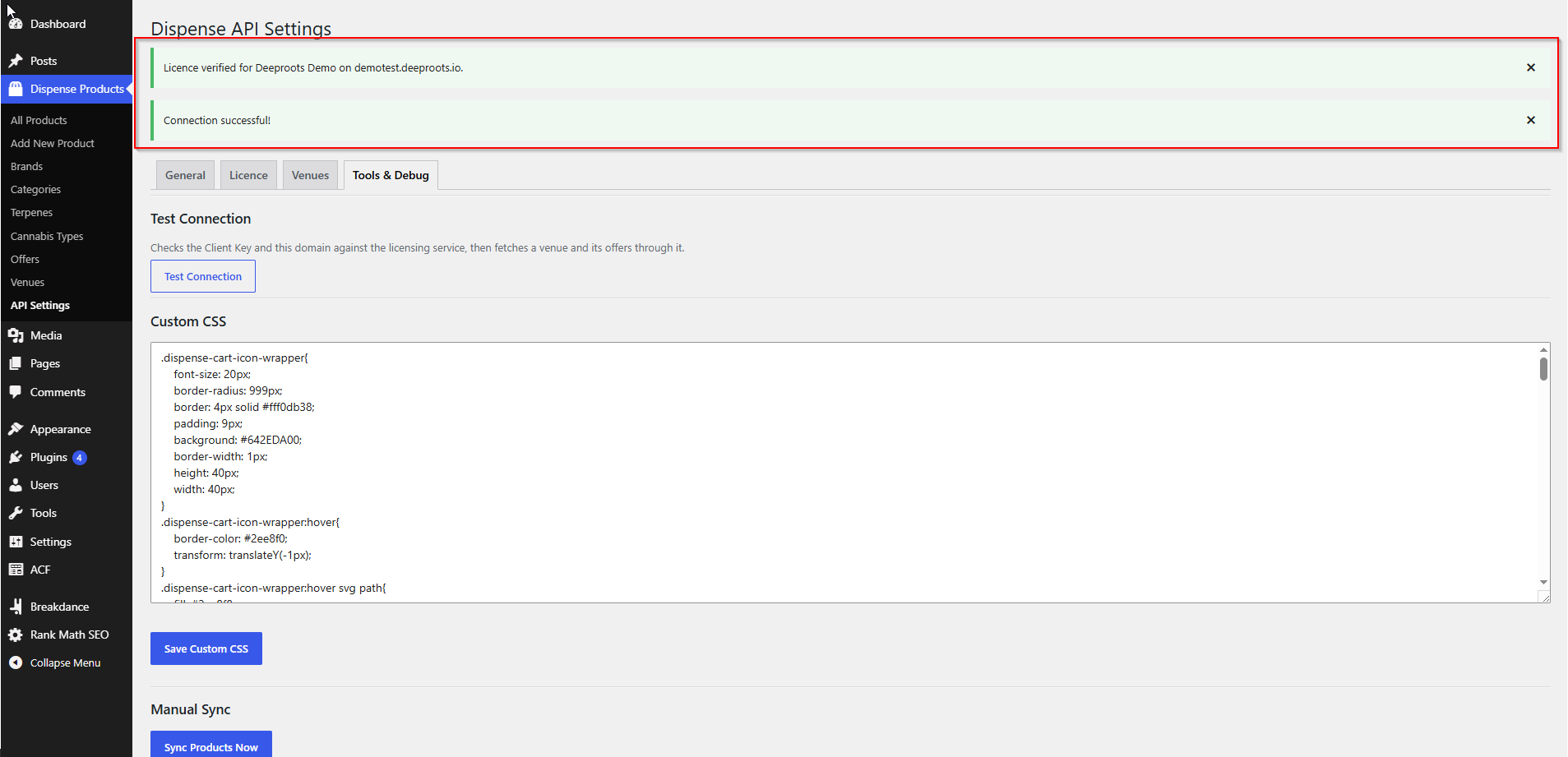
If the test fails, the red notice tells you exactly what was refused. Every message is listed in Error Messages Explained.
The Licence tab
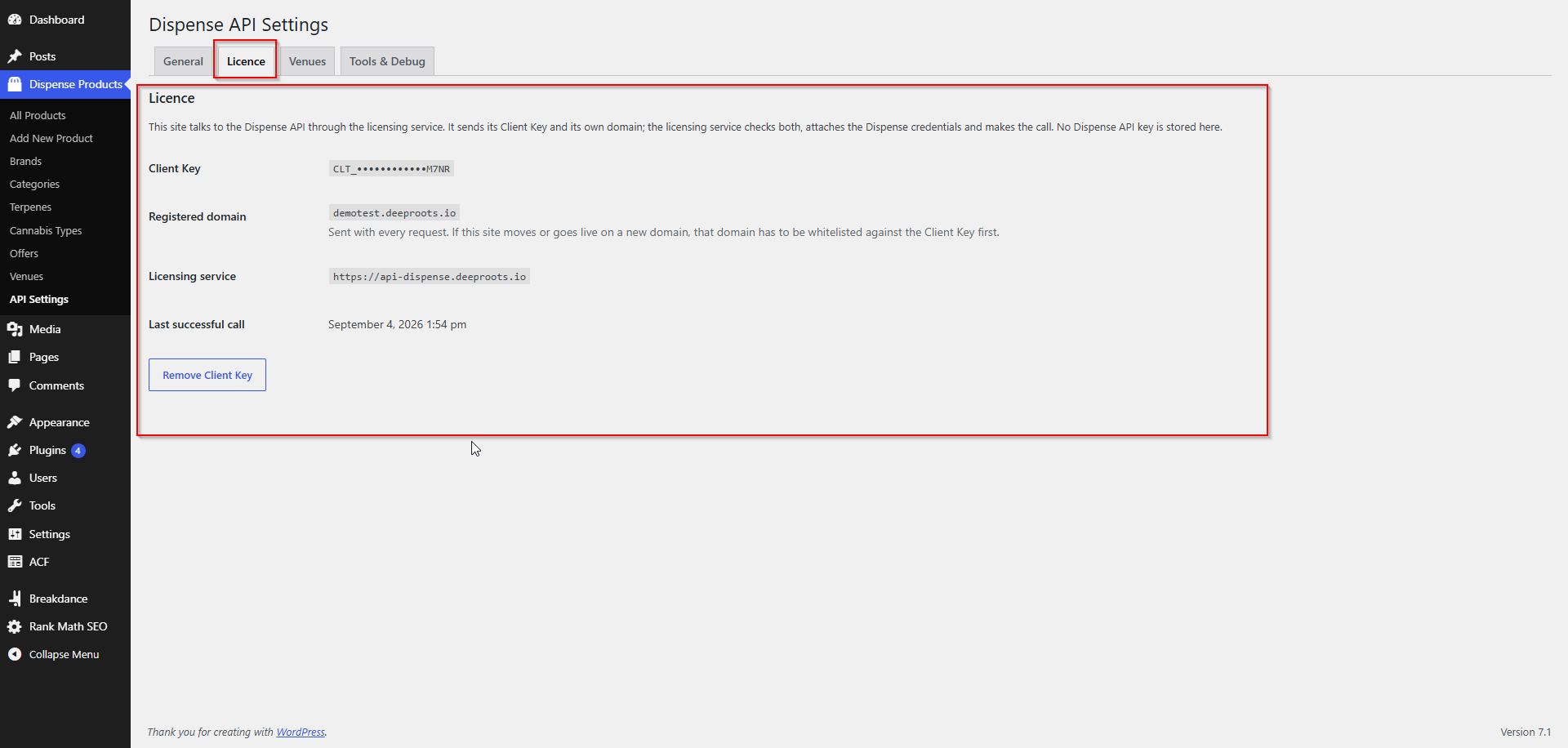
The Licence tab is the place to look when you want to know the state of things:
| Row | What it tells you |
|---|---|
| Client Key | The stored key, masked (e.g. CLT_••••••••••••789A) |
| Registered domain | The domain this site sends with every request |
| Licensing service | The address being called, and a warning if it is not HTTPS |
| Last successful call | When the licensing service last answered successfully |
| Last error | The most recent refusal, with its code and when it happened |
There is no status badge, no expiry date and no activate/deactivate button — because the plugin holds no licence state to show. The licensing service is asked fresh on every request.
Selecting which locations to sync
- Go to AIQ Ecommerce Products → API Settings → Venues.
- The venues on your licence are fetched automatically and listed with their names and IDs.
- Tick the venues you want to import products from.
- Click Save Venue Selection.
Use the tick box in the table header to select or clear them all at once.
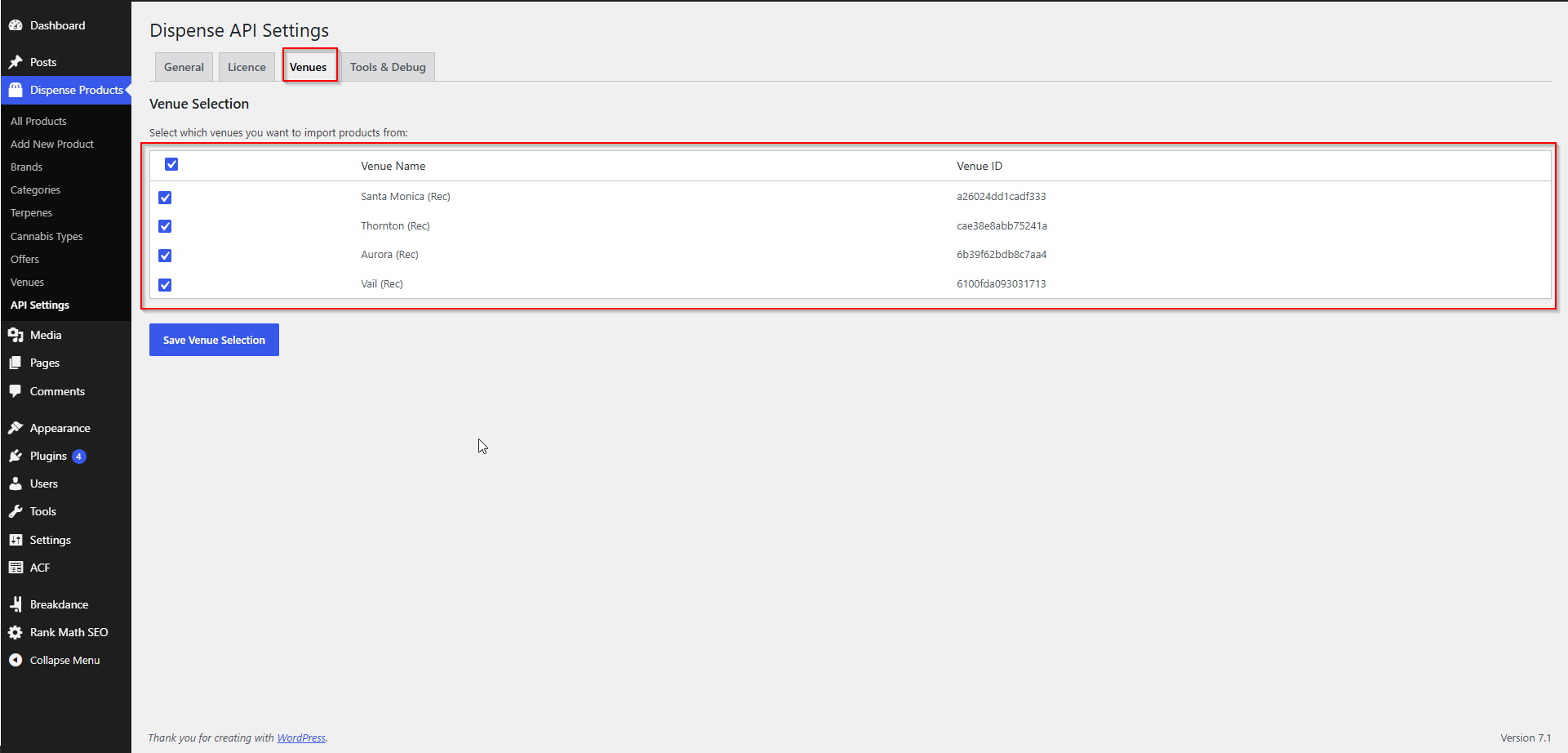
If the tab says “No venues are available on this licence”, the Client Key is valid but no venue is attached to it yet. Contact support.
More on running one location versus several: Locations & Venues.
Changing or removing the Client Key later
To change it: paste the new key over the old one on the General tab and click Save Settings.
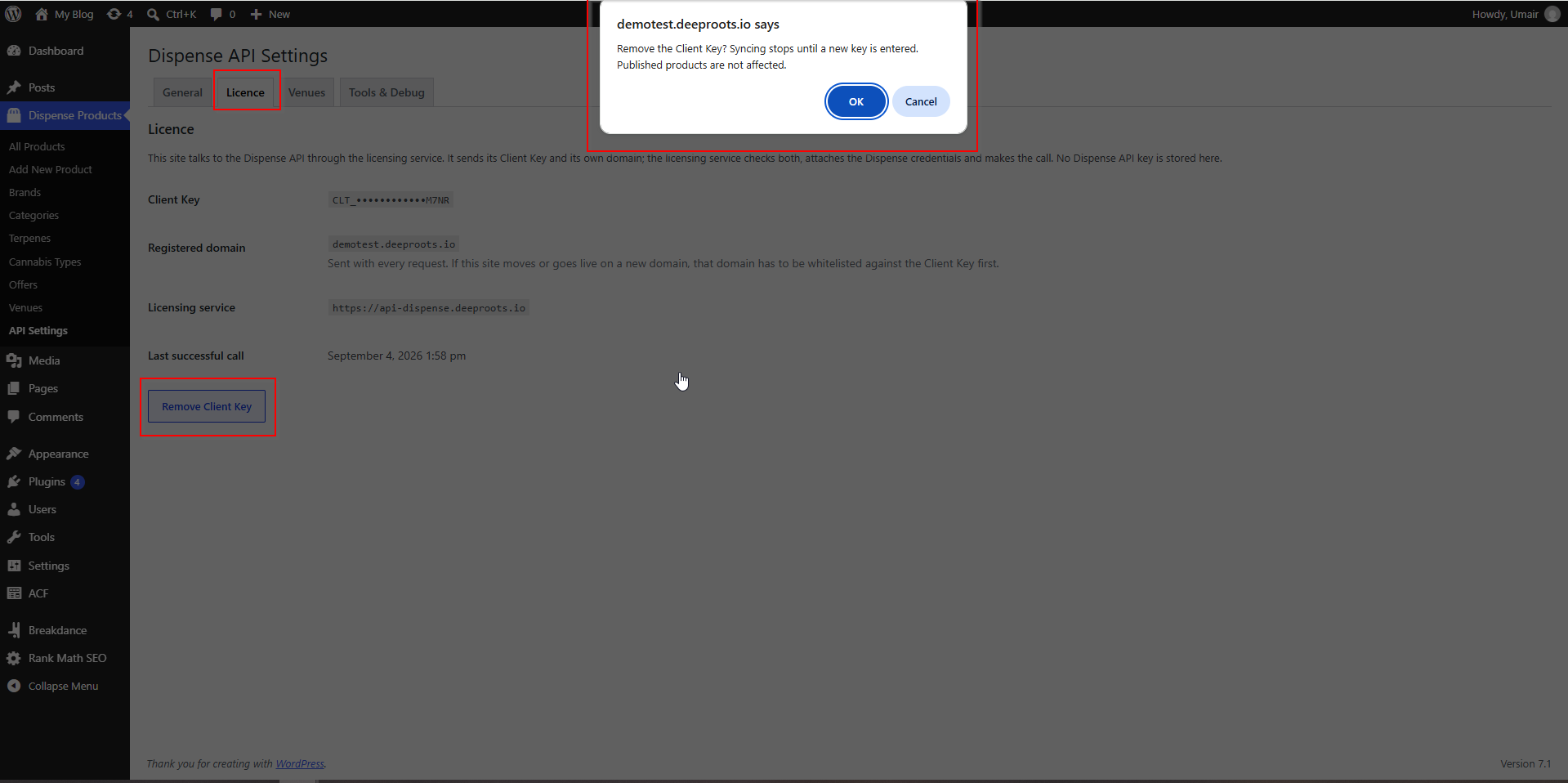
To remove it: go to the Licence tab and click Remove Client Key. You will be asked to confirm.
Either way, the important part is what does not happen:
Removing the key stops the plugin fetching anything new. It does not delete products, unpublish them, or take your storefront offline.
Common problems
Test Connection says the key was not recognised.
Check for a stray space at the start or end when pasting, and check you copied the whole key — CLT_ plus 24 characters. If it still fails, ask support for a replacement.
It says my domain is not registered, but it looks right to me.
Compare it character by character with the domain in the error. www. and no-www. are different domains, as are .com and .co.uk. Your WordPress Settings → General → Site Address (URL) is what the plugin uses.
The Venues tab is empty and shows a warning.
If it says to enter a Client Key first, do that on the General tab. If it says no venues are available on the licence, contact support — the key is fine but nothing is attached to it.
I saved the key but the yellow 'not licensed' notice is still there.
Reload the page. The notice is generated on page load and will clear once the key is stored.