
How offers reach your site
Offers are created in AIQ Ecommerce. The plugin imports them on every sync and does three things with each one:
- Creates an Offer term in the
dispense_offertaxonomy, so the offer has a page of its own. - Stores the offer’s details on that term — type, reward, minimum spend, description, images.
- Assigns the term to every product the offer applies to, and writes the offer names into each product’s
dispense_product_offerfield.
Find them at AIQ Ecommerce Products → Offers.
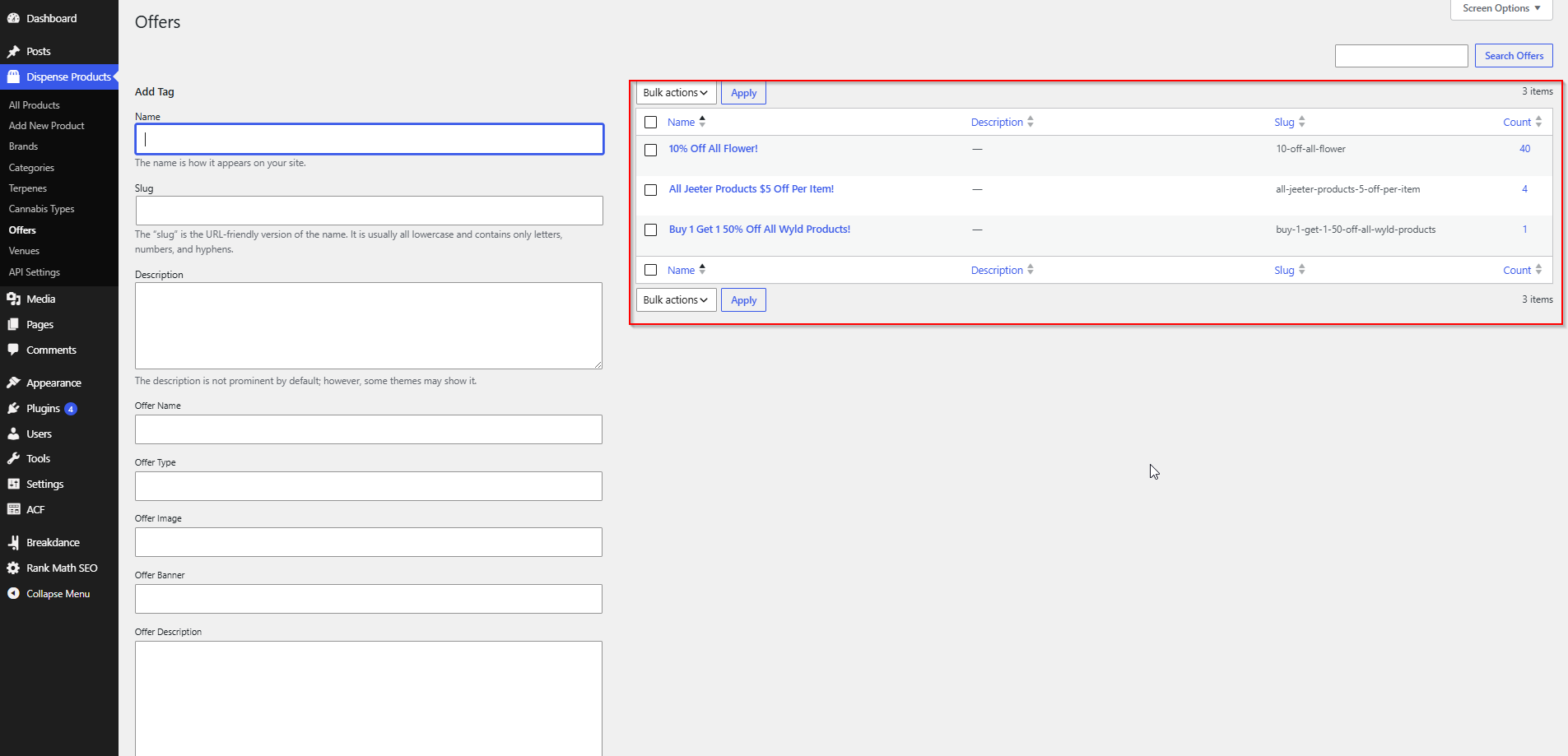
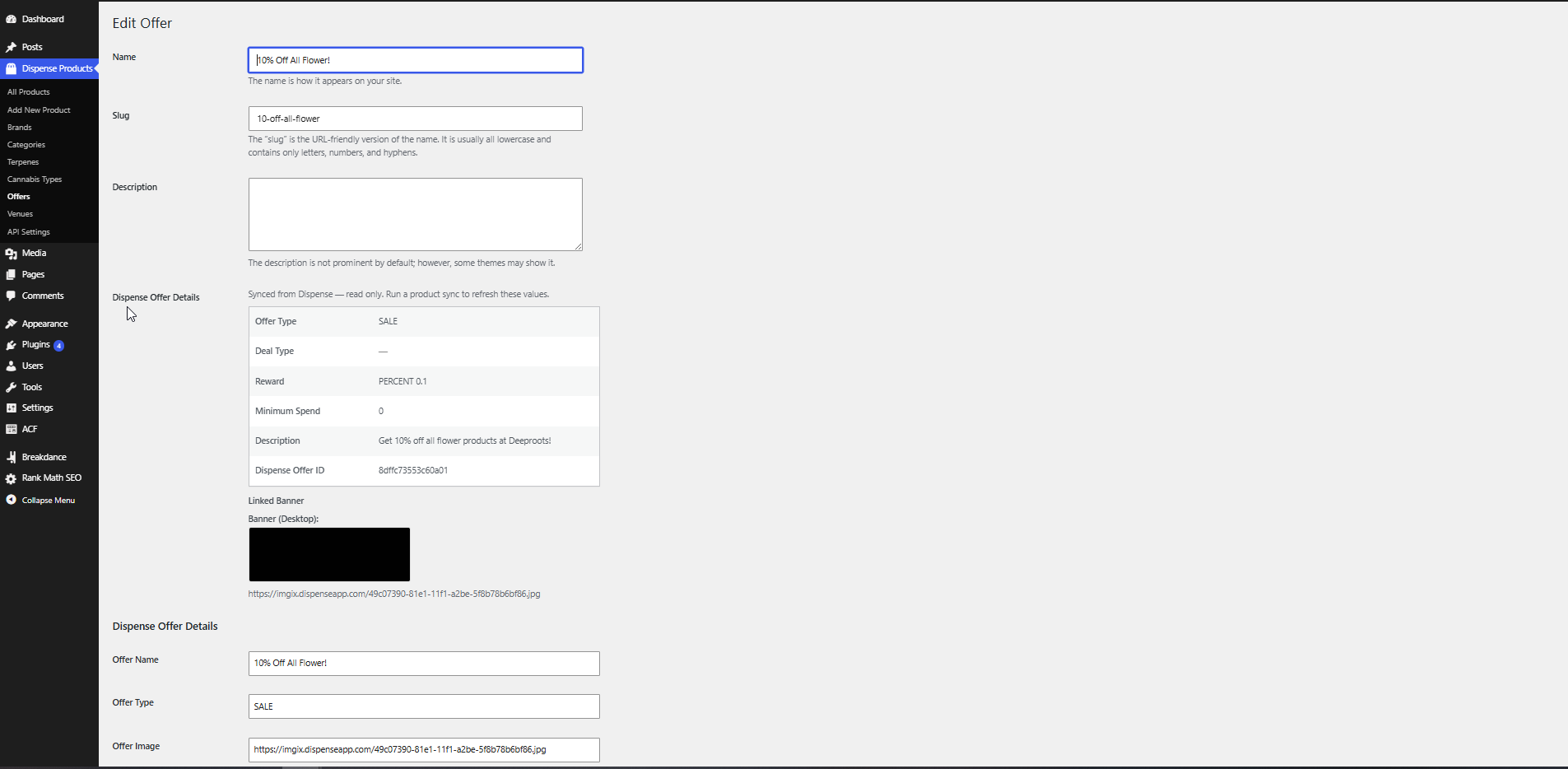
Each offer term stores:
| Detail | Meta key |
|---|---|
| Offer ID in AIQ Ecommerce | dispense_offer_id |
Offer type (e.g. SALE) |
dispense_offer_type |
Deal type (e.g. FLAT) |
dispense_offer_deal_type |
Reward type (e.g. PERCENT) |
dispense_offer_reward_type |
| Reward value | dispense_offer_reward_value |
| Minimum spend | dispense_offer_min_spend |
| Description | dispense_offer_description |
| Offer image | dispense_offer_image |
| Display order | dispense_offer_order |
| Banner — desktop | dispense_offer_banner_large |
| Banner — tablet | dispense_offer_banner_medium |
| Banner — mobile | dispense_offer_banner_small |
| Banner click-through URL | dispense_offer_banner_link |
Opening an offer term shows these in a readable panel rather than as raw meta.
Two pages per offer, and why
WordPress taxonomies give you a page per term but no built-in “list all terms” page. Offers need both, so the plugin provides them separately:
| Page | URL | What it is |
|---|---|---|
| A single offer | /offers/{offer-slug}/ |
The offer's own page, listing the products it applies to. Provided by WordPress automatically. |
| All offers | /offers/ |
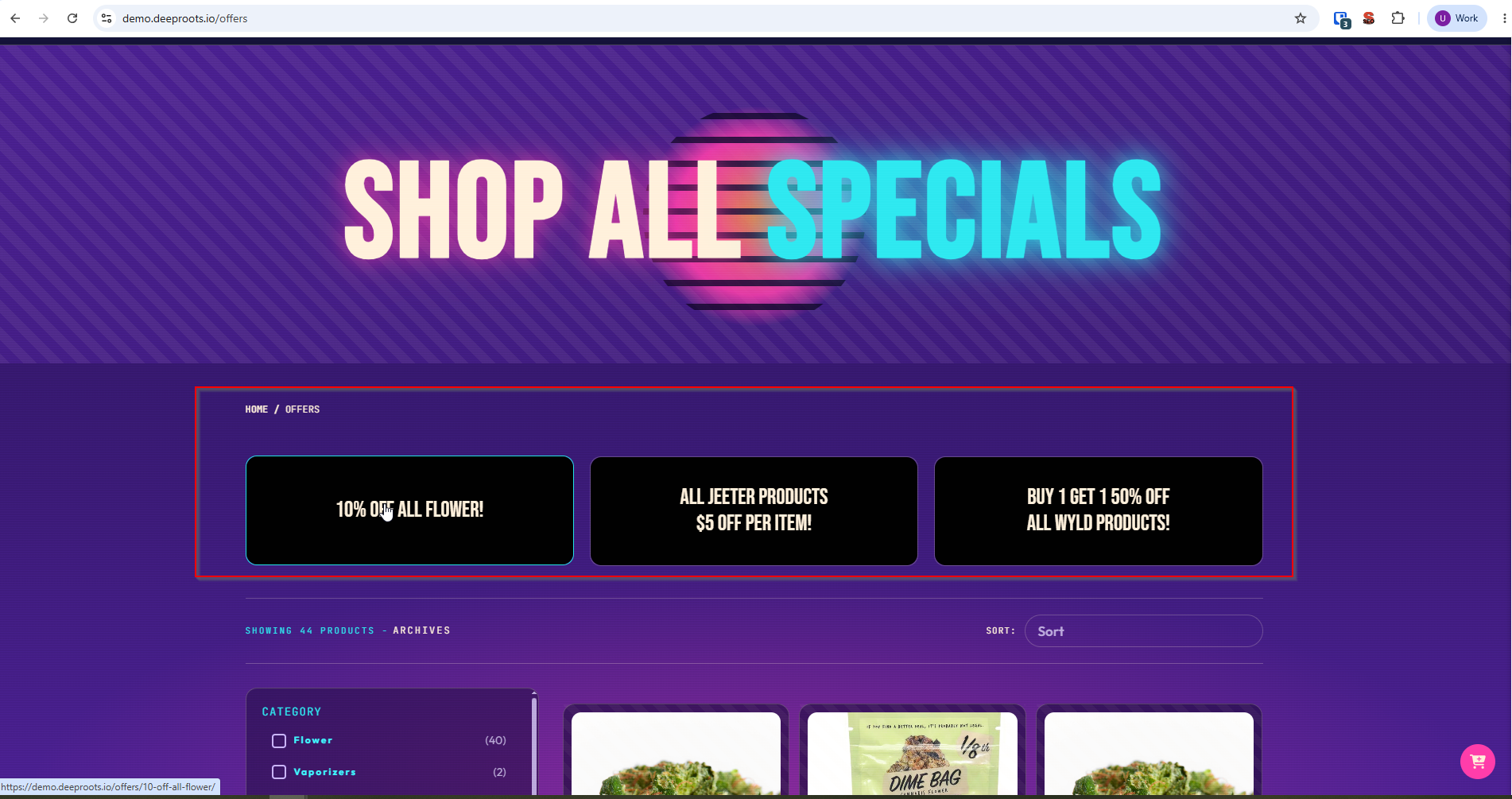
An index of every offer. Provided by a page you designate. |
The offers part of both is the Offer Slug setting, so you can use deals, promotions, or whatever suits your site.
The all-offers page
Setting this up is a three-step job, and the order matters.
1. Create the page
Create a normal WordPress page — the default slug the plugin expects is offers-listing — and put this shortcode in it:
[dispense_offers]2. Point the setting at it
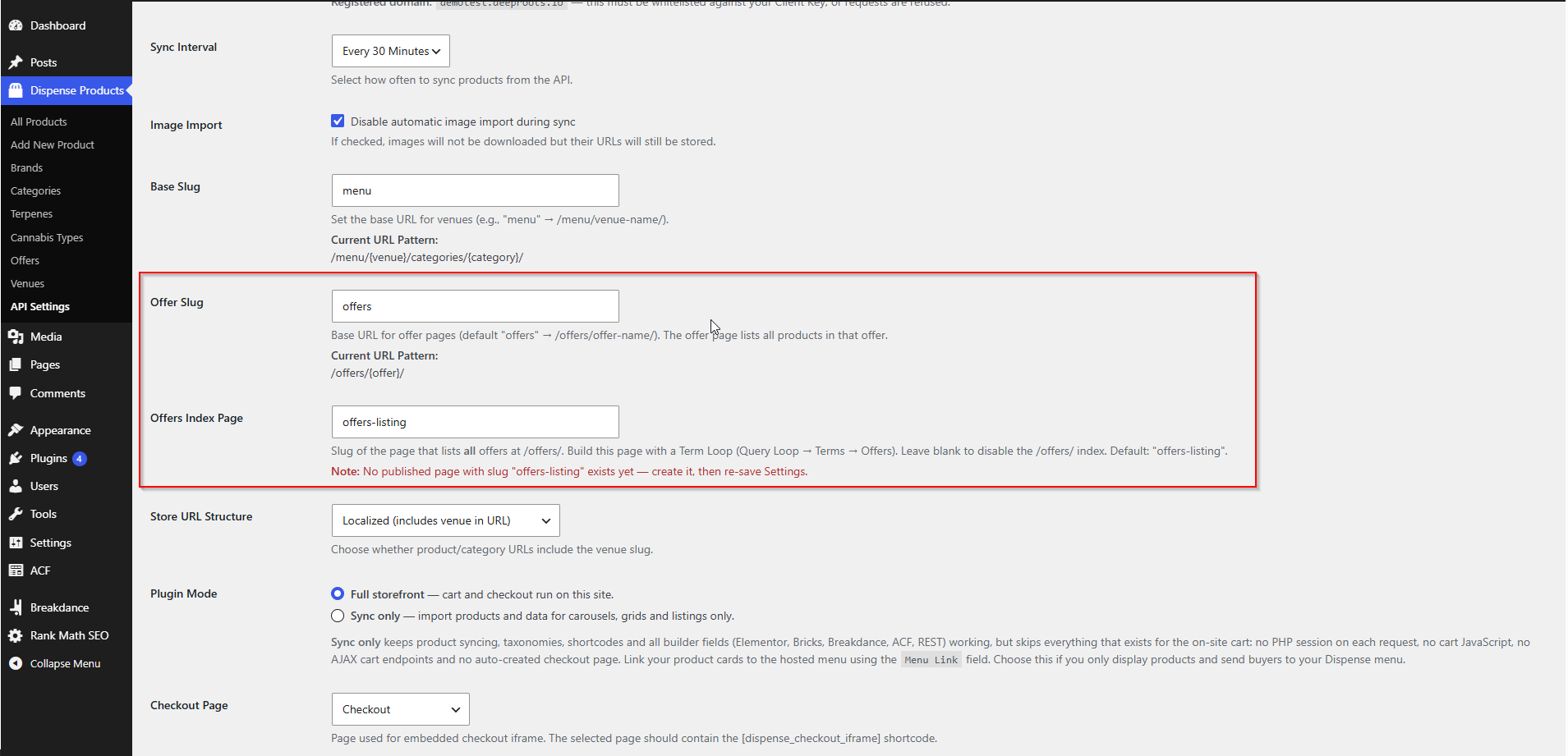
Go to AIQ Ecommerce Products → API Settings → General → Offers Index Page and enter the page’s slug (offers-listing). Click Save Settings.
If the page does not exist yet, the setting warns you:
3. Flush permalinks
Go to Settings → Permalinks and click Save Changes without altering anything.
Now /offers/ shows your index page, while /offers/{offer-slug}/ still shows each individual offer. The address stays /offers/ — it does not redirect to the page’s own slug.
Leave Offers Index Page blank if you do not want an index at all.
Options for [dispense_offers]
| Attribute | Default | What it does |
|---|---|---|
columns |
3 |
Number of grid columns |
size |
large |
Banner size to prefer — falls back large → medium → small → offer image |
hide_empty |
0 |
0 shows every offer; 1 hides offers with no products |
orderby |
name |
Field to order by |
order |
ASC |
ASC or DESC |
limit |
0 |
Maximum offers to show (0 = all) |
show_name |
1 |
Show the offer name under the banner |
show_type |
1 |
Show the offer type badge |
For example, a four-column grid of the six most recent offers, hiding empty ones:
[dispense_offers columns="4" limit="6" hide_empty="1"]Each card links to the offer’s page, or to its Banner Link if one is set.
Why a shortcode rather than a page-builder loop
Use [dispense_offers] for the all-offers listing, not a page builder’s term loop. Page builders hand a term loop only their own built-in fields — usually just the term title — and never pass the loop’s term to custom dynamic fields. Build the index with a term loop and you get names with no banners.
The shortcode resolves every offer on the server, so each card gets its real banner and details.
This is a genuine limitation of the page builders, not of the plugin.
Single offer pages are different — dynamic fields work perfectly there, so design /offers/{slug}/ however you like with a taxonomy template.
Offer banners
Banners are images attached to offers in AIQ Ecommerce, in three sizes: desktop, tablet and mobile.
How a banner gets attached to an offer
Each banner in AIQ Ecommerce carries a link that says which offer it belongs to:
- A specific offer ID — the banner belongs to that one offer.
- The value
ALL— the banner applies to every offer in the venue.
If an offer has both, its own specific banner wins over the venue-wide ALL banner.
Showing banners
| Shortcode | Output |
|---|---|
[dispense_offer_banner] |
The banner as an <img> tag |
[dispense_offer_banner size="medium"] |
The tablet-size banner |
[dispense_offer_banner_url] |
Just the URL, for use as a background image |
Both work out which offer you mean automatically — on the offer archive, in a term loop over dispense_offer, or from the first offer assigned to the product being shown. Pass term_id="123" to target a specific offer.
Every banner field falls back through the sizes and then to the offer’s own image, so you get something whenever any image exists. That means you can use a single tag and let it resolve, rather than writing responsive art-direction markup — reach for the per-device fields only when you genuinely want different crops on different screens.
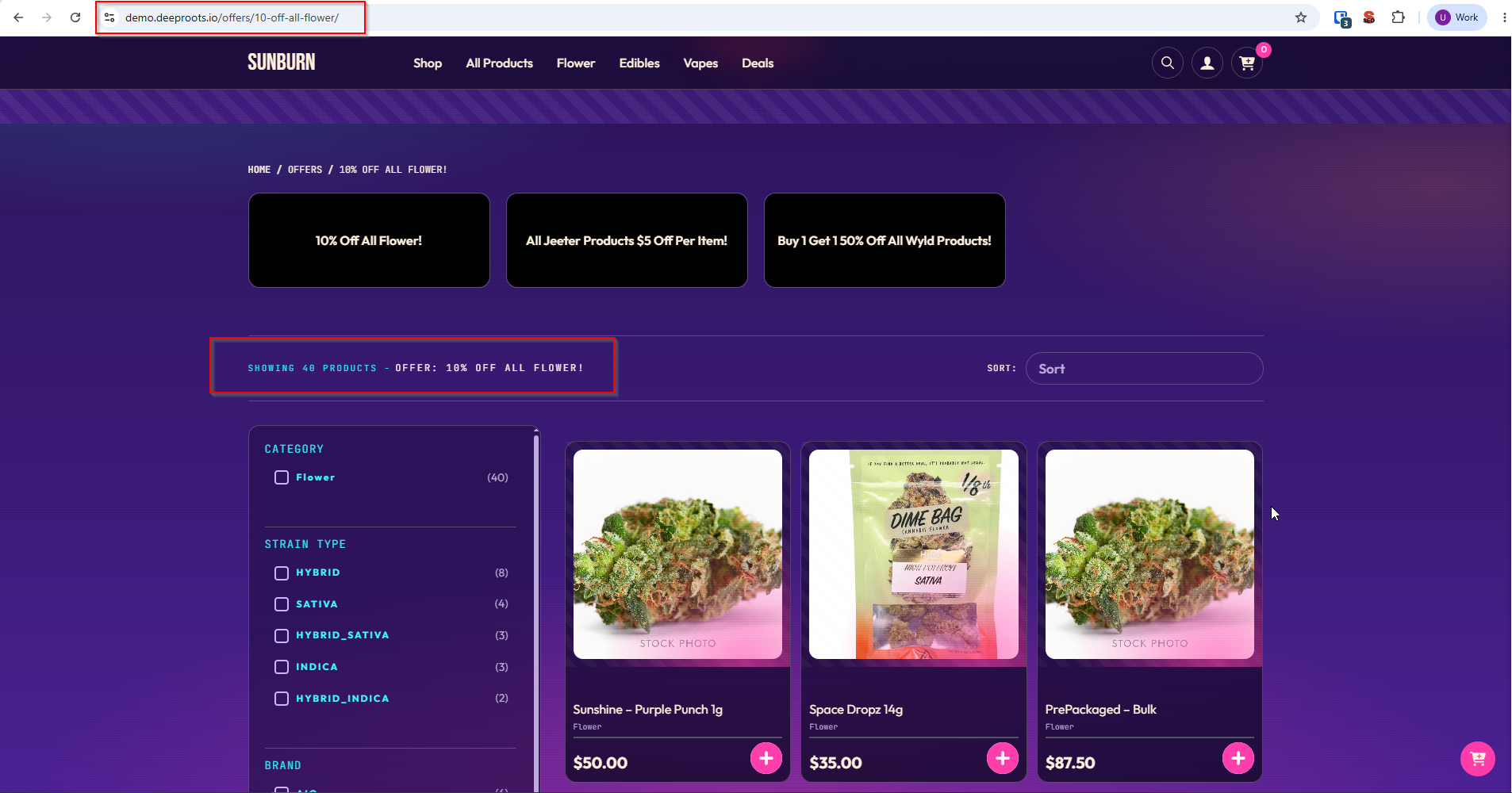
Showing offer badges on products
There are two ways, depending on whether you want the offer’s name or its type.
The offer name, from the product's own field
Every product carries the names of its offers, comma-separated, in dispense_product_offer. Output that field in your product card and you get “20% Off Flower” on the badge.
Available in every page builder as Offer Details.
The offer type, as a short badge
[dispense_offer_type]Outputs the type — SALE, for example — resolved from the current offer, or from the product’s first offer on a product page. Good for a short, consistent badge.
Showing the description
[dispense_offer_description]Products on sale
A product with a percentage SALE discount also gets a sale price in dispense_product_sale_price and is added to a category called Sale. So a “was £X, now £Y” price display and a sale listing are both straightforward:
- Show
dispense_product_sale_pricestruck through againstdispense_product_price. - Build a sale page as a category archive or query loop on the Sale category.
Offers that expire or are switched off
Offers are re-checked on every sync, and clean-up is automatic.
When an offer is disabled or deleted in AIQ Ecommerce:
- It is removed from every product it was applied to.
- Its name disappears from those products’
dispense_product_offerfields. - The offer term itself is removed once nothing references it.
Two safeguards apply:
- Offers are only pruned when every venue’s offers were fetched successfully. If one venue’s request fails, no pruning happens at all — a transient error can never strip valid offers off that venue’s products.
- Banner data is cleared rather than left stale. When a banner is unlinked from an offer, the stored banner URLs are emptied rather than kept pointing at an image that no longer applies.
Timing: an offer that ends in AIQ Ecommerce disappears from your site on the next sync — up to half an hour later on the default interval. If you run tightly timed promotions, either shorten the sync interval or run a manual sync when the promotion ends.
Front-end caching adds to that delay. A cached page can show an expired offer well after the sync removed it. See Caching & Site Speed.
Common problems
/offers/ shows a 404.
Three things to check in order: the page exists and is published; its slug matches Offers Index Page exactly; permalinks have been flushed at Settings → Permalinks → Save Changes.
My offers index shows names but no banners.
You built it with a page builder term loop. Use [dispense_offers] instead — see above for why.
An offer page has no products on it.
The offer term exists but no product is assigned to it. Check in AIQ Ecommerce that the offer actually applies to products, then run a manual sync.
An expired offer is still showing.
Run a manual sync. If it is still there afterwards, clear your page cache.
A banner shows on one offer but not another.
Only offers with a linked banner have one. Check the offer term’s details panel — if the banner fields are empty, no banner is linked in AIQ Ecommerce.
Offer badges are empty on my product cards.
Check the card is outputting dispense_product_offer, and that the product genuinely has an offer applied — open it in the admin and look at the Offer Details field.