
The built-in filter
The plugin ships with a filter interface you get for free with the listing shortcode:
[custom_product_filter show_filters="true"]That renders three things:
- A category filter — a dropdown listing every category, with “All Categories” at the top
- A brand filter — the same, for brands
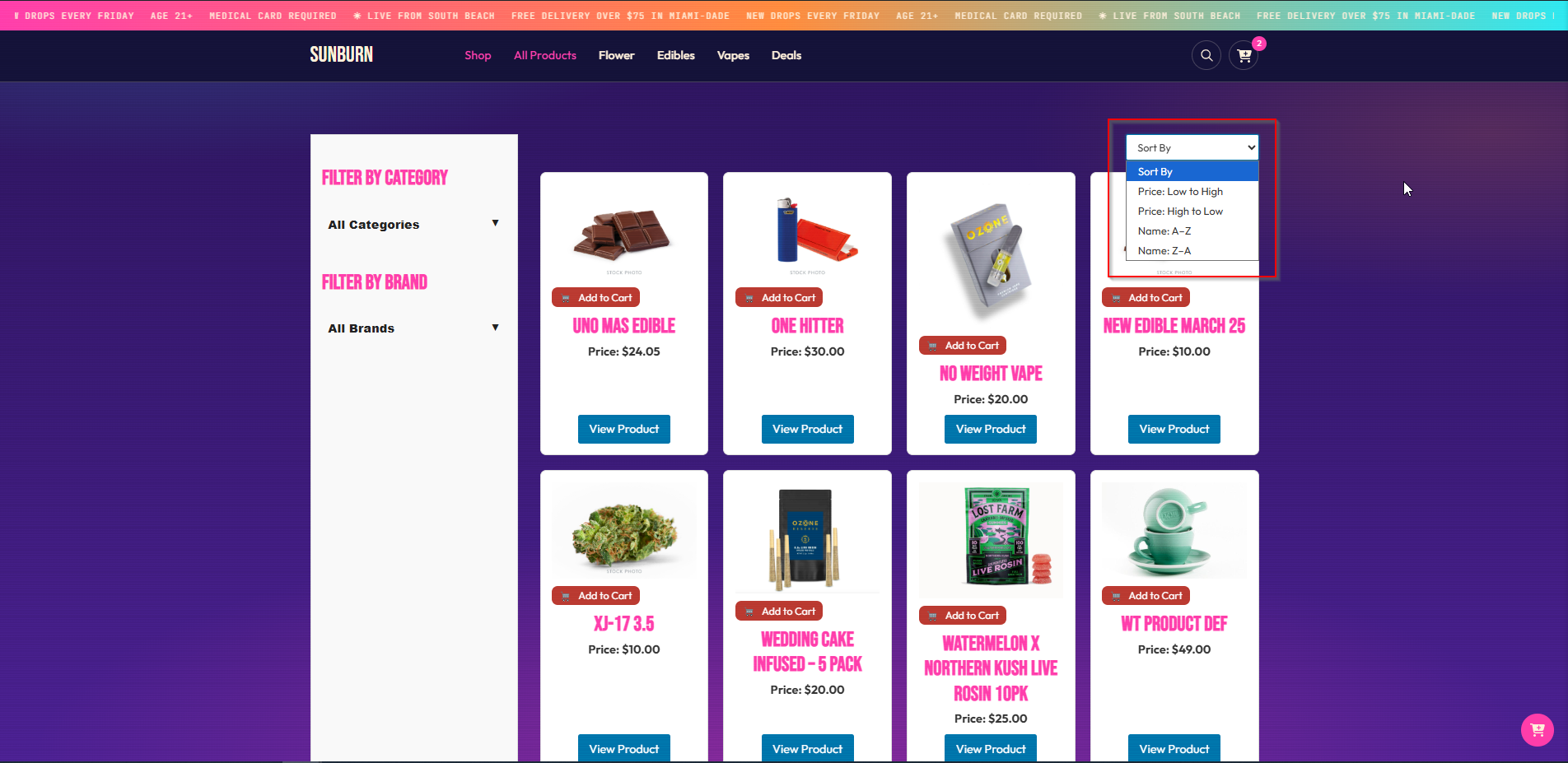
- A sort dropdown — positioned above the listing
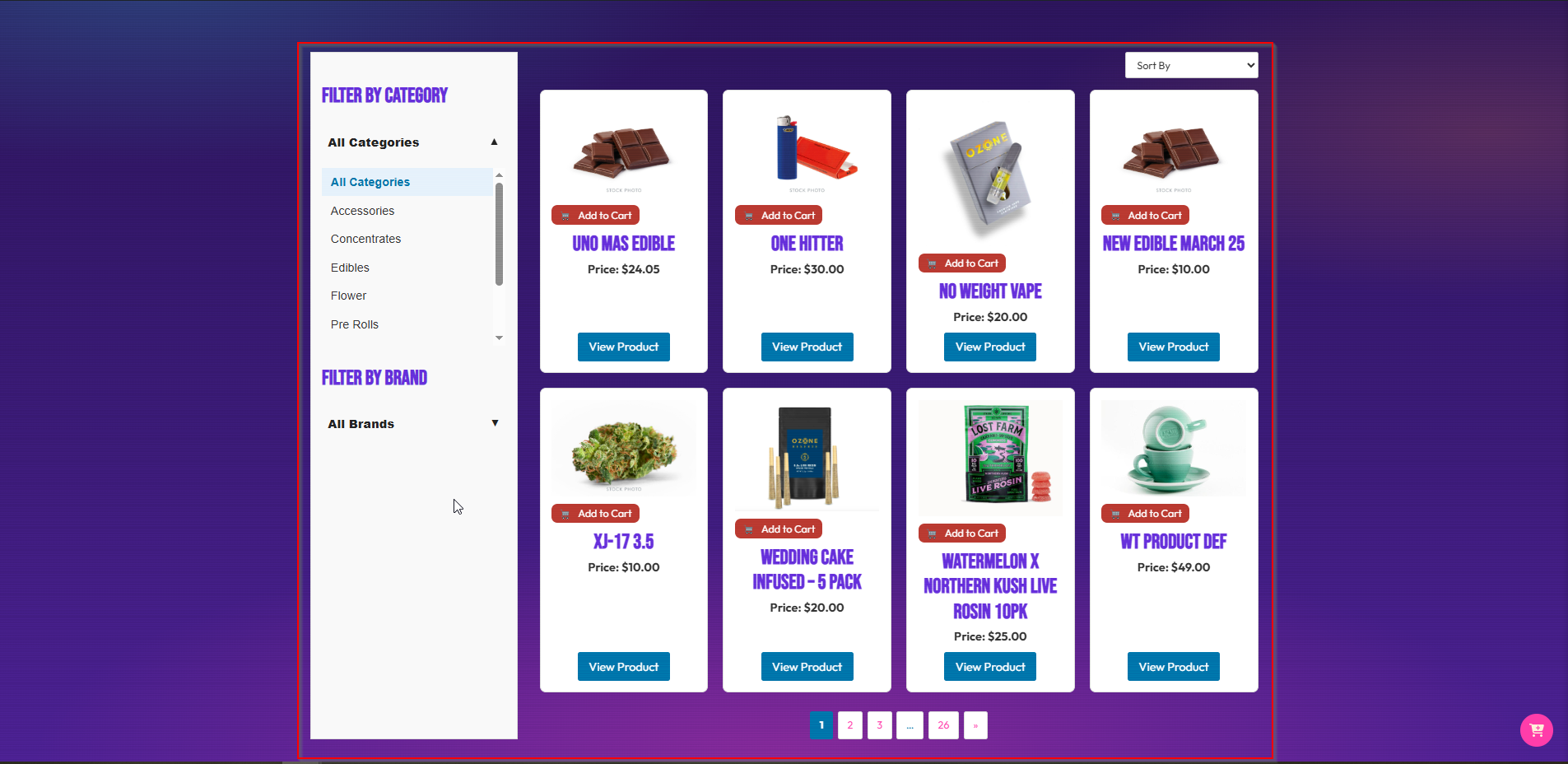
Filtering updates the listing without a full page reload. To use your own filter interface — or FacetWP — turn the built-in one off and keep just the listing:
[custom_product_filter show_filters="false"]Sort options
| Option | Orders by |
|---|---|
| Sort By (default) | Newest first |
| Price: Low to High | Price ascending |
| Price: High to Low | Price descending |
| Name: A–Z | Title ascending |
| Name: Z–A | Title descending |
Price sorting is numeric, so £9.99 sorts below £10.00 rather than above it as a text sort would.
Filtering by brand, category and type
What the built-in filter covers
The built-in filter covers category and brand. Those are the two that matter on most menus, and keeping it to two keeps the interface simple.
Filtering by anything else
Cannabis type, terpenes, offers and venue all have their own taxonomies, and each has a public archive page you can link to directly:
| To filter by | Link to |
|---|---|
| Brand | /brand/{slug}/ |
| Category | /categories/{slug}/ |
| Cannabis type | /cannabis_type/{slug}/ |
| Terpene | /terpenes/{slug}/ |
| Offer | /offers/{slug}/ |
| Venue | /dispense-venue/{slug}/ |
So a row of “Indica · Sativa · Hybrid” buttons on your menu page is just three links to /cannabis_type/ archives — no filter plugin needed.
For anything more sophisticated — combining several filters at once, live counts, price ranges — use FacetWP or your page builder’s own filter widget.
Filtering by URL
The built-in listing reads three query parameters, so you can link straight to a filtered view:
| Parameter | Example |
|---|---|
category |
/menu/?category=flower |
brand |
/menu/?brand=northern-lights-co |
sort |
/menu/?sort=price_asc |
They combine:
/menu/?category=flower&brand=northern-lights-co&sort=price_ascHandy for campaign links, navigation menus and “shop this brand” buttons.
Search
The plugin does not add its own product search. Products are ordinary WordPress posts, so WordPress search covers them — but two things need attention.
Making sure products appear in search
WordPress search covers the post title and content, which for a AIQ Ecommerce product means the product name and its description. That is usually what you want.
If products are not appearing, the usual cause is a search plugin restricted to posts and pages.
Add the dispense_product post type to its settings.
Better search
For search that also covers brands, categories and product data, use a dedicated search plugin — SearchWP, Relevanssi or similar — and configure it to index the dispense_product post type along with its taxonomies and the dispense_product_* custom fields.
Fields worth indexing:
| Field | Why |
|---|---|
dispense_product_offer |
So "sale" and offer names are findable |
| The Brand taxonomy | So brand names match |
| The Category taxonomy | So category names match |
| The Cannabis Type taxonomy | So "indica" matches |
Using FacetWP if you have it
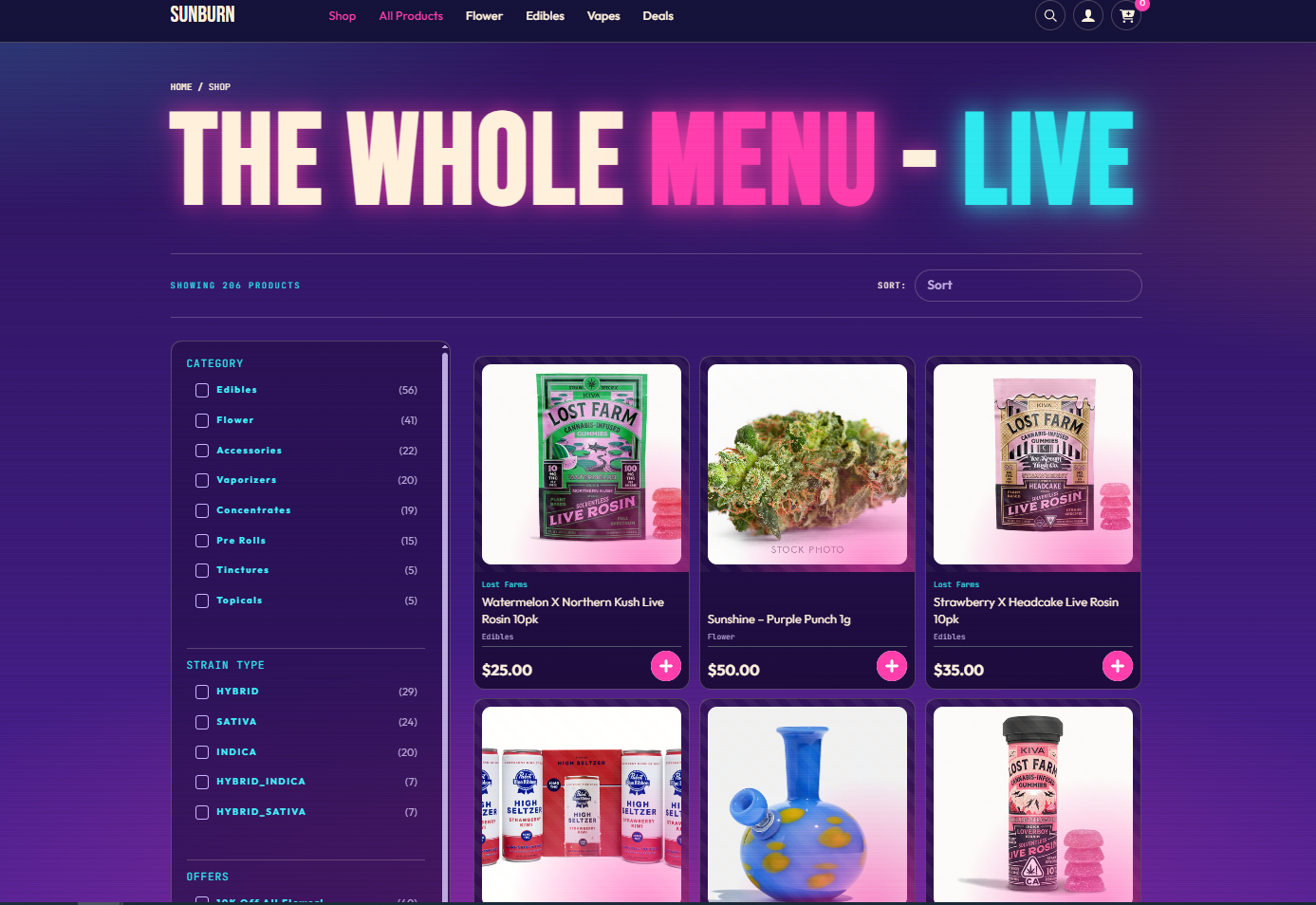
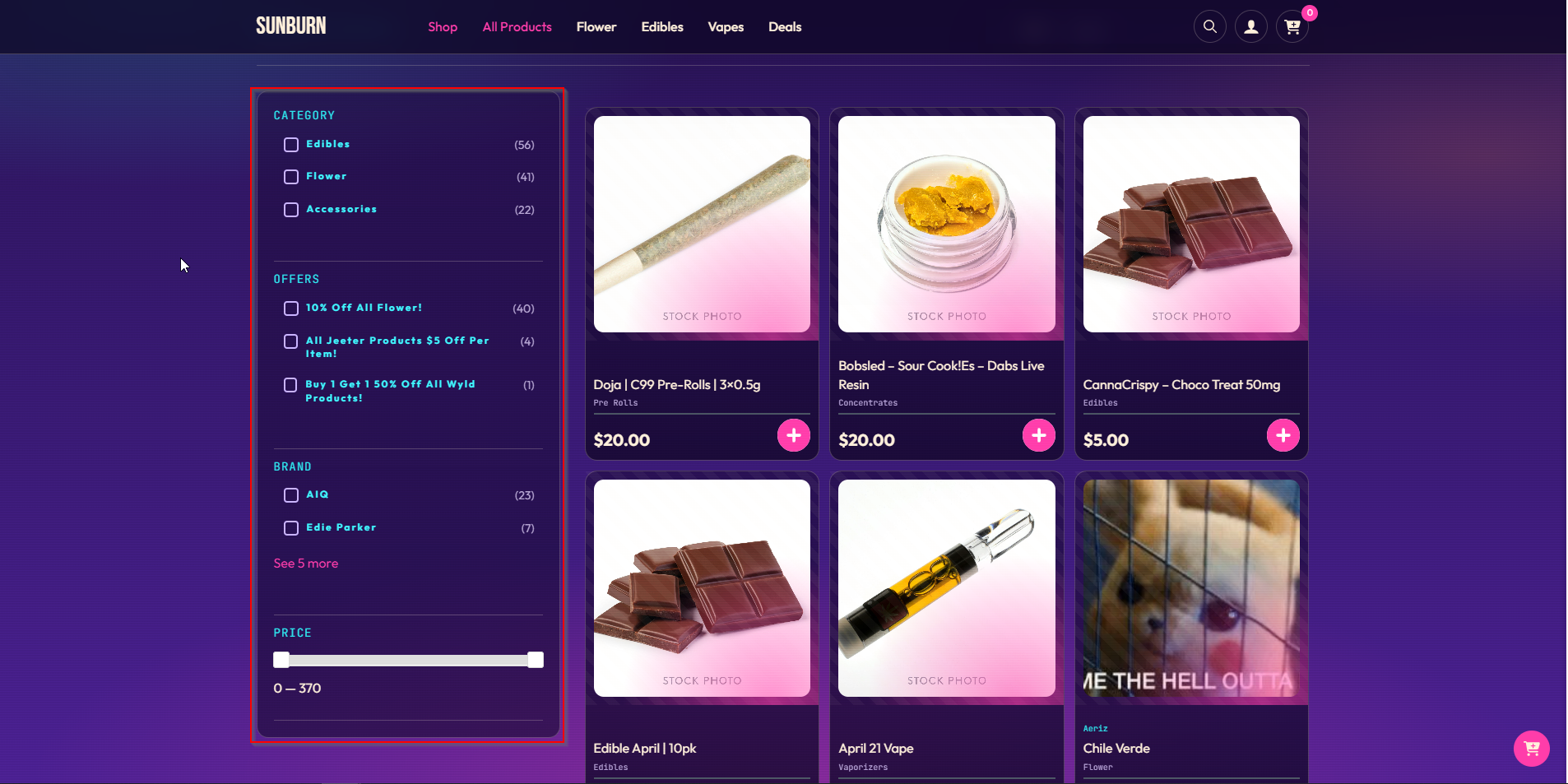
FacetWP is the most capable option for filtering a large menu, and the plugin has direct support for it.
Basic setup
- Build the listing with the filters turned off:
[custom_product_filter show_filters="false"]- In FacetWP → Facets, create your facets against the AIQ Ecommerce taxonomies:
| Facet | Source |
|---|---|
| Brands | Taxonomy → dispense_brand |
| Categories | Taxonomy → dispense_category |
| Cannabis Type | Taxonomy → dispense_cannabis_type |
| Terpenes | Taxonomy → dispense_terpenes |
| Price | Custom field → dispense_product_price (number range) |
- Place the facets on the page with FacetWP’s shortcodes, for example
[facetwp facet="brands"].
The listing is already wrapped in the markup FacetWP expects, so it picks it up without extra configuration.
Pre-selecting facets on archive pages
This is the part the plugin adds for you. When a visitor lands on /brand/northern-lights-co/, it is obvious they want that brand — but FacetWP does not know that, so its brand facet would show unticked while the listing was already filtered. Confusing.
Tell the plugin your facet names and it ticks the right box automatically:
- Go to AIQ Ecommerce Products → API Settings → General → FacetWP Integration.
- Brand Facet Name — the exact slug of your brand facet, e.g.
brands. Take it from the Name column in FacetWP → Facets, without any leading underscore. - Category Facet Name — the same for categories, e.g.
category. - Click Save Settings.
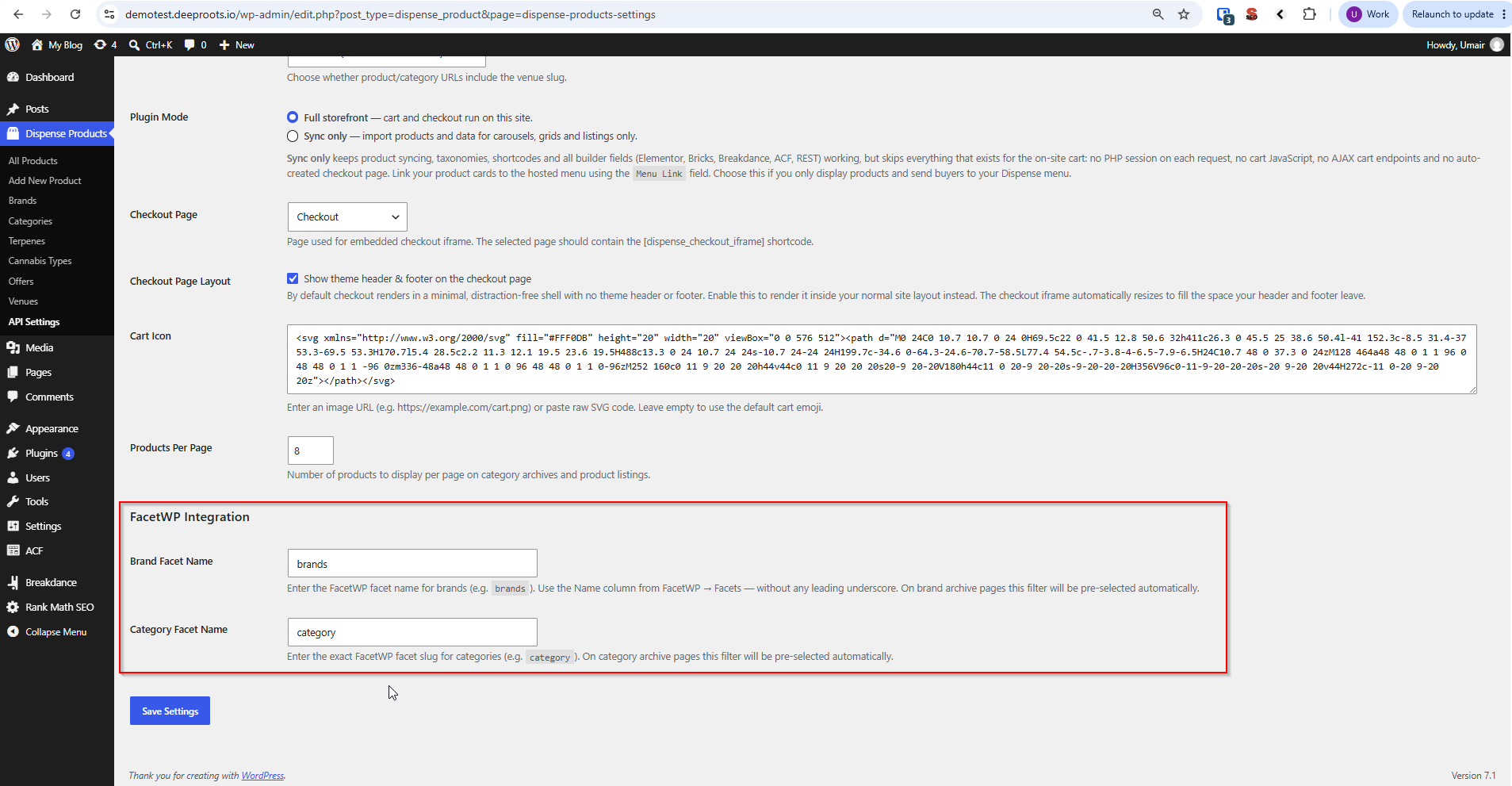
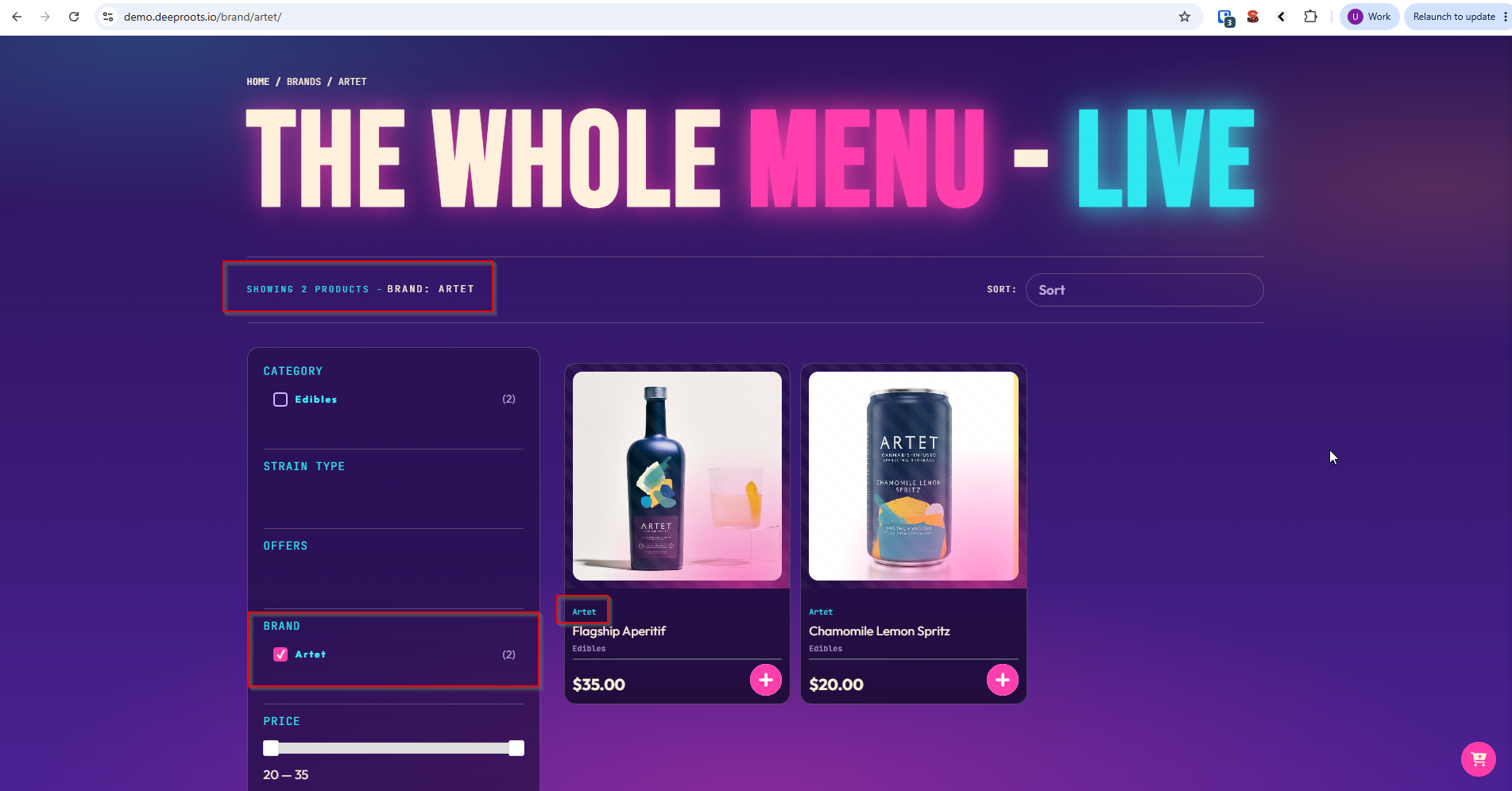
Get the name wrong and nothing breaks — the facet simply is not pre-selected. If that is what you are seeing, check the name character for character against the Name column.
Filters on category and brand pages
Taxonomy archives work without you building anything: /categories/flower/ lists flower products, /brand/northern-lights-co/ lists that brand’s products.
Adding filters to an archive
Build a taxonomy archive template in your page builder and drop the listing shortcode into it:
[custom_product_filter show_filters="true"]The listing detects the archive it is on and filters accordingly, so on /categories/flower/ it shows flower — and the visitor can narrow further by brand from there.
Pagination
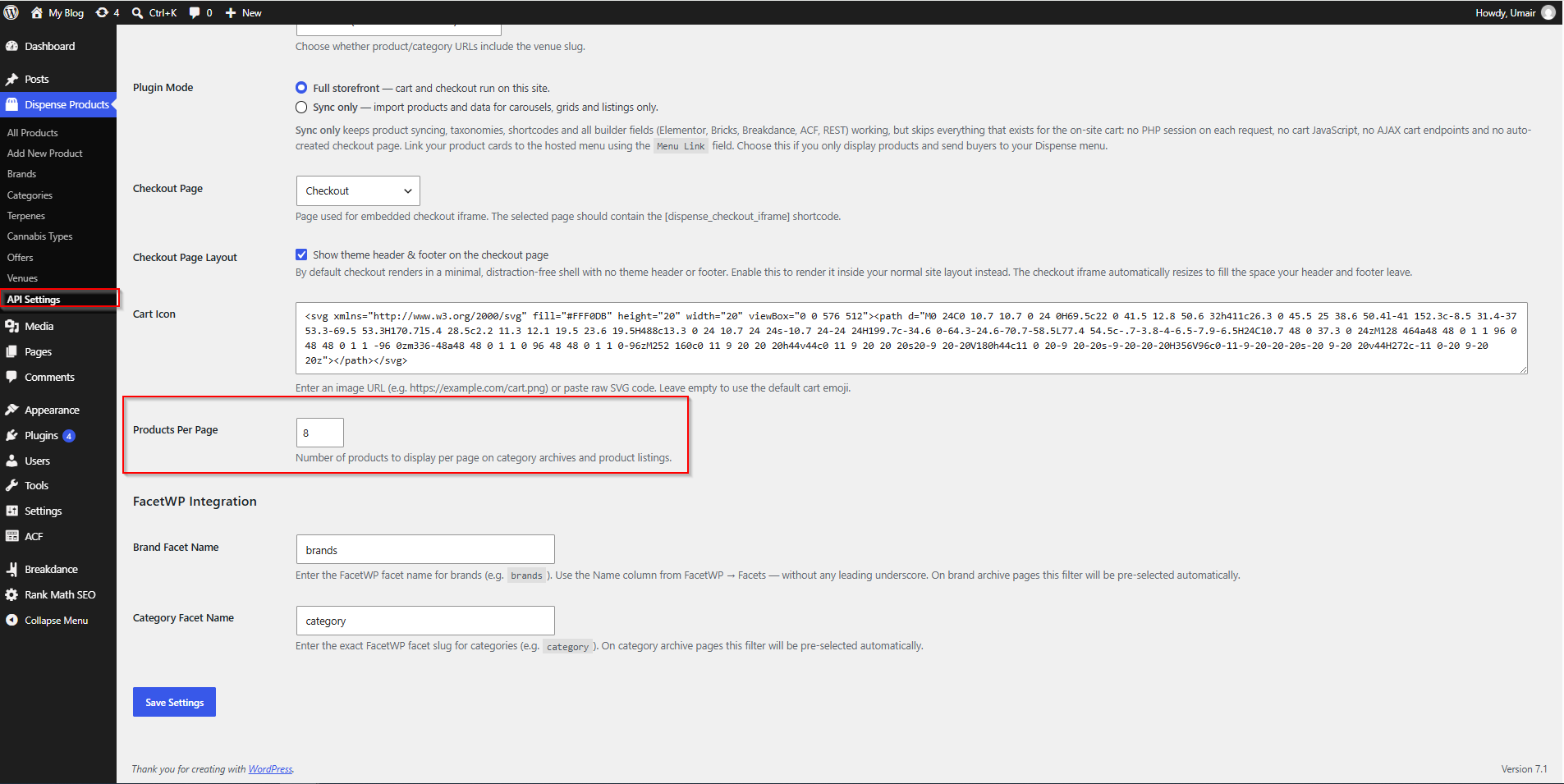
Archives use Products Per Page from the General tab, which defaults to 8. Raise it for a denser menu; be careful going much above 24, since each card is doing work.
Localized URLs
With Localized URLs, category archives include the venue:
/menu/camden/categories/flower/and the listing filters by both the venue and the category. Pagination follows the same pattern:
/menu/camden/categories/flower/page/2/Performance on large catalogues
Filtering searches your WordPress database, so a large catalogue needs a little care:
- Keep Products Per Page reasonable. 8 to 24.
- Prefer taxonomy filters over custom-field filters. Taxonomies are indexed; custom fields are not, so a price-range facet is heavier than a brand facet.
- Cache what you can. Listing pages without live prices can be cached; the sidebar shell is identical for everyone. Product pages using the live detail shortcodes cannot.
- Consider object caching — Redis or Memcached — above a couple of thousand products.
See Caching & Site Speed.
Common problems
The filter dropdowns are empty.
No terms exist yet — run a sync. If products are imported but terms are empty, check the sync summary for errors.
Filtering shows no products at all.
The combination genuinely has no matches, or the listing is being filtered twice — for instance a category shortcode attribute fighting an archive’s own filter. Try the filters one at a time.
Sorting by price puts things in a strange order.
Products with no price sort unpredictably. Check for products with an empty dispense_product_price.
FacetWP facets show no options.
The facet’s source is wrong. It must point at the AIQ Ecommerce taxonomies (dispense_brand and so on), not at the WordPress core categories.
FacetWP filters the facet counts but not the products.
FacetWP is not attached to the listing query. Make sure you are using [custom_product_filter show_filters="false"] rather than a custom loop of your own, or set FacetWP’s query source explicitly.
The brand facet is not pre-selected on brand pages.
The Brand Facet Name does not match. Copy it exactly from FacetWP → Facets, without a leading underscore.
Products do not appear in site search.
Add dispense_product to your search plugin’s post types.