
All account changes are handled by Deeproots
There is no self-service portal, and nothing on this list can be changed from inside the plugin. Your site holds one value — the Client Key — and everything else lives on the licensing service.
That is deliberate. It means a change we make applies on your site’s very next request, with nothing to activate, refresh or clear.
To request anything on this page, contact: [email protected]
What we need to identify you
Include your site domain in any request. That is enough for us to find your account.
Adding or changing a domain
This is the most common request, and the one with the most avoidable pain attached.
Before a site migration or launch
The right way round:
- Tell us the new domain, a few days ahead if you can.
- We register it alongside the existing one.
- You switch the site over.
- Everything keeps working, with no gap.
The wrong way round:
- You switch the site over.
- Syncing stops immediately.
- You notice, and contact us.
- We register it and syncing resumes.
The second version costs you however long steps 2 to 4 take. Your storefront stays online the whole time — published products stay published — but prices and stock stop updating, and in Full storefront mode the cart stops working.
What to send us
| We need | Example |
|---|---|
| Your current domain | yourdispensary.com |
| The new domain | newdispensary.com |
Whether it uses www |
www.newdispensary.com |
| The date of the switch | "Thursday 12th, evening" |
| Whether the old domain should stay registered | Usually yes during a transition |
Remember www
example.com and www.example.com are different domains and both need registering if both are reachable. Same for .com versus .co.uk.
After the change
- Check Settings → General → Site Address (URL) is the new domain.
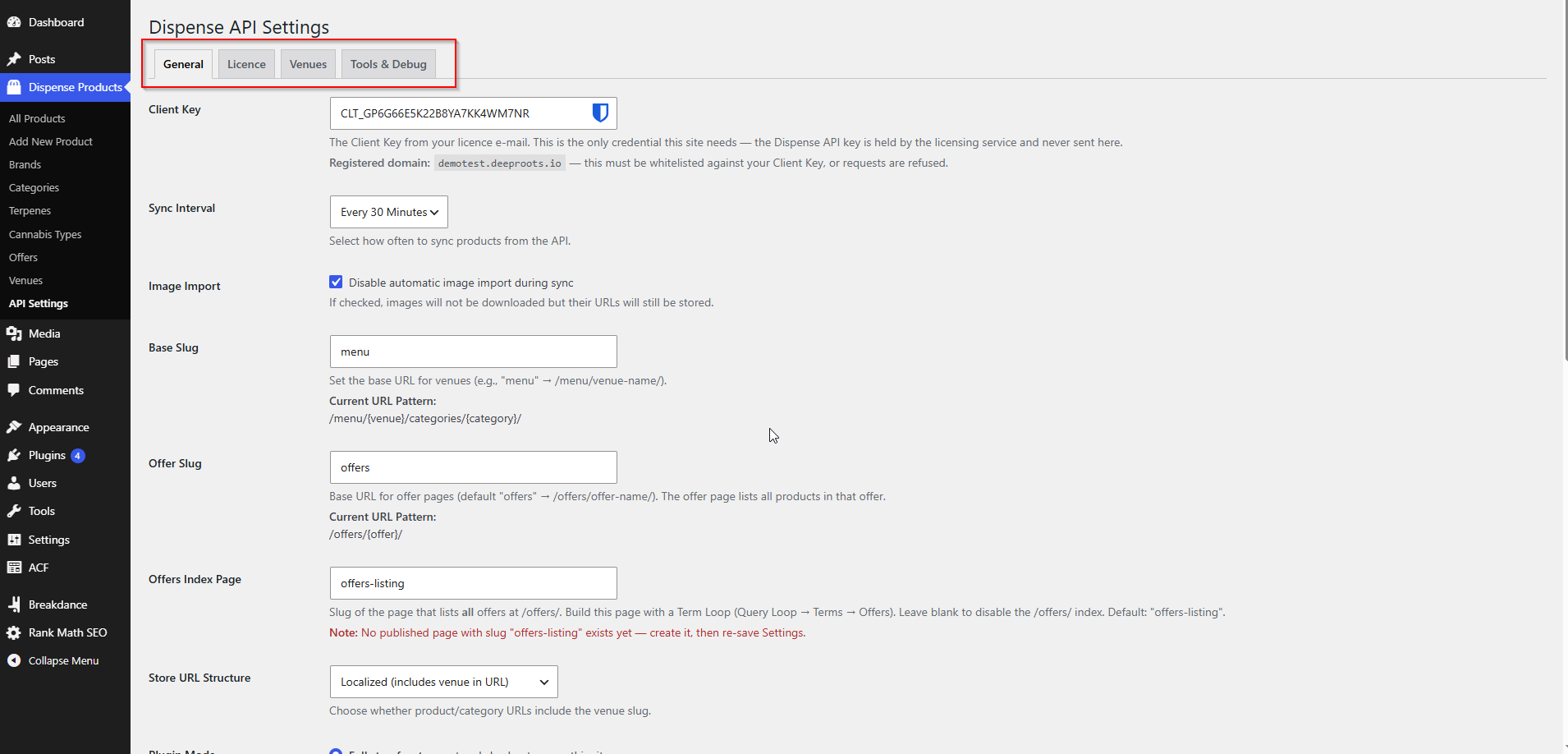
- Check the Registered domain line on the General tab shows it.
- Run Test Connection.
- Run a manual sync.
- Flush permalinks.
- Clear all caches.
Adding a staging domain
The same request, with no extra charge in the normal case. Send us the staging domain and it is added to your existing licence — you do not need a second Client Key.
We recommend setting staging to Sync only mode so nobody creates a real cart or order from a test site.
Removing a domain
Worth doing when a staging site is retired or an old domain is decommissioned. Tell us which to remove and when.
Turnaround
Adding a new AIQ Ecommerce account or location to your licence
Adding a venue
If you open a new location, or an existing one should now appear on your site:
- Make sure the venue exists in AIQ Ecommerce first.
- Send us the venue name and, if you have it, its AIQ Ecommerce venue ID.
- We attach it to your licence.
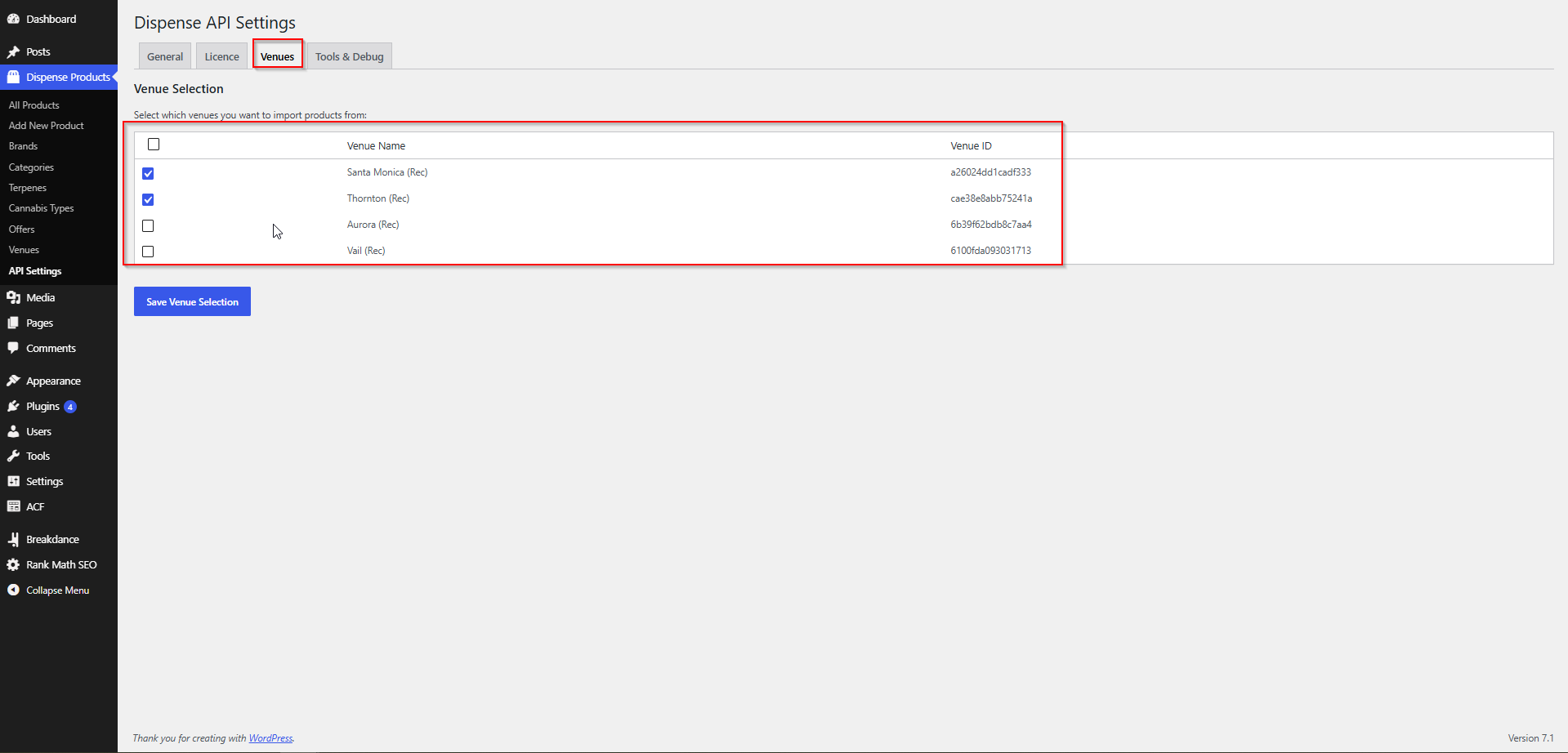
- It appears on your Venues tab automatically — no new Client Key, no plugin change.
- Tick it and save.
- Run a manual sync to import its products.
Adding another AIQ Ecommerce account
If your business runs several AIQ Ecommerce accounts — different entities, different regions — they can all sit behind one Client Key. The licensing service works out which account can serve each venue.
Send us the account details and which venues belong to it.
Removing a venue
Two separate things, and it matters which you want:
| To do | Action |
|---|---|
| Stop showing a location on the site, keep it on the licence | Untick it on the Venues tab |
| Remove it from the licence entirely | Ask us |
If a venue you expect is missing from the Venues tab
It is not on your licence yet. Contact us with the venue name.
Getting a replacement Client Key
Ask for one if:
- The key has been exposed — committed to a public repository, posted publicly, sent to the wrong person.
- Someone with access to it has left the business.
- You have lost it and cannot find the licence e-mail.
What to send: your site domain, and why you need a replacement. Do not send the old key.
What happens: we issue a new key and deactivate the old one. Paste the new key into the General tab and save.
There is no charge, and being domain-bound means an exposed key is far less dangerous than it sounds — but replacing it is quick and there is no reason not to.
Changing your contacts
Tell us when the technical or billing contact changes. It matters more than it sounds: renewal notices and outage notifications go to whoever we have on file, and a licence lapsing because the notice went to someone who left is entirely avoidable.
Send: the name, e-mail and role, and which contact they replace.
Invoices and billing
Contact: [email protected]
For:
- Copies of invoices
- Changing payment method or billing details
- Purchase order numbers
- VAT or tax queries
- Renewal dates and terms
- Changing your plan
About renewals
Renewal notices go to your billing contact. If a licence lapses, syncing stops — and, as everywhere else in this knowledge base, your published products stay published and your storefront keeps working. Prices and stock simply stop updating until it is resolved.
There is no grace-period countdown in the plugin, and no expiry date shown, because the plugin holds no licence status at all. The Licence tab shows the last successful call and the last error; your account manager holds the commercial dates.
Cancelling
Tell us in writing, at [email protected], with your domain, your intended end date, and whether the site is being retired or moving to something else.
On cancellation:
- Your Client Key is deactivated.
- Syncing stops on the next request.
- Your products stay published. They will not update, and the cart will not work, but the pages do not disappear.
If you want the products removed too, delete them in WordPress — that is your decision to make, not something we do to your site.
What we cannot do
To be clear about the boundaries:
| We cannot | Contact instead |
|---|---|
| Change your AIQ Ecommerce products, prices or stock | AIQ Ecommerce |
| Access your AIQ Ecommerce account | AIQ Ecommerce |
| See or change your orders | AIQ Ecommerce |
| Access your WordPress site without credentials | You, if you want us to |
| Change your hosting configuration | Your host |