
What to try first
Most problems are one of five things. Working through this list takes five minutes and resolves the majority of them.
1. Run Test Connection
AIQ Ecommerce Products → API Settings → Tools & Debug → Test Connection
- Green: the licence, the domain and the connection are all fine. The problem is elsewhere.
- Red: the message tells you exactly what is wrong. Look it up in Error Messages Explained.
2. Check the Sync Status
Tools & Debug → Sync Status. When did the last sync run, and did it succeed? A red message here usually explains the whole problem.
3. Clear every cache
Page cache, object cache, CDN and browser. Then check in a private browsing window, logged out. A large share of “it is broken” reports are a cached copy of an older page.
4. Run a manual sync
Tools & Debug → Sync Products Now. If data looks stale, this rules out a scheduling problem.
5. Check for a plugin conflict
If something on the front end has stopped working — the cart especially — the usual culprit is another plugin’s JavaScript. On a staging site, deactivate other plugins one at a time and retest.
Then check the article for your symptom
- Troubleshooting Common Issues
- Error Messages Explained
- Frequently Asked Questions
Information to include in a support request
The difference between a same-day resolution and three days of back-and-forth is almost entirely what is in the first message. Include all of this:
Always
| Item | Example |
|---|---|
| Your site's domain | yourdispensary.com |
| What you were trying to do | "Run a manual sync" |
| What you expected | "Products to update" |
| What actually happened | "Red error in the sync summary" |
| The exact error message | Copy and paste it in full, or screenshot it |
| When it started | "This morning, after we switched to the new domain" |
| What changed recently | Plugin updates, theme changes, a migration, a new caching plugin |
Where relevant
| Item | When to include it |
|---|---|
| A screenshot of the Licence tab | Any licence, key or domain problem |
| A screenshot of the Sync Status panel | Any syncing problem |
| The URL of an affected page | Anything on the front end |
| A specific product name or ID | A problem with one product |
| Whether it happens logged out | Anything on the front end |
| Which browser and device | Anything that looks like a display problem |
| Your plugin version | Always useful — Plugins → Installed Plugins |
What not to send
Also avoid sending WordPress administrator credentials unless we ask for them, and if you do, create a temporary account and remove it afterwards.
How to collect diagnostic details
The Licence tab
AIQ Ecommerce Products → API Settings → Licence
Screenshot the whole panel. It shows the masked Client Key, the domain this site presents, the licensing service address, the last successful call and the last error with its code.
The Sync Status panel
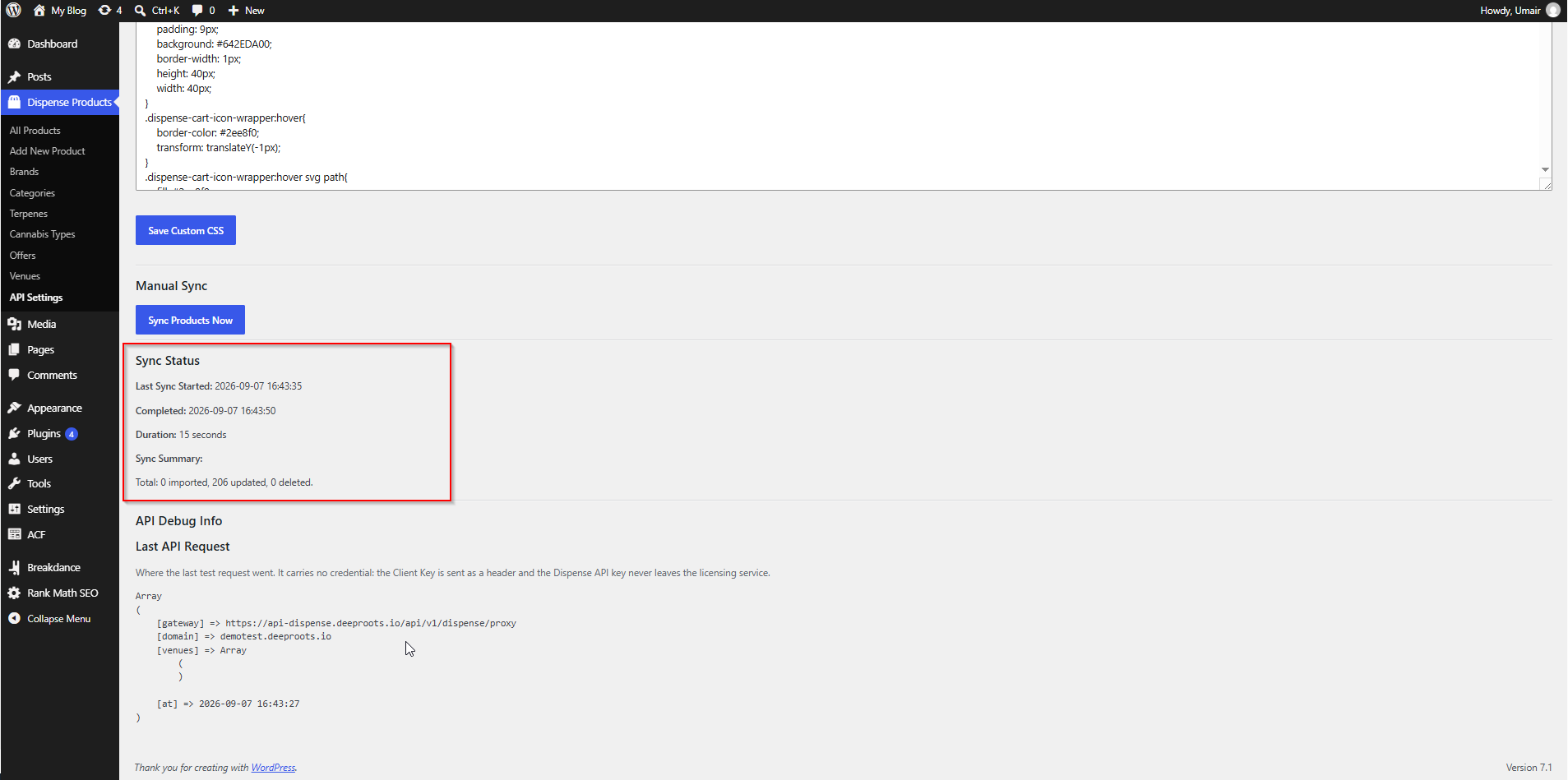
AIQ Ecommerce Products → API Settings → Tools & Debug
Screenshot from Sync Status down through the summary.
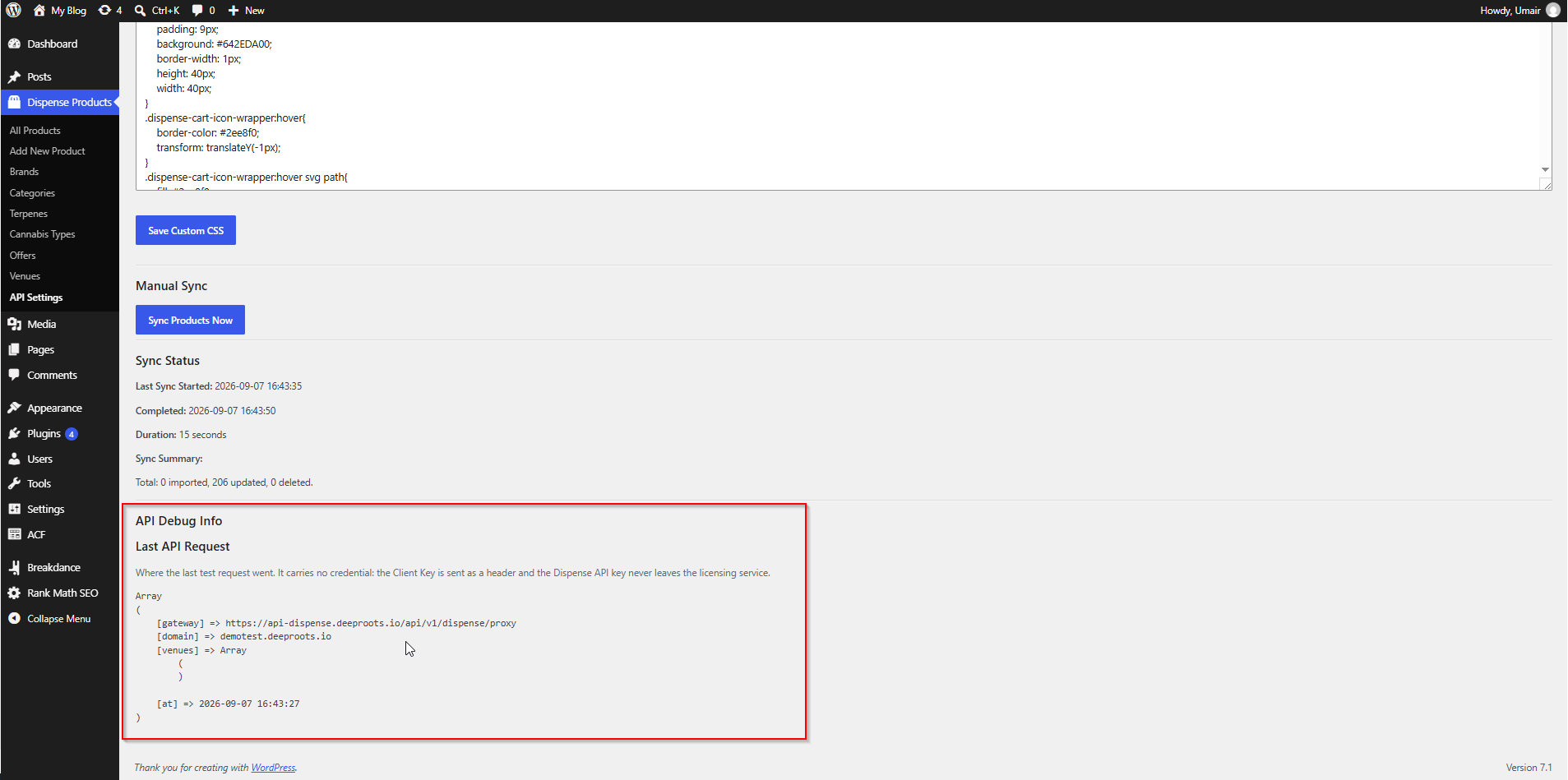
The API Debug Info panel
Also on Tools & Debug, below Sync Status. It shows where the last test request went.
Safe to send as-is.
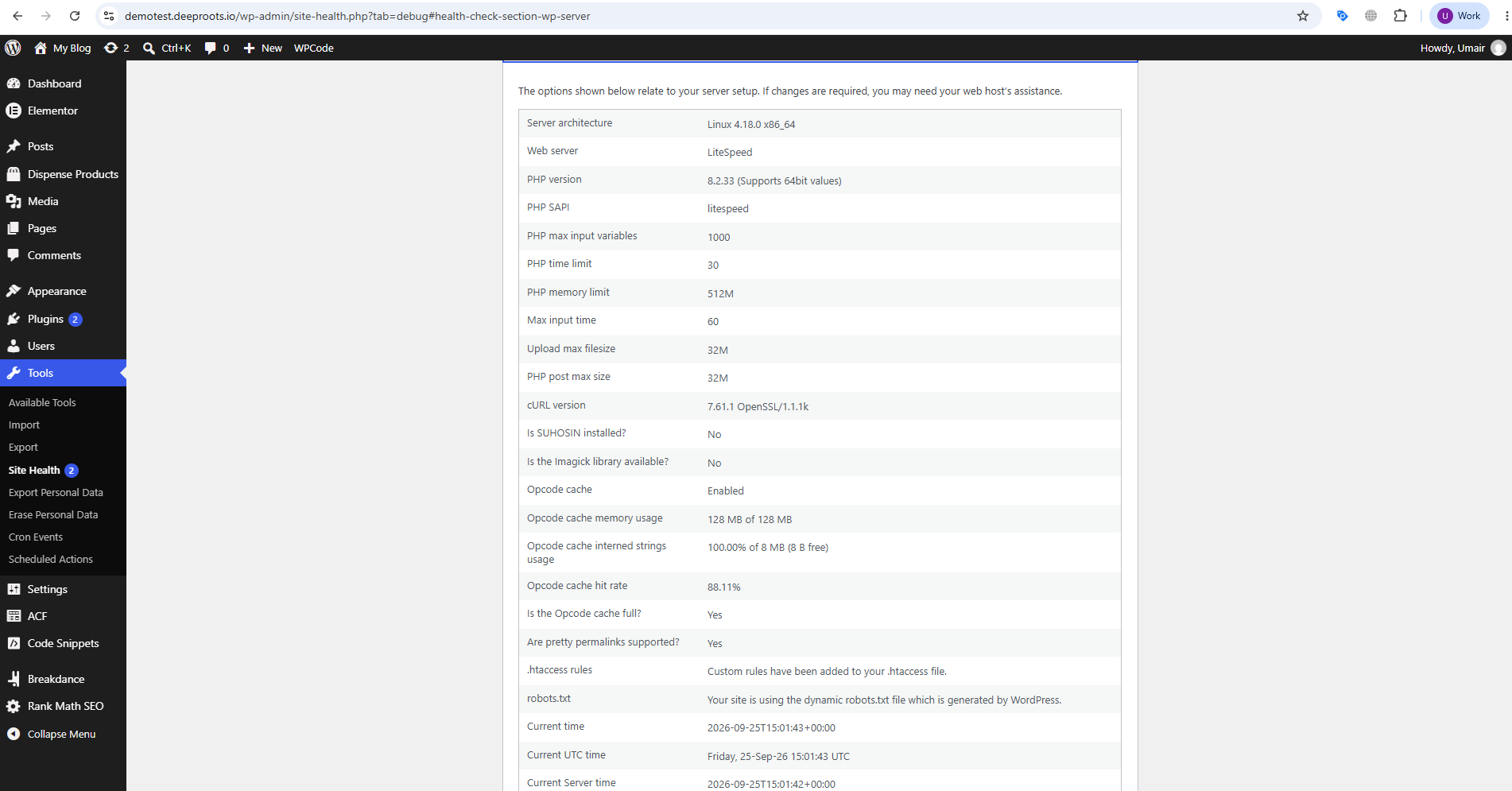
Site Health
Tools → Site Health → Info
Expand Server and WordPress Constants and copy the details, or use Copy site info to clipboard at the top for everything at once. This gives us your PHP version, memory limit, execution time and WordPress configuration.
The browser console
For anything on the front end — the cart especially:
- Open the page where it goes wrong.
- Press F12 (or Cmd + Option + I on a Mac).
- Click the Console tab.
- Reload the page and reproduce the problem.
- Screenshot any red errors.
Scheduled events
If syncs are not running on schedule, install WP Crontrol and screenshot the entry for dispense_products_cron_sync, showing its next run time.
The WordPress debug log
For a persistent sync problem, a developer can enable logging:
// wp-config.php
define('WP_DEBUG', true);
define('WP_DEBUG_LOG', true);
define('WP_DEBUG_DISPLAY', false);
Reproduce the problem, then send the relevant part of /wp-content/debug.log. The plugin logs its sync progress and results there.
How to reach us
By e-mail
The best route for most things. Include everything from the checklist above.
What counts as urgent
| Priority | Examples |
|---|---|
| Urgent | Customers cannot check out · The storefront is down · Prices are visibly wrong to customers |
| High | Syncing has stopped · A licence or domain error is blocking the site |
| Normal | A display problem · A question about configuration · A feature request |
Say so in your first message if it is urgent, and say what the customer impact is.
Who handles what
| Topic | Who |
|---|---|
| The plugin, syncing, the cart, display | Deeproots support |
| Your licence, domains, adding venues | Deeproots — see Account Changes & Requests |
| Invoices and billing | Deeproots |
| Your AIQ Ecommerce account, products, orders, payouts | AIQ Ecommerce |
| Hosting, PHP versions, outbound connections | Your host |
| Your theme or page builder | The theme or builder's own support |
If you are not sure, ask us. We would rather point you in the right direction than have you wait.
Helping us help you
A few habits make everything faster:
- One problem per request. Three problems in one thread get tangled.
- Send screenshots, not descriptions of screenshots. A picture of the error settles it immediately.
- Say what changed. “It worked yesterday, and last night we moved hosts” is the most useful sentence you can write.
- Tell us if you have a staging site. It lets us test safely.
- Tell us your deadline. If a promotion goes live on Friday, say so on Monday.