
What shortcodes are and how to use them
A shortcode is a short piece of text in square brackets that WordPress replaces with real content when the page loads. Type this into a page:
[dispense_offers]and your visitors see a grid of your current offers.
Where they work:
| Where | How |
|---|---|
| Block editor | Add a Shortcode block, paste it in |
| Classic editor | Type it straight into the content |
| Elementor | Use the Shortcode widget |
| Bricks | Use the Shortcode element |
| Breakdance | Use the Shortcode element |
| Theme template | <?php echo do_shortcode('[dispense_offers]'); ?> |
| Widgets | Most widget areas accept shortcodes |
Options go inside the brackets as name="value":
[dispense_offers columns="4" limit="6"]Always use straight quotes. A text editor that converts them to curly quotes will break the shortcode — one reason to prefer a Shortcode block over pasting into rich text.
Quick index
| Shortcode | Does | Needs Full storefront? |
|---|---|---|
[dispense_products] |
Product grid for one venue | No |
[custom_product_filter] |
Product listing, with or without filters | No |
[dispense_brand_image] |
Brand logo image | No |
[dispense_brand_image_url] |
Brand logo URL | No |
[dispense_offers] |
Grid of all offers | No |
[dispense_offer_banner] |
Offer banner image | No |
[dispense_offer_banner_url] |
Offer banner URL | No |
[dispense_offer_type] |
Offer type badge | No |
[dispense_offer_description] |
Offer description | No |
[dispense_product_cannabis_type] |
Cannabis type | No |
[dispense_product_category] |
Product category | No |
[dispense_product_cannabinoids] |
Cannabinoid data | No |
[dispense_product_terpenes] |
Terpene list | No |
[dispense_product_terpenes_type] |
Dominant terpene type | No |
[dispense_product_effects] |
Reported effects | No |
[dispense_product_quantity_buttons] |
Quantity +/− buttons | No |
[dispense_add_to_cart] |
Add to Cart button | Yes |
[dispense_view_cart] |
Cart sidebar | Yes |
[dispense_cart_icon] |
Cart icon with count | Yes |
[dispense_checkout_iframe] |
Embedded checkout | Yes |
The four cart shortcodes render nothing for visitors in Sync only mode; administrators see a note explaining why.
Product listing shortcodes
[dispense_products]
A simple product grid for one venue.
| Attribute | Default | Description |
|---|---|---|
venue_id |
(required) | The venue's AIQ Ecommerce ID |
[dispense_products venue_id="YOUR-AIQ-Ecommerce-VENUE-ID"]Get the ID from the Venue ID column at AIQ Ecommerce Products → API Settings → Venues.
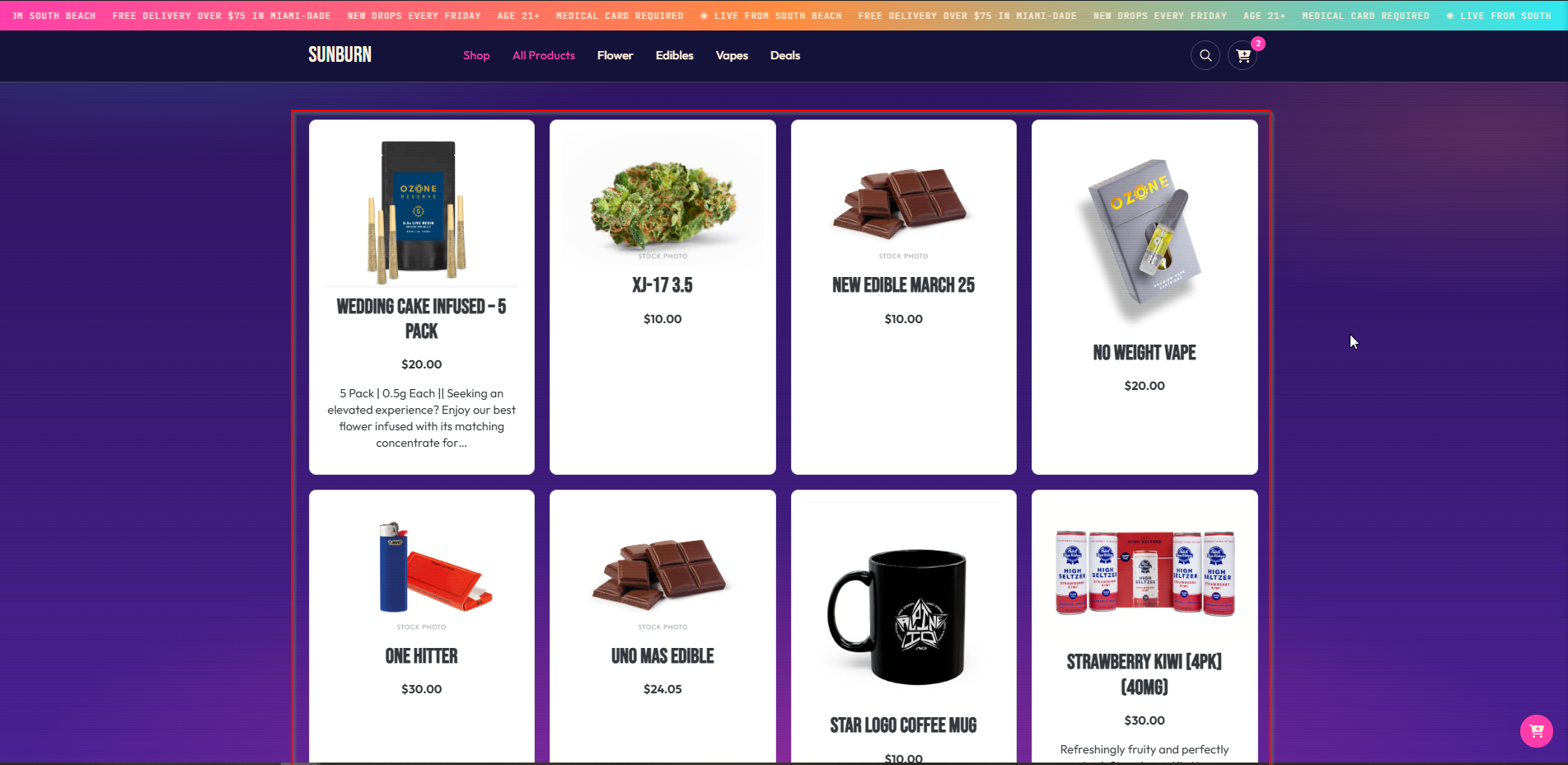
Each card shows the product image, name, price and a trimmed description. It renders every product for that venue with no pagination, so it suits a modest catalogue or a location landing page rather than a full menu.
If the venue ID is missing or wrong, the shortcode says so on the page — useful while you are setting up, worth checking before you publish.
[custom_product_filter]
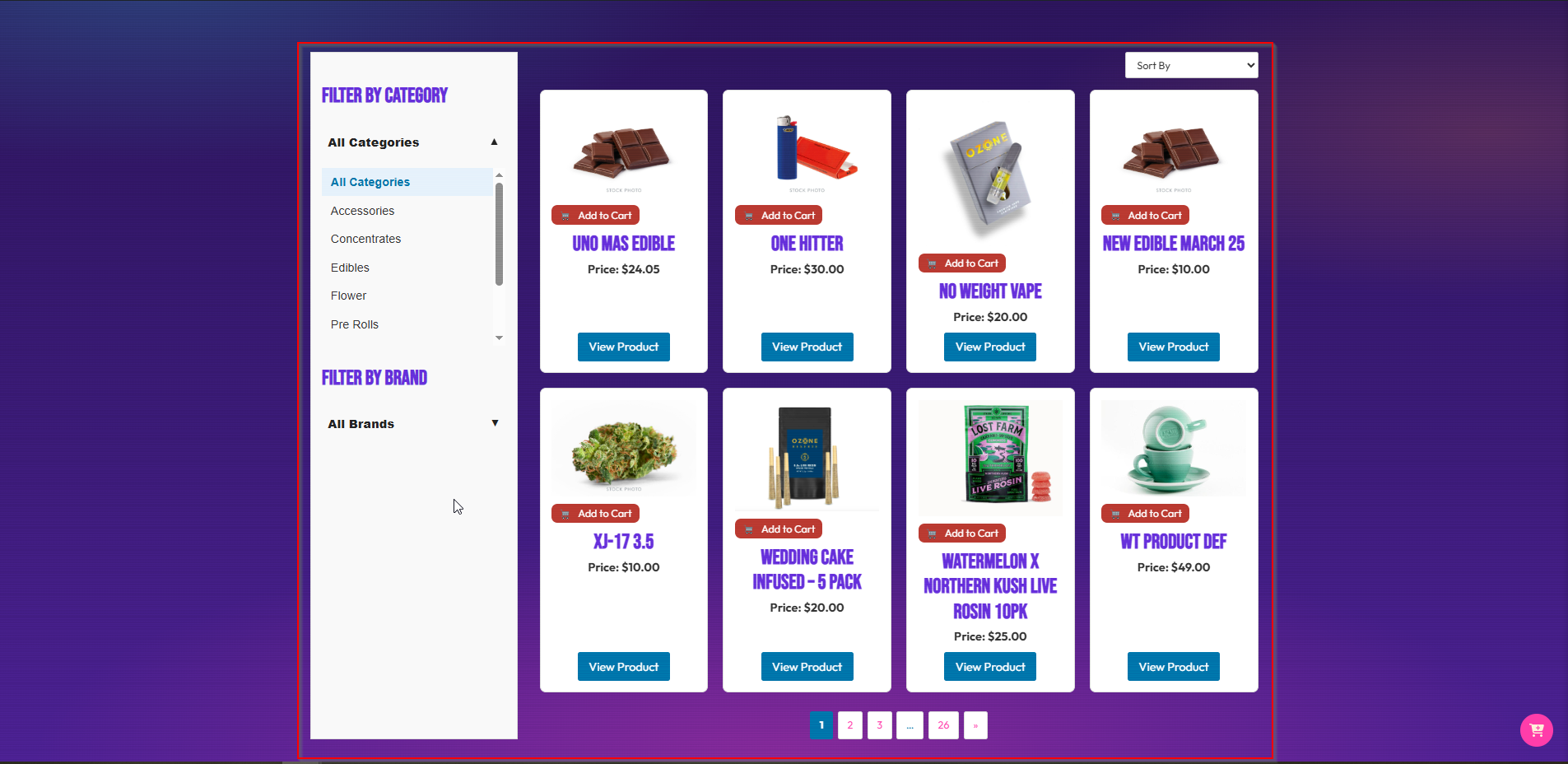
The main product listing, with an optional built-in filter interface.
| Attribute | Default | Description |
|---|---|---|
show_filters |
true |
true shows the category/brand filters and sort dropdown; false shows the listing alone |
With filters — a full menu page:
[custom_product_filter show_filters="true"]Without filters — for use with FacetWP or your own filter interface:
[custom_product_filter show_filters="false"]Each product card shows the image, name, price, an Add to Cart button (in Full storefront mode) and a View Product link. The listing is paginated using the Products Per Page setting on the General tab, which defaults to 8.
The listing also picks up the category from the page it is on, so dropping it into a category archive template filters it automatically.
More detail: Product Filtering & Search.
[dispense_brand_image]
The brand’s logo as an image.
| Attribute | Default | Description |
|---|---|---|
class |
dispense-brand-image |
CSS class on the <img> |
term_id |
(auto) | Target a specific brand |
[dispense_brand_image]
[dispense_brand_image class="brand-logo-large"]
[dispense_brand_image term_id="42"]
Works out which brand you mean automatically — on a brand archive, inside a term loop, or from the brand assigned to the product being displayed. Outputs nothing if there is no logo.
[dispense_brand_image_url]
The same logo, as a bare URL — for background images and custom markup.
[dispense_brand_image_url]Offer shortcodes
[dispense_offers]
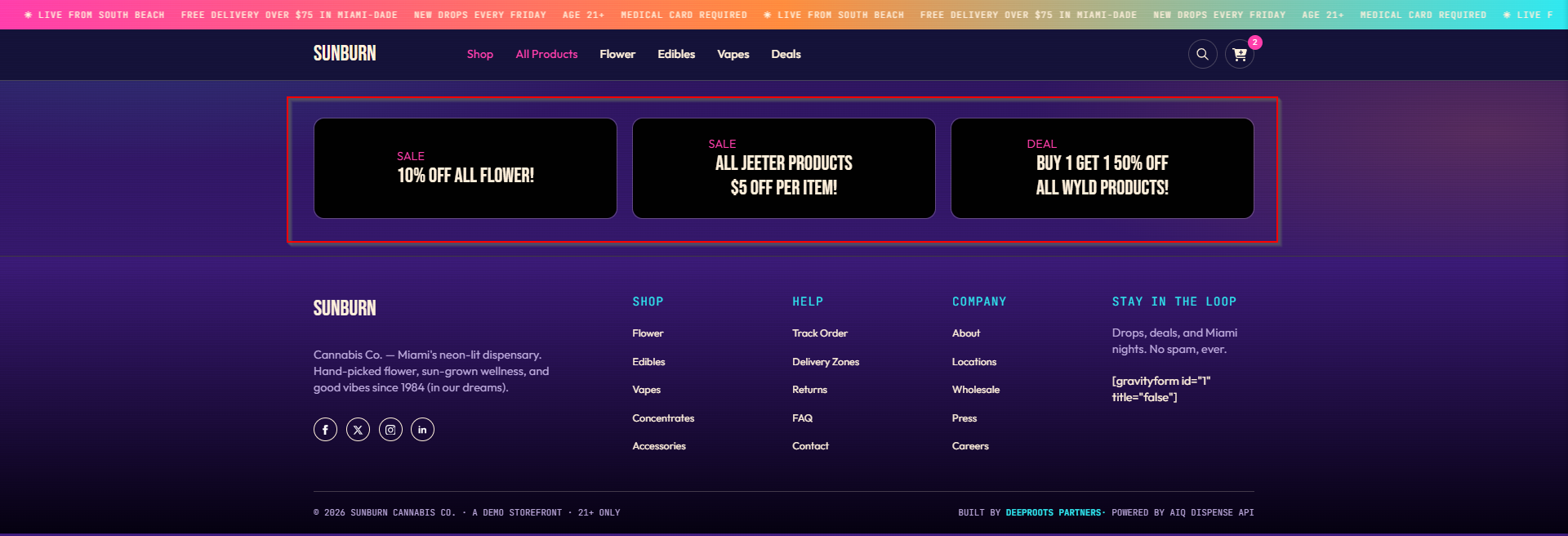
A grid of all your offers, each linking to its own offer page. This is what you put on your all-offers page.
| Attribute | Default | Description |
|---|---|---|
columns |
3 |
Grid columns |
size |
large |
Preferred banner size: large, medium, small |
hide_empty |
0 |
1 hides offers with no products |
orderby |
name |
Field to order by |
order |
ASC |
ASC or DESC |
limit |
0 |
Maximum offers (0 = all) |
show_name |
1 |
Show the offer name |
show_type |
1 |
Show the offer type badge |
[dispense_offers]
[dispense_offers columns="4" limit="8" hide_empty="1"]
[dispense_offers columns="2" size="medium" show_type="0"]
Every offer is resolved on the server, so each card gets its real banner. Use this rather than a page builder term loop for an all-offers listing — page builders do not pass a loop’s term to custom dynamic fields, so a looped banner comes out empty.
Style with .dispense-offers-grid, .dispense-offer-card, .dispense-offer-card__banner, .dispense-offer-card__name and .dispense-offer-card__type.
[dispense_offer_banner]
One offer’s banner, as an image.
| Attribute | Default | Description |
|---|---|---|
size |
large |
large (desktop), medium (tablet), small (mobile) |
term_id |
(auto) | Target a specific offer |
[dispense_offer_banner]
[dispense_offer_banner size="small"]
[dispense_offer_banner term_id="17"]
Falls back through the sizes and then the offer’s own image, so you get something whenever any image exists.
[dispense_offer_banner_url]
The same banner as a bare URL.
[dispense_offer_banner_url size="large"][dispense_offer_type]
The offer’s type — SALE, for example. Good for a short badge.
[dispense_offer_type][dispense_offer_description]
The offer’s description text.
[dispense_offer_description]All four single-offer shortcodes resolve the offer automatically: on the offer archive, in a term loop over dispense_offer, or from the first offer assigned to the product being shown.
Single product detail shortcodes
These seven fetch detailed product data live from AIQ Ecommerce for the product being displayed. Use them on a single product template.
| Shortcode | Shows |
|---|---|
[dispense_product_cannabis_type] |
Indica, Sativa, Hybrid and so on |
[dispense_product_category] |
The product's category |
[dispense_product_cannabinoids] |
Cannabinoid figures — THC, CBD |
[dispense_product_terpenes] |
The terpene list |
[dispense_product_terpenes_type] |
The dominant terpene type |
[dispense_product_effects] |
Reported effects |
[dispense_product_quantity_buttons] |
Quantity plus/minus buttons |
[dispense_product_cannabinoids]
[dispense_product_terpenes]
[dispense_product_effects]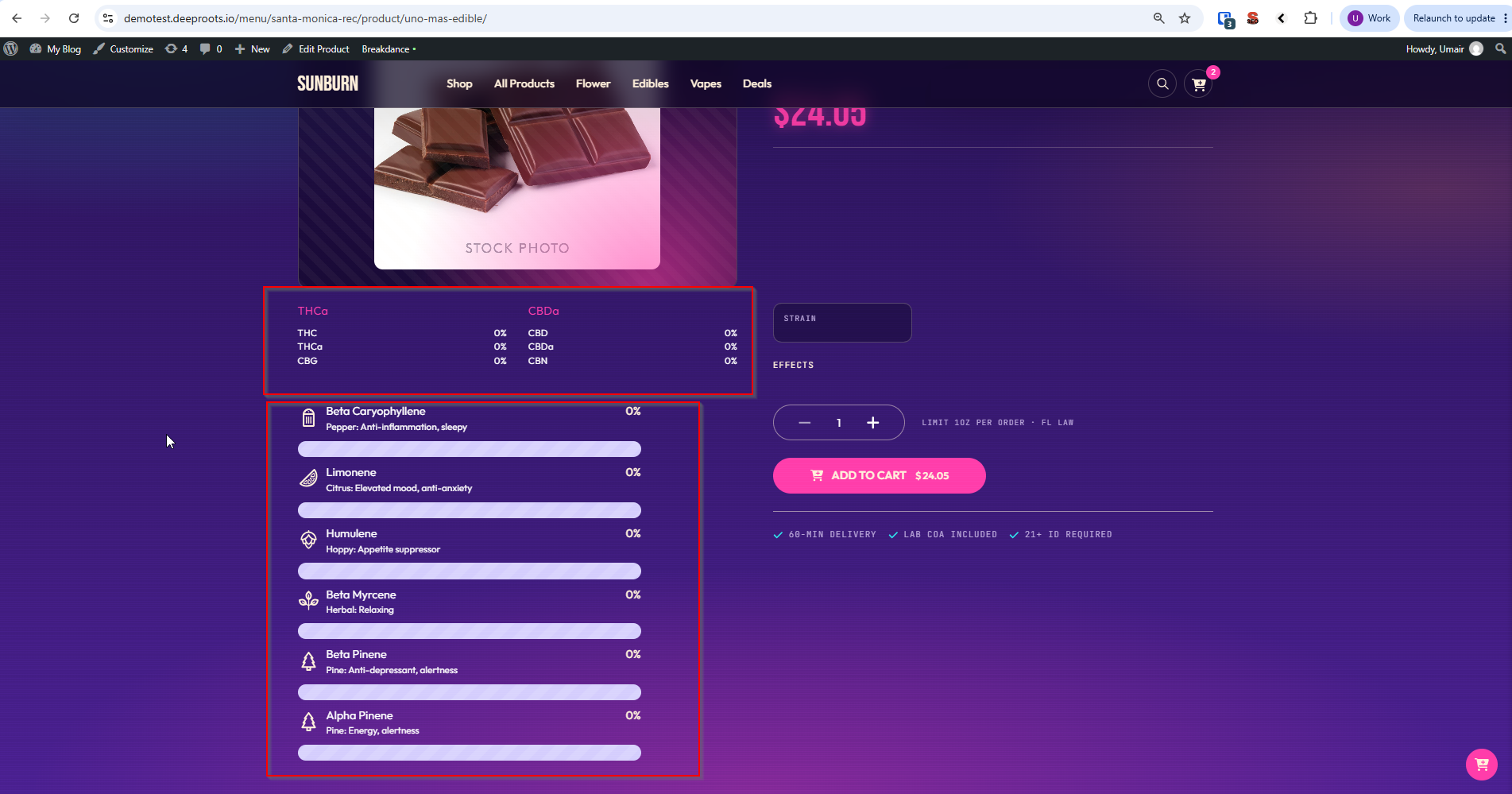
Cart shortcodes
All four require Full storefront mode.
[dispense_add_to_cart]
| Attribute | Default | Description |
|---|---|---|
product_id |
(auto) | The AIQ Ecommerce product ID |
quantity |
1 |
Starting quantity |
[dispense_add_to_cart]
[dispense_add_to_cart quantity="2"]
[dispense_add_to_cart product_id="abc123"]
[dispense_add_to_cart product_id="{{acf:dispense_product_id}}"]
On a single product page it finds the product itself. Inside a card loop, pass the ID explicitly — the {{acf:field_name}} form reads the value from a field on the current post.
[dispense_view_cart]
The cart sidebar and floating cart button.
[dispense_view_cart]Put it in a global template area — header or footer — so it exists on every page. The icon and the Add to Cart buttons all open this sidebar.
[dispense_cart_icon]
A cart icon with a live item count badge. Clicking it opens the sidebar.
[dispense_cart_icon][dispense_checkout_iframe]
Renders the AIQ Ecommerce checkout in an iframe.
[dispense_checkout_iframe]Put it on one page, and select that page under AIQ Ecommerce Products → API Settings → General → Checkout Page. See The Checkout Experience.
Copy-and-paste examples
A full menu page
[custom_product_filter show_filters="true"]A location landing page
<h2>Camden</h2>
[dispense_products venue_id="YOUR-CAMDEN-VENUE-ID"]
An all-offers page
[dispense_offers columns="3" hide_empty="1"]A single product template
[dispense_product_cannabis_type]
[dispense_product_cannabinoids]
[dispense_product_terpenes]
[dispense_product_effects]

[dispense_product_quantity_buttons]
[dispense_add_to_cart]
A site header
[dispense_cart_icon]A site footer (so the cart exists everywhere)
[dispense_view_cart]Common problems
The shortcode shows as raw text on the page.
Either it is in a plain-text field that does not process shortcodes, or the quotes were converted to curly quotes. Use a Shortcode block and retype the quotes.
A cart shortcode outputs nothing.
You are in Sync only mode. Administrators see an amber notice; visitors see nothing.
[dispense_products] says no venue ID provided.
Add venue_id="..." with the ID from the Venues tab.
[dispense_products] says no matching venue found.
The ID does not match any imported venue. Copy it again from the Venues tab and run a sync if the venue is newly added.
An offer shortcode outputs nothing.
It cannot tell which offer you mean. On a page with no offer context, pass term_id="123".
The detail shortcodes are empty.
They fetch from AIQ Ecommerce at render time — check the connection, and check the page is not cached.
Product cards show no images.
Images are served from AIQ Ecommerce by URL. Check the product actually has an image in AIQ Ecommerce.