
Before you start
The cart only runs in Full storefront mode. Check AIQ Ecommerce Products → API Settings → General → Plugin Mode before going further — see Choosing Your Plugin Mode.
You also need products synced and a working connection.
Turning the cart on
There is no separate on/off switch. The cart is on whenever the plugin is in Full storefront mode, and off in Sync only mode.
What you do have to do is place the cart. There are three shortcodes, and each has a natural home:
| Shortcode | Where it goes | What it does |
|---|---|---|
[dispense_cart_icon] |
Site header | A cart icon with a live item count badge |
[dispense_view_cart] |
Header or footer template — somewhere on every page | The cart sidebar itself, plus a floating cart button |
[dispense_add_to_cart] |
Single product template and product cards | The Add to Cart button |
[dispense_view_cart] is the important one. The icon and the buttons all open that sidebar, so if it is not present on the page there is nothing to open. Put it in a global template area, not on individual pages.
The cart icon and sidebar
The cart icon
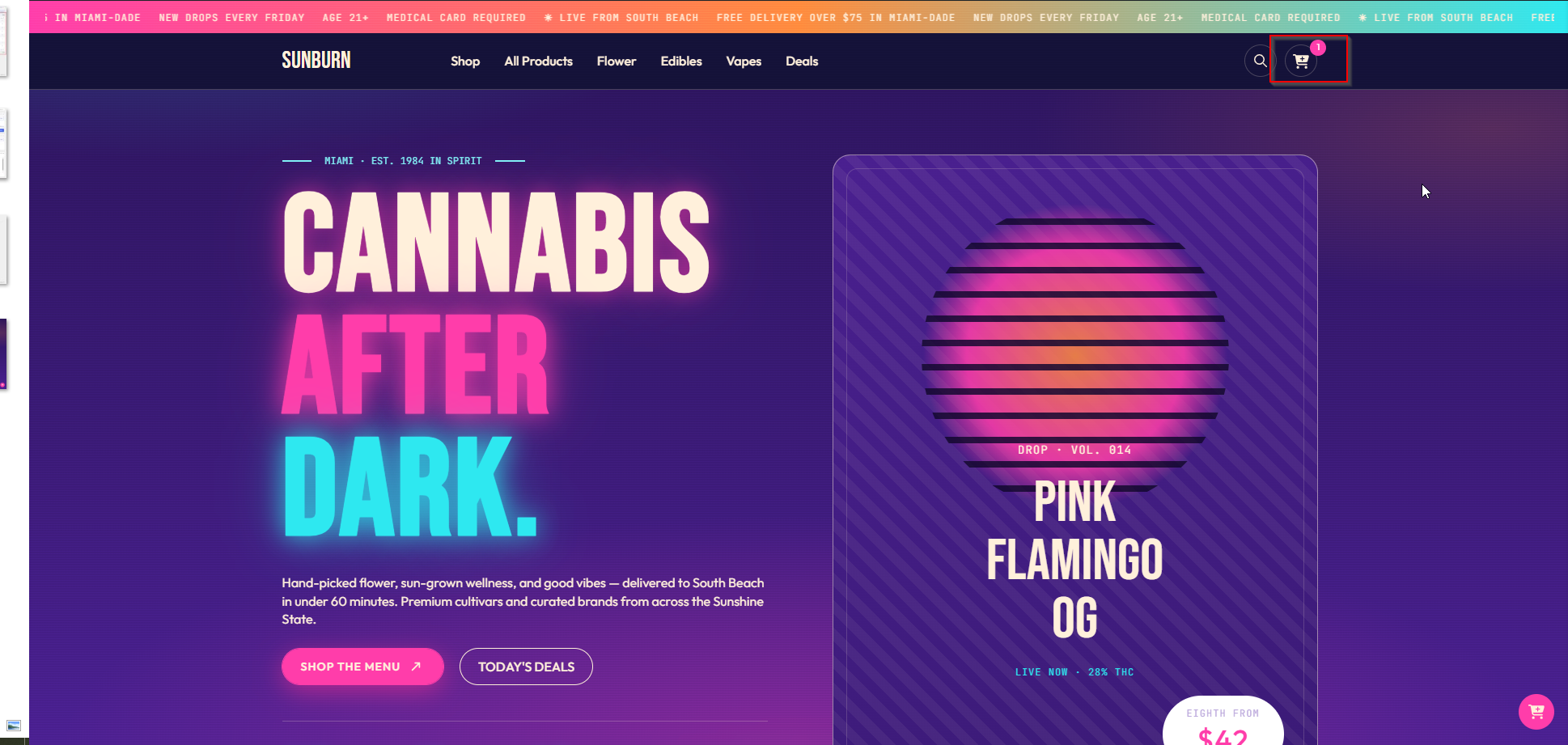
[dispense_cart_icon]Renders a cart icon with a live count badge that updates as items are added and removed. Clicking it opens the sidebar. It is keyboard accessible and carries an “Open cart” label for screen readers.
Choosing your own icon
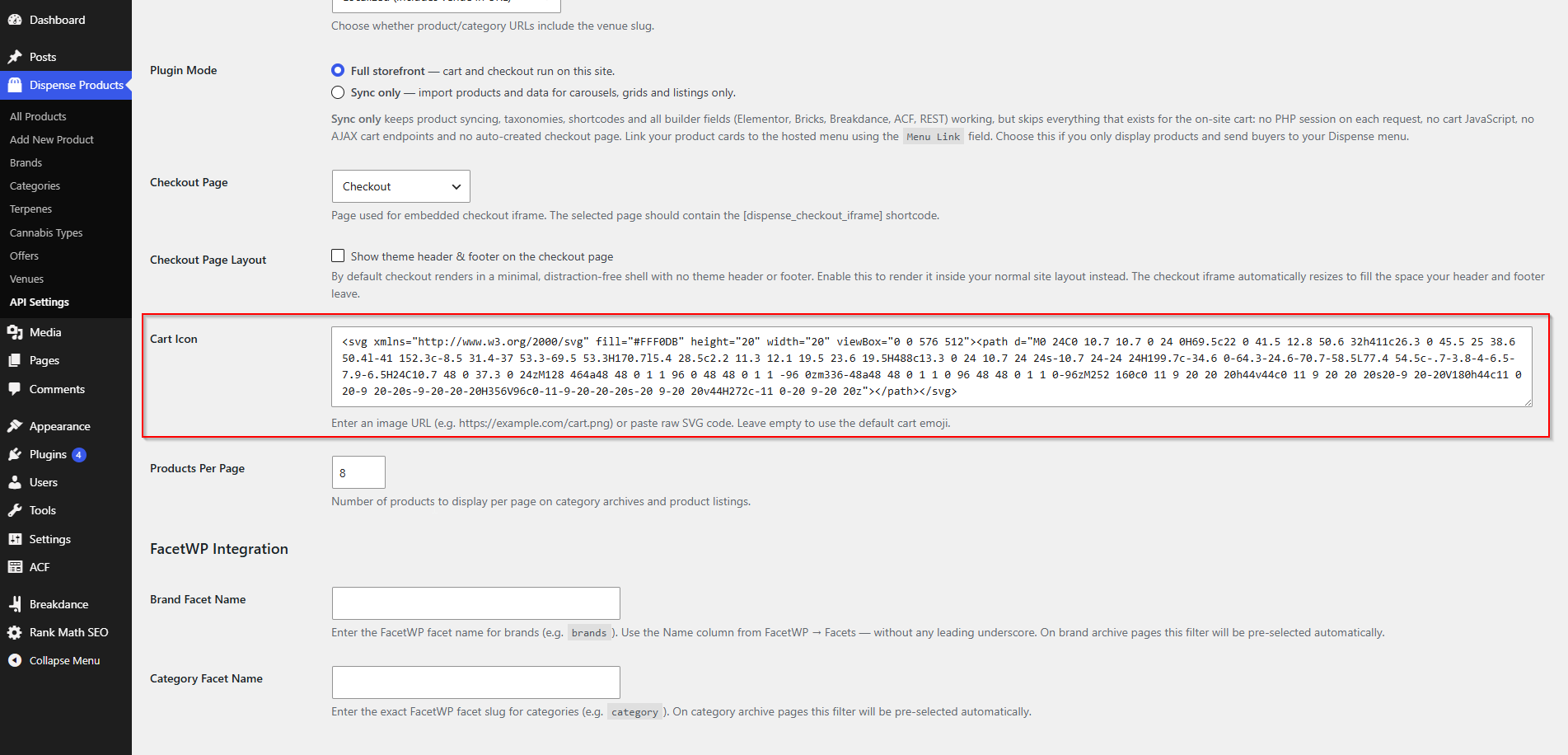
AIQ Ecommerce Products → API Settings → General → Cart Icon accepts either:
- An image URL —
https://example.com/cart.png - Raw SVG code — paste the whole
<svg>...</svg>
Leave it empty to use the default cart emoji. SVG is usually the better choice: it scales cleanly and takes its colour from your CSS.
The cart sidebar
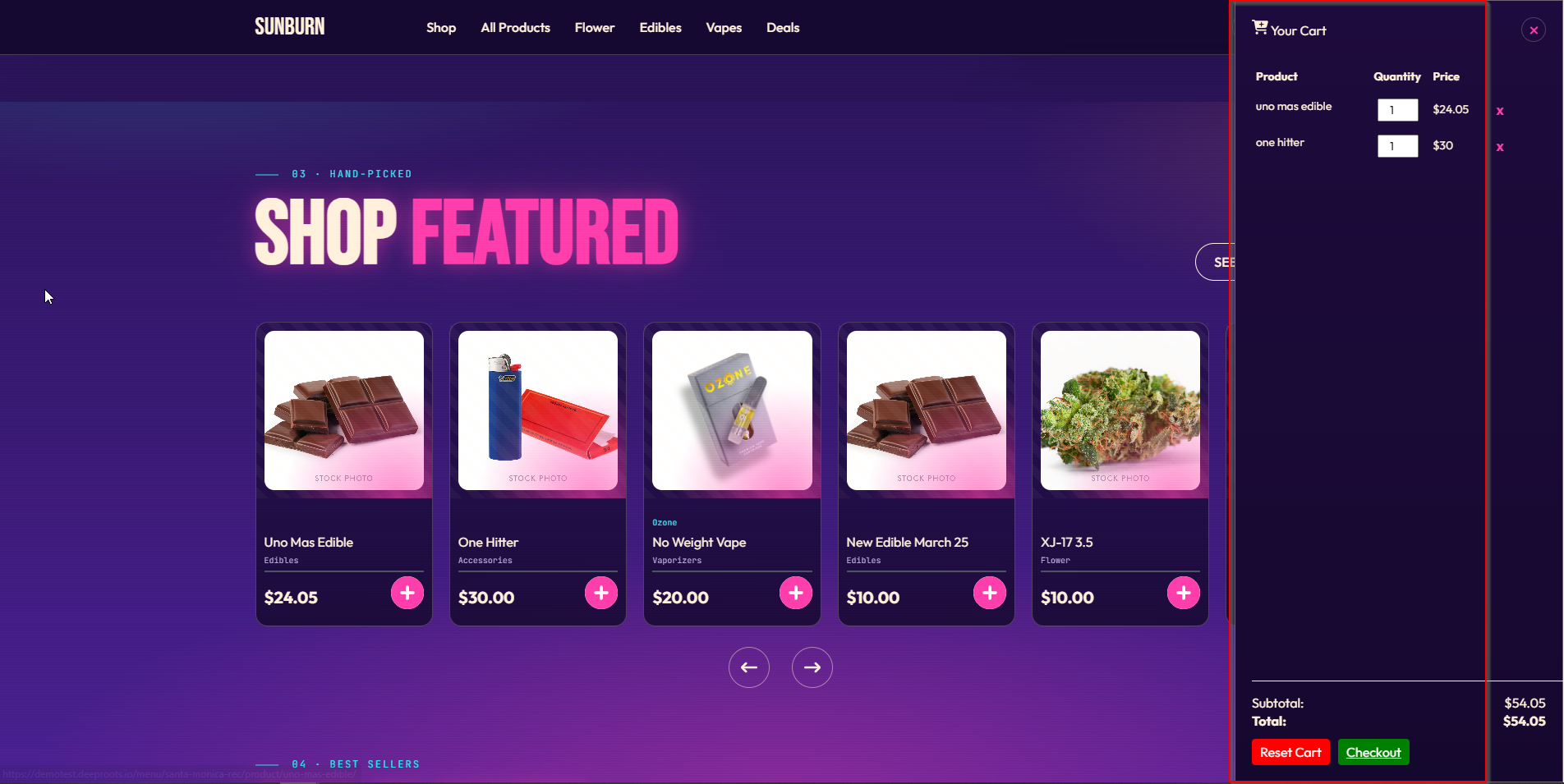
[dispense_view_cart]Renders the whole cart: a floating cart button, and a slide-out panel with a header, the item list, totals and the action buttons.
Two details worth knowing:
- The sidebar’s HTML is identical for every visitor. It renders empty, and the visitor’s actual cart is fetched by JavaScript once the page loads. That means the markup itself is safe to cache; the contents are always live.
- The floating button appears alongside the sidebar, so visitors can reach the cart even on pages where your header is not visible.
Add-to-cart behaviour and notifications
The button
[dispense_add_to_cart]On a single product page this picks up the product automatically. To point it at a specific product or set a starting quantity:
[dispense_add_to_cart product_id="abc123" quantity="2"]If you build cards in a page builder and store the product ID in a field, you can reference it:
[dispense_add_to_cart product_id="{{acf:dispense_product_id}}"]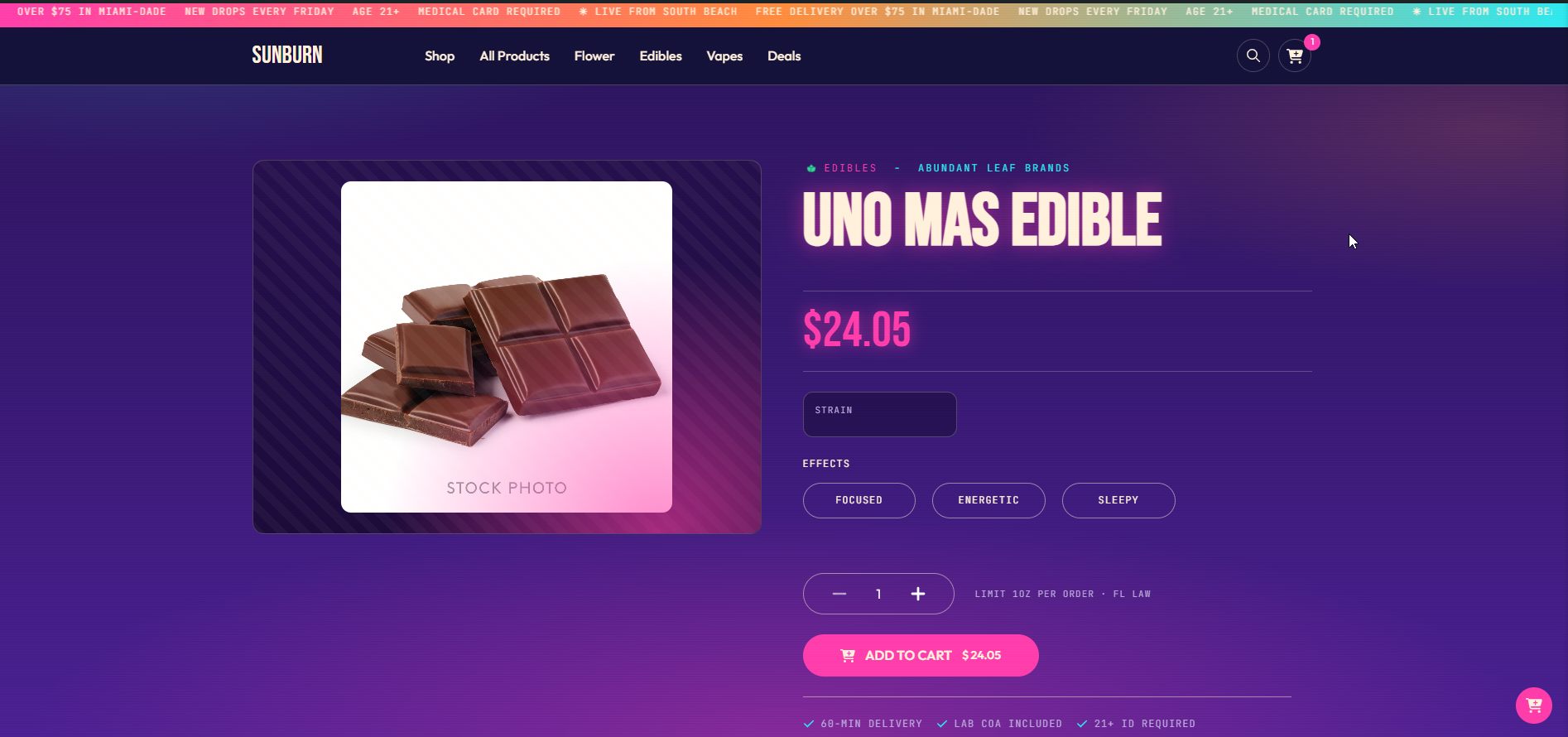
What happens on a click
- The item is sent to AIQ Ecommerce, and a cart is created if the visitor does not have one.
- The cart icon’s count updates.
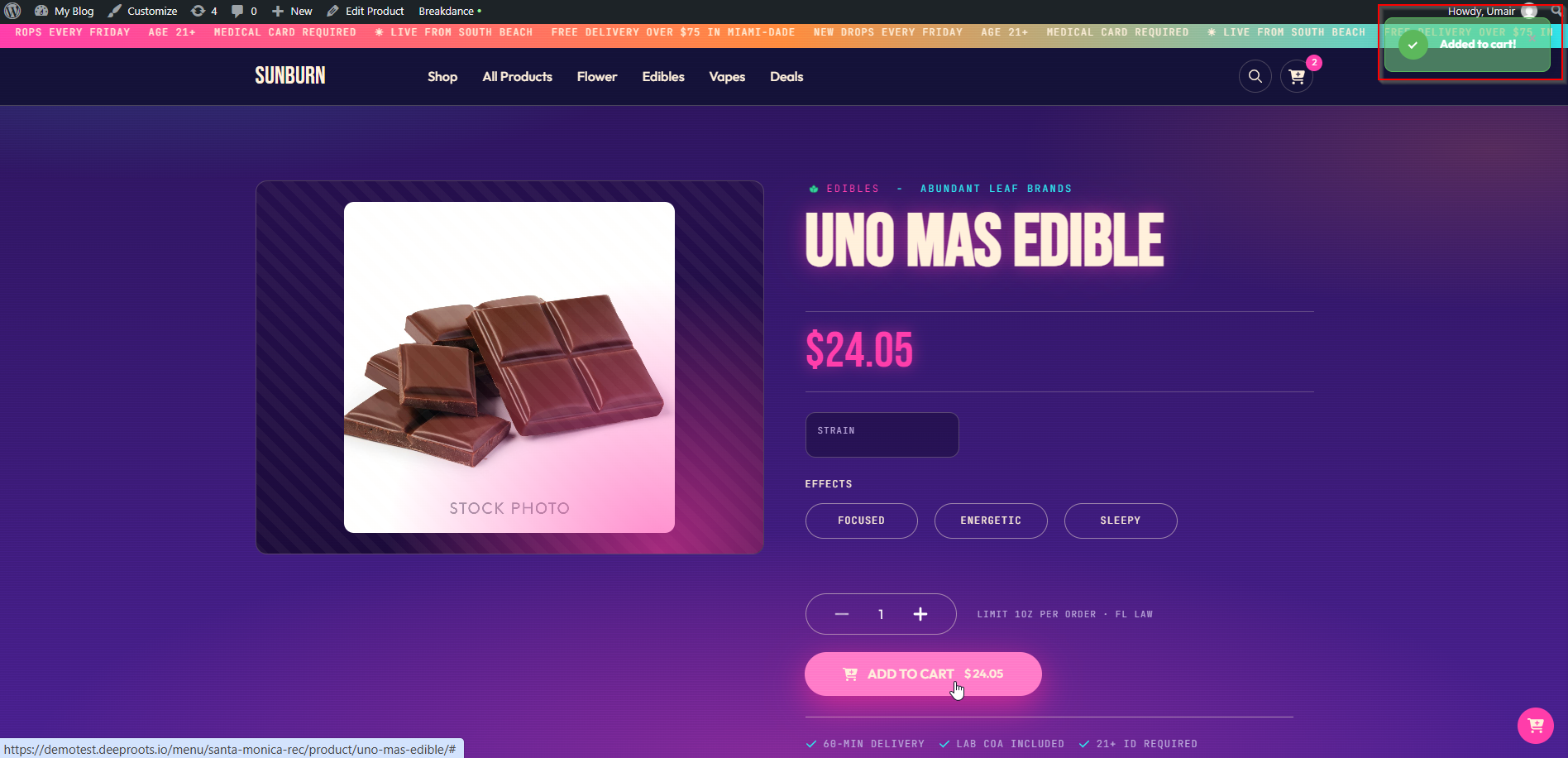
- A toast notification appears confirming the item was added, and dismisses itself.
- The sidebar’s contents refresh.
- An
add_to_cartanalytics event is pushed to the data layer.
One venue per cart
A cart belongs to a single venue, because that is how AIQ Ecommerce works — stock, prices and fulfilment are all per location. On a multi-location site, make it clear which location a visitor is shopping before they start adding items.
How long a cart lasts
A visitor’s cart survives for 30 days by default. It is held in a PHP session, with the cart reference mirrored into a long-lived cookie so the cart can be restored even when the host’s own session cleanup removes the session file early — which is common on shared hosting.
Developers can change the lifetime:
add_filter('dispense_cart_session_lifetime', function () {
    return 7 * DAY_IN_SECONDS;
});
Quantity controls
Inside the sidebar, each line has a quantity control and a remove button. Changing a quantity updates the cart immediately; removing an item pushes a remove_from_cart analytics event.
On a product page, you can offer a quantity selector before the item is added:
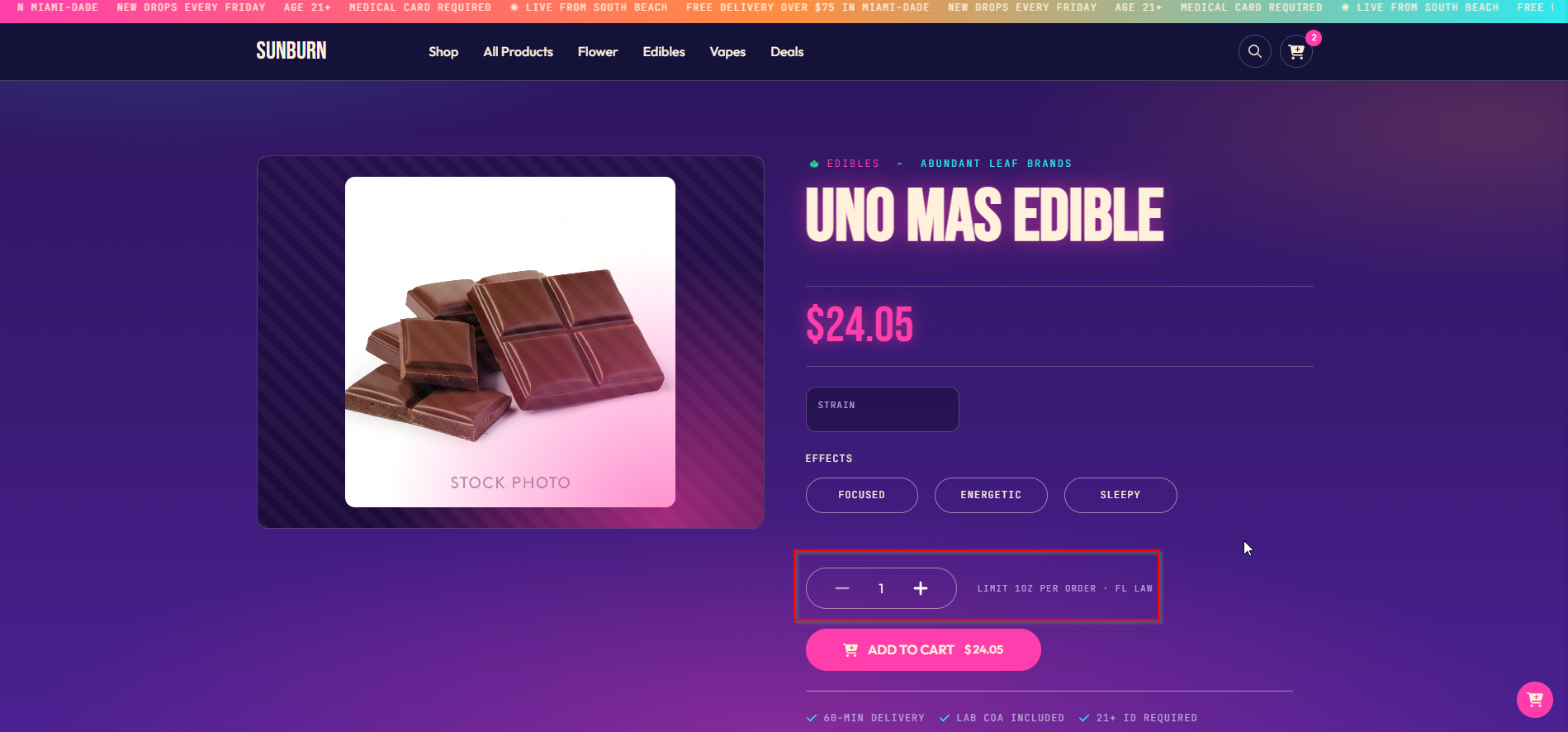
[dispense_product_quantity_buttons]This renders plus and minus buttons that feed the Add to Cart button next to them.
Stock is not enforced in the browser. The available quantity is in dispense_product_quantity — display it, and hide or disable the Add to Cart button when it is zero, if you want to stop out-of-stock purchases before they reach AIQ Ecommerce.
Cart totals
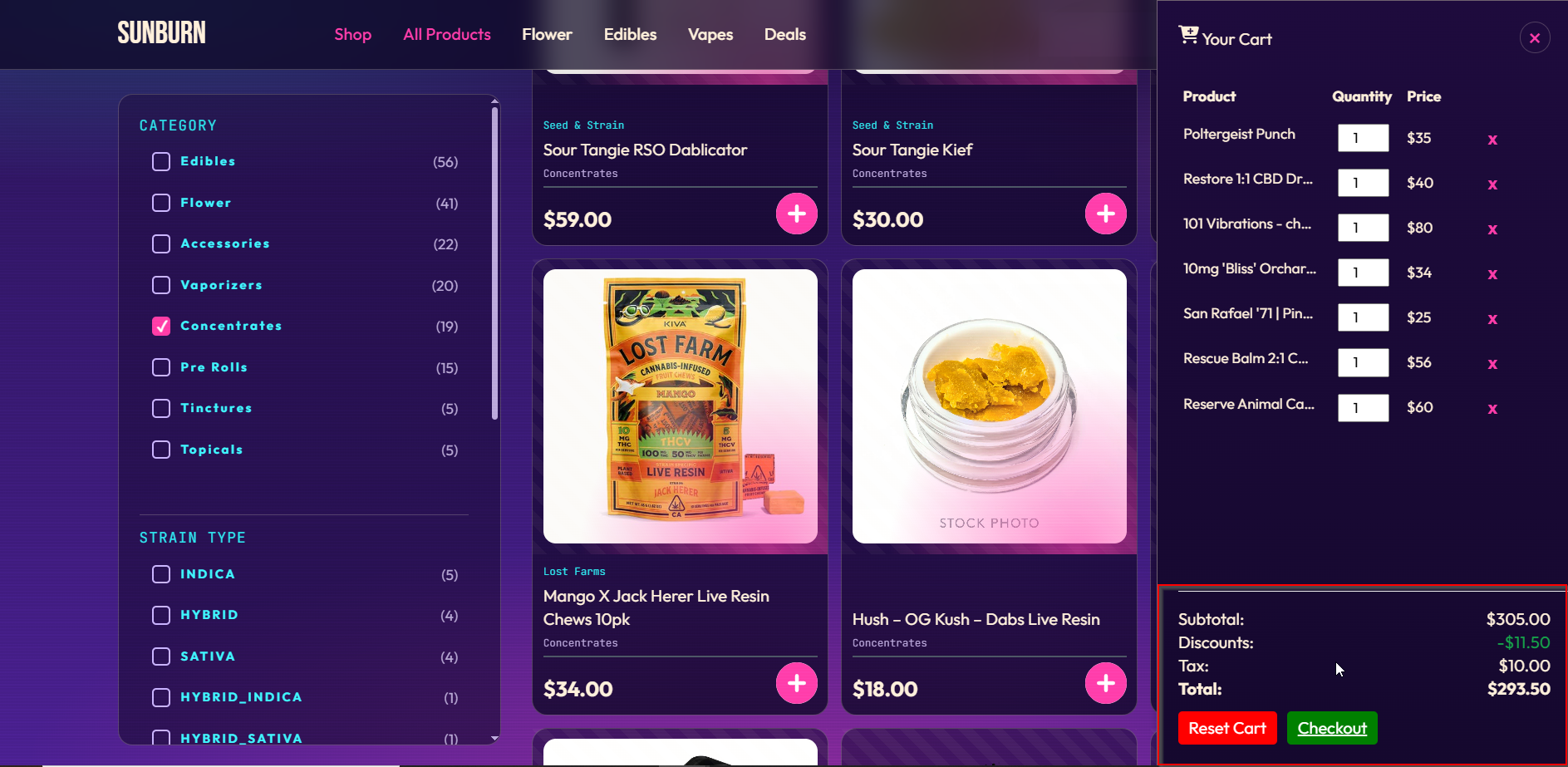
The footer of the sidebar shows:
| Line | When it shows |
|---|---|
| Subtotal | Always |
| Discounts | Only when a discount applies |
| Tax | Only when tax applies |
| Total | Always |
Every figure comes from AIQ Ecommerce, not from arithmetic on your site. Discounts, offers and tax are calculated by AIQ Ecommerce against the real cart, so the totals a customer sees match what they will be charged.
Beneath the totals are two controls:
- Reset Cart — empties the cart. Disabled while the cart is empty.
- Checkout — takes the visitor to your checkout page. See The Checkout Experience.
Styling the cart
Every part of the cart has a class you can target. Add your CSS at AIQ Ecommerce Products → API Settings → Tools & Debug → Custom CSS, or in your theme.
| Class / ID | Element |
|---|---|
.dispense-cart-sidebar |
The sidebar wrapper |
.dispense-cart-header |
Sidebar header |
.dispense-cart-close |
Close button |
.dispense-cart-sidebar-floating-icon |
Floating cart button |
.dispense-cart-container |
Scrollable content area |
.dispense-cart-empty-message |
Empty cart message |
.dispense-cart-table |
The item table |
.dispense-remove-product |
Remove item button |
.dispense-cart-footer |
Footer area |
.dispense-cart-subtotal |
Subtotal line |
.dispense-cart-tax |
Tax line |
.dispense-cart-total |
Total line |
.dispense-cart-buttons |
Button wrapper |
#dispense-reset-cart |
Reset button |
#dispense-checkout-btn |
Checkout button |
.dispense-add-to-cart-btn |
Add to Cart button |
.dispense-cart-icon-wrapper |
Cart icon and badge wrapper |
.dispense-cart-count |
Count badge |
#dispense-cart-toast |
Add-to-cart toast |
More on styling: Styling & Branding.
Caching, and why it matters here
The cart starts a PHP session on every request, which sets a PHPSESSID cookie. Most caching plugins will refuse to cache a response that sets a session cookie — which is safe, but slow.
Configure your cache before you launch:
- Never cache the cart sidebar’s contents, the checkout page, or
admin-ajax.php. - Never cache pages that show live prices and stock without a short expiry.
- Serve the sidebar’s empty shell from cache if you like — its markup is identical for everyone and its contents load separately.
Full guidance: Caching & Site Speed.
Testing your cart
Work through this before going live:
- [ ] The cart icon appears in the header on every page
- [ ] Clicking it opens the sidebar
- [ ] The sidebar is present on every page (check a blog post, not just a product page)
- [ ] Adding a product updates the count and shows the toast
- [ ] The item appears in the sidebar with the right price
- [ ] Changing a quantity updates the totals
- [ ] Removing an item updates the totals
- [ ] Reset Cart empties it
- [ ] The Checkout button opens your checkout page
- [ ] All of the above works in a private browsing window, logged out
- [ ] All of the above works on a phone
- [ ] The cart survives navigating to another page and back
Common problems
The cart icon shows but clicking it does nothing.
[dispense_view_cart] is missing from that page. The icon opens the sidebar; without the sidebar there is nothing to open. Put it in a global template area.
The count badge is stuck at 0.
The count is fetched by JavaScript after the page loads. Check the browser console for errors, check admin-ajax.php is not being blocked by a firewall or cache rule, and check for a JavaScript error from another plugin stopping the script running.
Add to Cart does nothing on my product cards.
The button needs a product ID. On a single product page it finds one automatically; inside a card loop you must pass product_id explicitly.
Adding to cart reports a temporary failure.
The plugin could not reach the licensing service. It reports a temporary failure rather than throwing a fatal error, and works again once the connection recovers. Check Test Connection on the Tools & Debug tab.
The cart empties itself between pages.
The session is not persisting. Check that cookies are not being stripped by a cache or CDN, and that your host is not blocking PHP sessions. The plugin mirrors the cart reference into a long-lived cookie specifically to survive aggressive session cleanup, so if it is still emptying, something is removing cookies.
My caching plugin stopped caching anything.
The session cookie. Configure the cache to ignore it where safe, and exclude cart, checkout and product pages.
Cart shortcodes output nothing at all.
You are in Sync only mode. Administrators see an amber notice explaining it; visitors see nothing.