
Where product data comes from
Every product on your website starts life in AIQ Ecommerce. The plugin does not let you create products;
It imports them.
The path a product takes:
AIQ Ecommerce --> Licensing service --> Your WordPress site --> dispense_product postFor each product, the sync brings across:
| AIQ Ecommerce data | Where it lands in WordPress |
|---|---|
| Product name | Post title |
| Description | Post content |
| Price | dispense_product_price |
| Sale price / percentage discounts | dispense_product_sale_price |
| Stock quantity | dispense_product_quantity |
| Image | dispense_product_image_url |
| Product URL on your hosted menu | dispense_product_menu_link |
| Applied offers | dispense_product_offer and the Offer taxonomy |
| Brand | Brand taxonomy |
| Category | Category taxonomy |
| Cannabis type | Cannabis Type taxonomy |
| Lab terpene results | Terpenes taxonomy |
| Venue | Venue taxonomy and the dispense_venue_id field |
The sync runs one venue at a time, fetching products 100 at a time, with short pauses between pages so neither your server nor the API is hammered.
What the sync will and will not create
Two rules decide whether a product appears on your site at all:
- Disabled products are removed. If a product is switched off in AIQ Ecommerce, any post for it on your site is deleted on the next sync, and no new post is created.
- A new product needs a menu URL. The plugin will not create a new post for a product that has no product URL on your hosted AIQ Ecommerce menu. Products already on your site keep updating either way.
If a product is live in AIQ Ecommerce but never appears on your site, this is nearly always why — check that it is enabled and visible on your hosted menu.
Automatic sync schedules
The plugin schedules a recurring job that syncs on its own. Choose the frequency at AIQ Ecommerce Products → API Settings → General → Sync Interval:
| Option | Suits |
|---|---|
| Every 5 Minutes | Fast-moving stock, single busy location, strong hosting |
| Every 10 Minutes | Busy stores |
| Every 15 Minutes | Busy stores |
| Every 30 Minutes (default) | Most stores — the recommended starting point |
| Hourly | Large catalogues, or stock that moves slowly |
| Twice Daily | Display-only sites |
| Daily | Display-only sites, or very large catalogues |
| Weekly | Rarely appropriate |
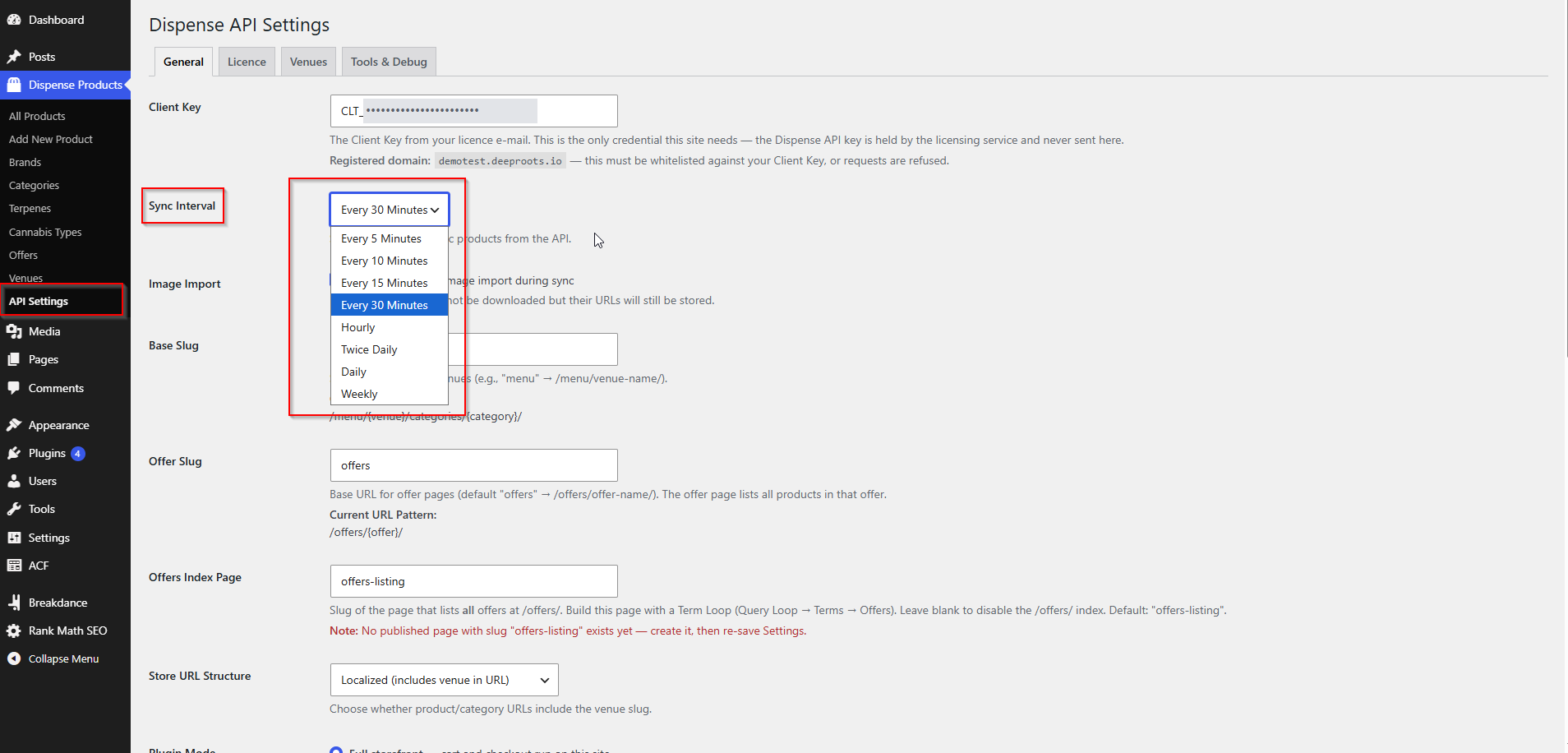
Changing the interval reschedules the job immediately — you do not need to deactivate anything.
Choosing an interval sensibly
Faster is not automatically better. Each sync is a full pass over your catalogue, so a five-minute interval on a 3,000-product catalogue means your server is more or less permanently syncing.
A good rule: the interval should be comfortably longer than a sync takes to run. Check the Duration on the Sync Status panel. If a sync takes eight minutes, do not set a five-minute interval.
Why a sync might not run on time
WordPress’s scheduler (WP-Cron) only fires when someone visits your site. On a quiet site, syncs run late. If freshness matters, ask your host to disable WP-Cron and run a real server cron instead — see Caching & Site Speed.
Running a sync manually
When you have just changed something in AIQ Ecommerce and want it live now:
- Go to AIQ Ecommerce Products → API Settings → Tools & Debug.
- Under Manual Sync, click Sync Products Now.
The sync is queued as a background job rather than run in your browser, so you can navigate away.
The settings page reloads after ten seconds so you can watch the status.
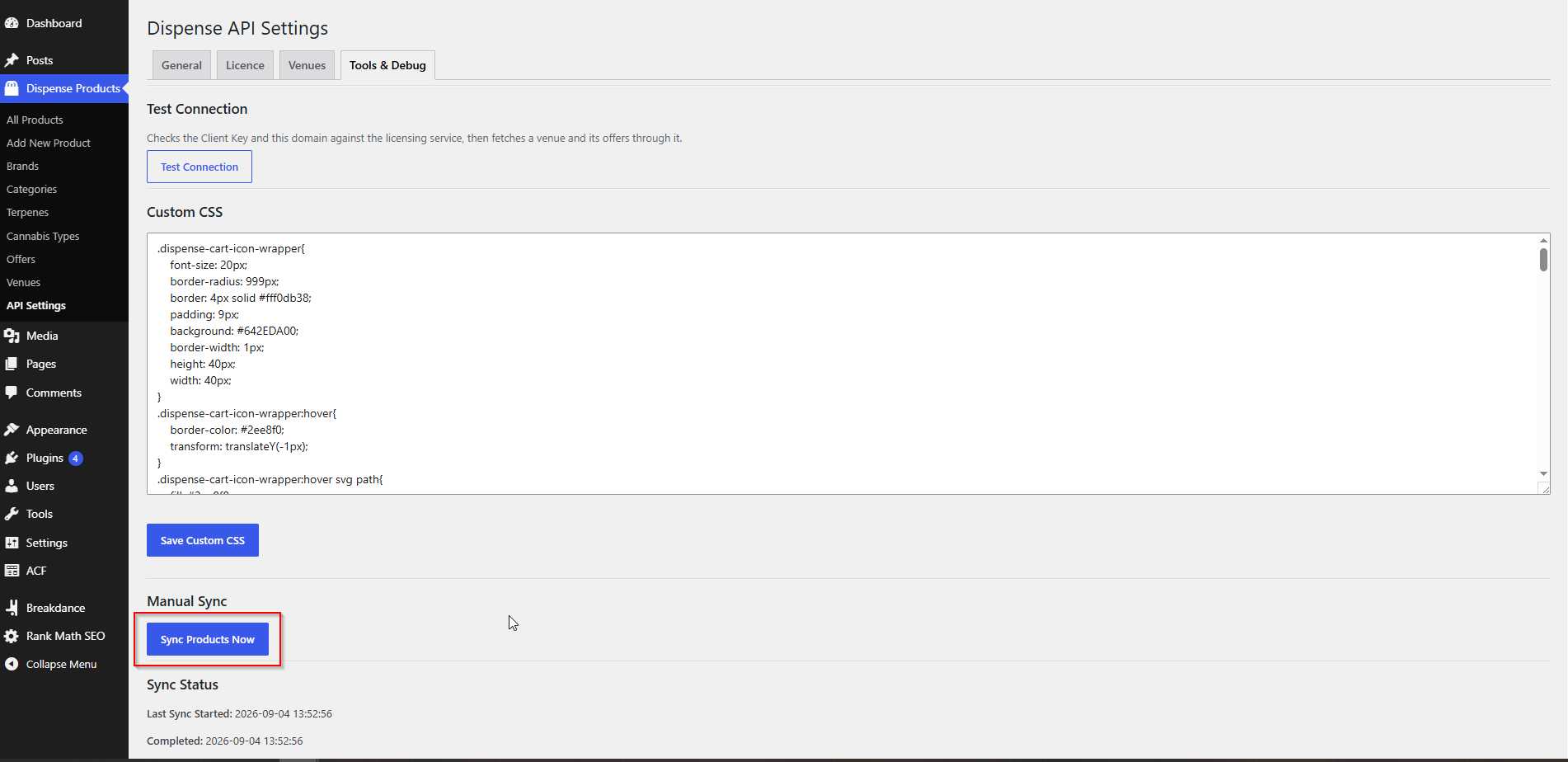
If no Client Key is stored, the Manual Sync section shows a warning instead of the button:
Re-syncing a single product
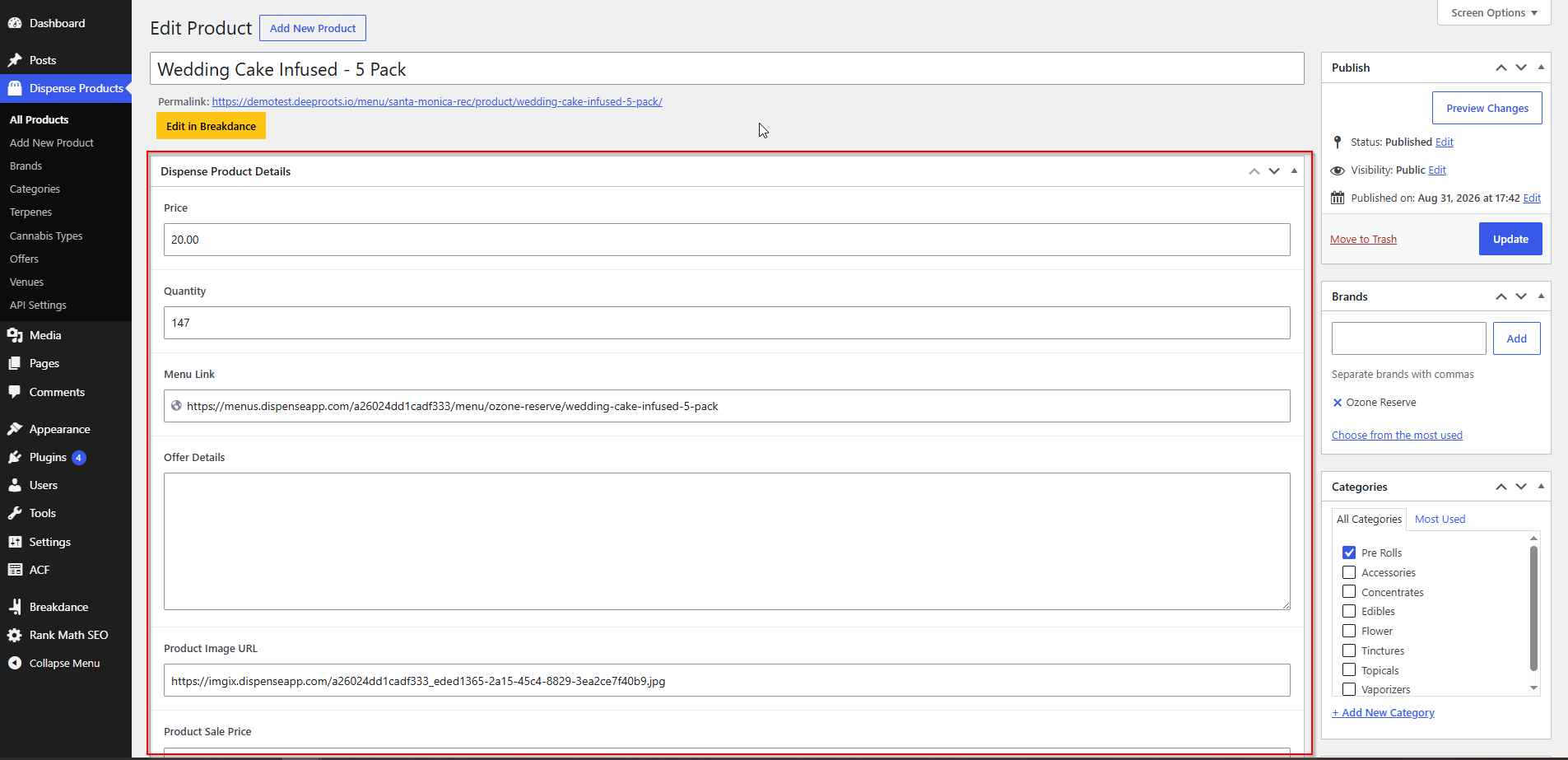
You do not always need a full sync. On an individual product’s edit screen there is a control to re-fetch just that product from AIQ Ecommerce — useful when you have corrected one price and do not want to wait for the next scheduled run.
Product image settings
Product images are not downloaded into your media library. The plugin stores each product’s image URL in dispense_product_image_url and your templates serve the picture directly from AIQ Ecommerce.
That means:
- Images cost you no disk space and no sync time.
- If an image changes in AIQ Ecommerce, it changes on your site as soon as the URL is re-read — often immediately, since the URL usually stays the same.
- Your product templates must output
dispense_product_image_url. Every page builder integration exposes it; the built-in listing shortcodes use it automatically.
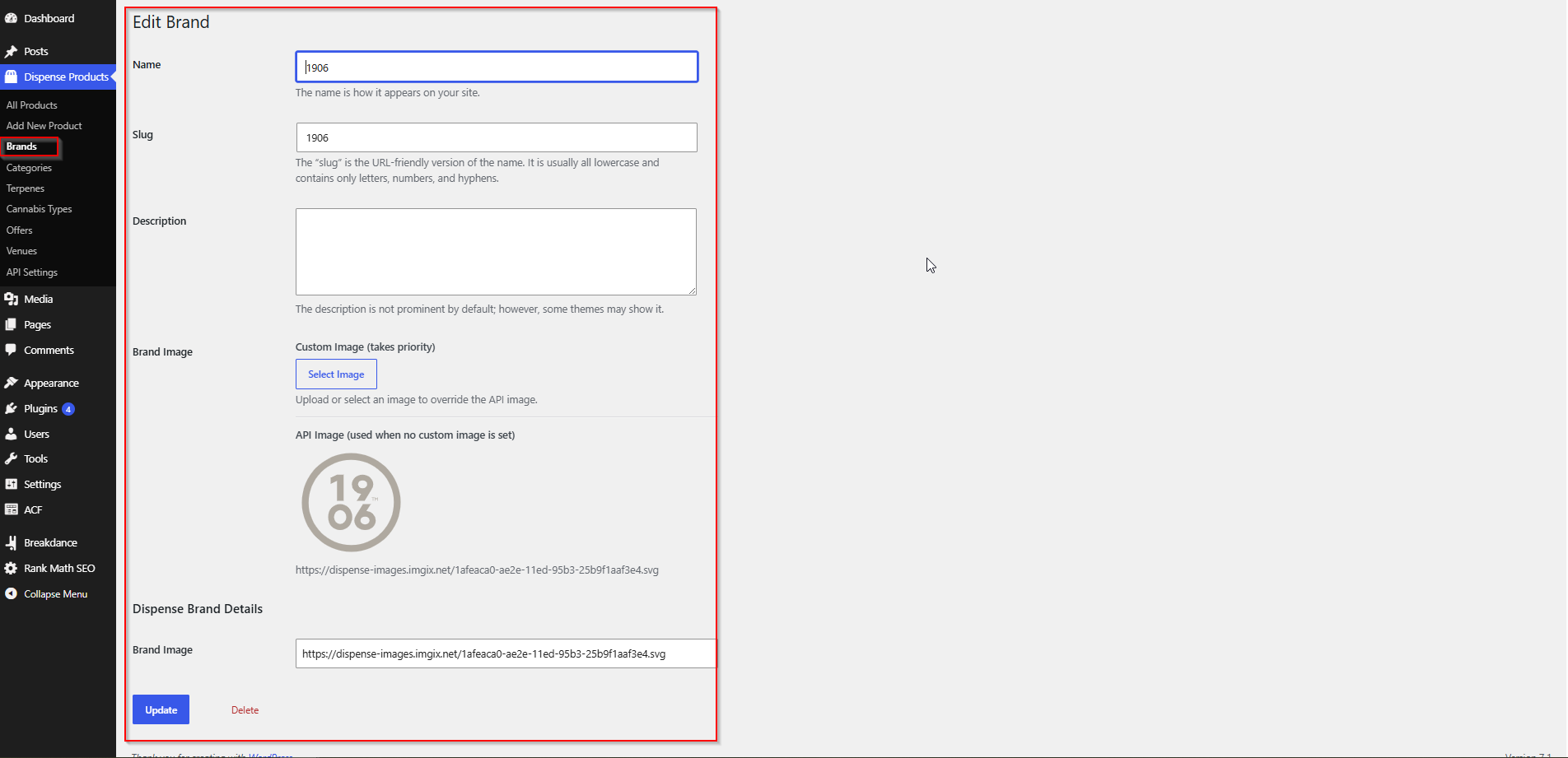
Brand logos work slightly differently: the brand logo URL comes from AIQ Ecommerce, but you can override it by uploading your own image on the brand term. A manual upload always wins, and later syncs will not overwrite it.
What happens to discontinued products
At the end of every successful sync, the plugin compares what AIQ Ecommerce returned against what is on your site, and removes products that are no longer there.
A product is deleted from your site when:
- It is no longer returned by AIQ Ecommerce for a venue you sync, or
- It is returned but marked disabled, or
- You untick its venue on the Venues tab.
Three safeguards keep this from doing damage:
- Only products from venues you currently sync are considered. Products from other venues are left alone entirely.
- A failed sync deletes nothing. If the licensing service cannot be reached, or a venue’s request fails, the sync stops and the cleanup does not run. Your catalogue stays as it was.
- The cleanup is time-limited. It stops after about 200 seconds rather than risking a timeout mid-way. Anything not reached is picked up on the next run.
Offers get the same treatment: offers that are disabled or deleted in AIQ Ecommerce are removed from products automatically. That pruning only happens when every venue’s offers were fetched successfully, so a transient error on one venue cannot strip valid offers from its products.
Deletions are permanent — products are removed, not moved to the trash. If a product comes back in AIQ Ecommerce, the next sync recreates it, but any manual edits you had made to it are gone.
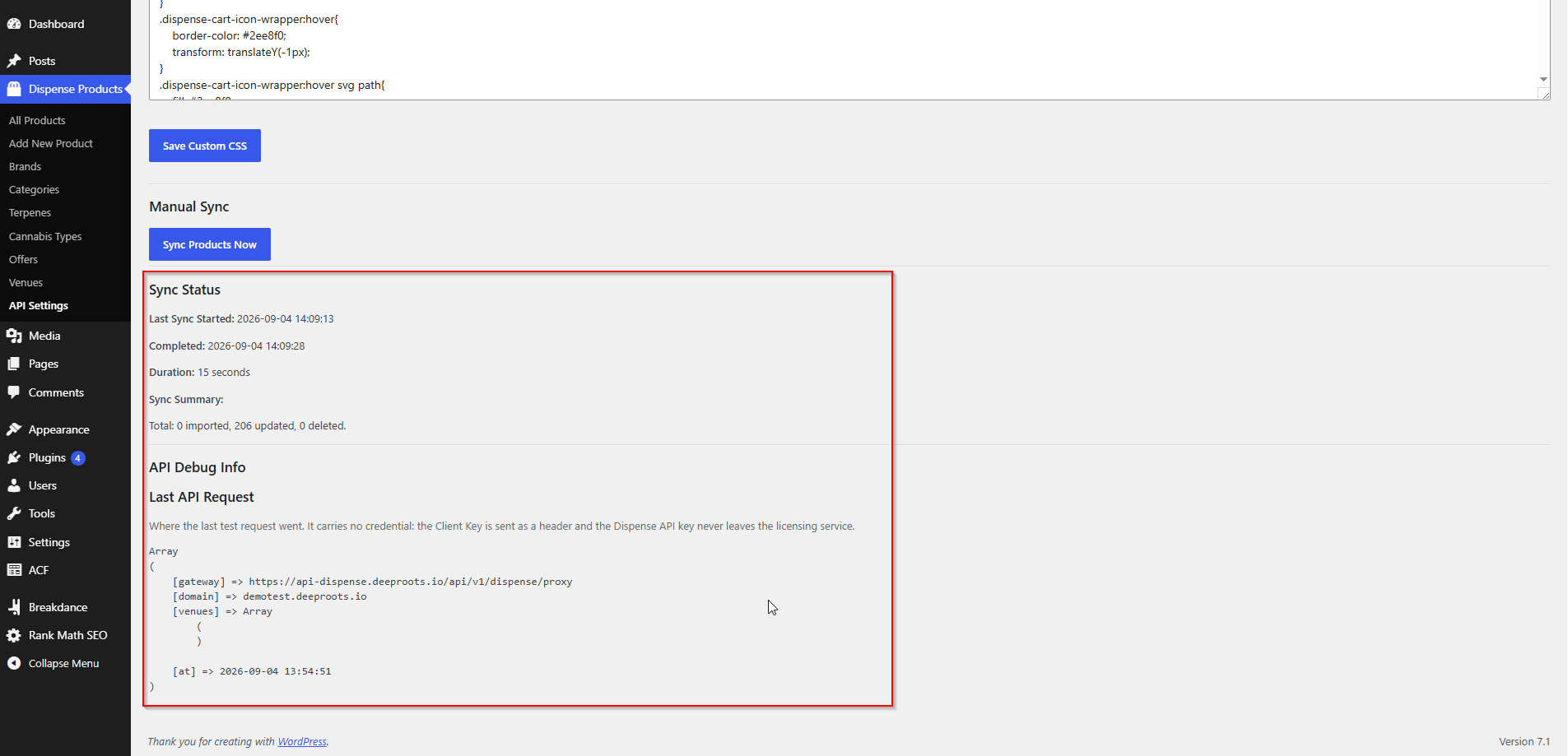
Reading the sync status panel
AIQ Ecommerce Products → API Settings → Tools & Debug → Sync Status
| What you see | What it means |
|---|---|
| No sync has been run yet. | The plugin has never synced on this site. |
| Status: Sync in progress... | A sync started and has not finished. If this persists for more than about 30 minutes, see below. |
| Last Sync Started / Completed / Duration | The timing of the last completed run. |
| Sync Summary — Total: X imported, Y updated, Z deleted | The result of the last run. |
| A red message in place of the summary | The sync failed. Nothing was deleted. |
What the numbers mean
- Imported — products created on your site for the first time.
- Updated — products that already existed and were refreshed.
- Deleted — products removed because they are gone or disabled in AIQ Ecommerce.
On a healthy, settled site a routine sync looks like 0 imported, 412 updated, 0 deleted. A large unexpected deleted count is worth investigating before the next run — check the Venues tab first, since an accidentally unticked venue is the usual cause.
"Sync in progress" that never finishes
This almost always means the background job was scheduled but never fired, because WP-Cron needs a visitor to trigger it. Open your site’s front end in another tab. If the problem repeats, set up a real server cron.
Common problems
Prices on the site are out of date, but the sync says it succeeded.
The data is right in WordPress and wrong in the visitor’s browser — that is caching, not syncing.
See Caching & Site Speed.
A product is live in AIQ Ecommerce but never appears on my site.
Check it is enabled, and that it has a product page on your hosted AIQ Ecommerce menu. New products without a menu URL are skipped.
The deleted count jumped and products vanished.
Check the Venues tab — an unticked venue deletes its products. If the venues are right, the products were removed or disabled in AIQ Ecommerce.
Sync takes longer than my sync interval.
Lengthen the interval. Overlapping syncs waste resources and can time out.
Syncing stopped completely and there is a red notice in the admin.
That is a licence or connection problem, not a sync problem. Look the message up in Error Messages Explained. Your published products stay online throughout.